Smacient is listed in Anthropic's Connector directory. Search for it directly inside Claude and connect in one click.
Find Smacient in Claude AIUsing the Claude Desktop app? Open Settings → Connectors and search "Smacient" there instead.
Add this URL as an MCP server in Claude Code. Requires a paid Claude plan (Pro, Max, Team, or Enterprise).
https://claude.smacient.com/mcp
Get Claude connected in 2 minutes
You have free credits ready to use - once connected, you can ask Claude to pull live data from any connected platform.
We're listed in Anthropic's official Connector directory. In Claude, go to Settings → Connectors, search "Smacient", and click Connect. Sign in with your Smacient account (email/password or Google) or create one on the spot, and you're done in seconds.
Here is exactly what it looks like in Claude Desktop, step by step.
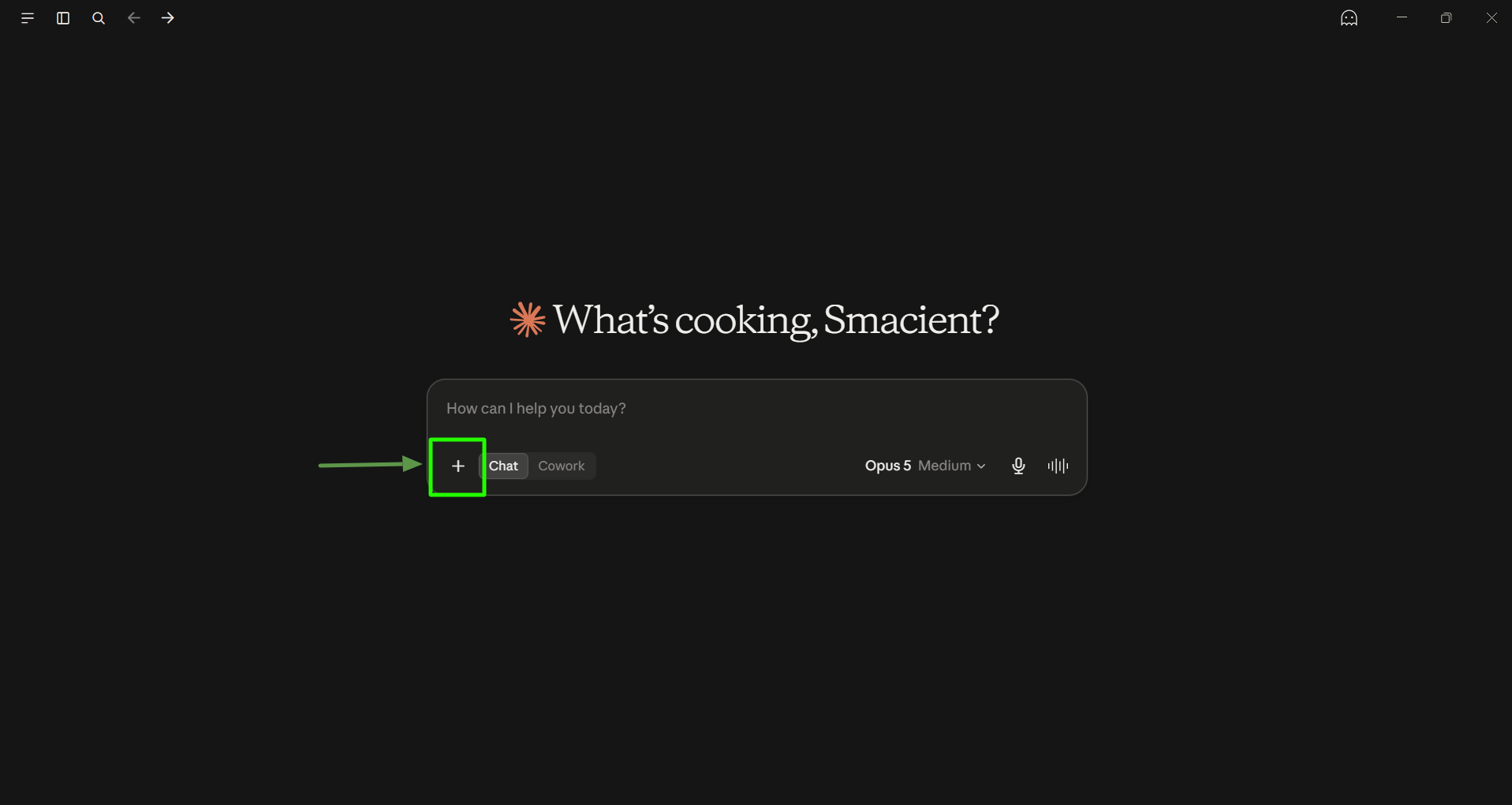 Click to zoom
Click the + button in the Claude Desktop prompt area.
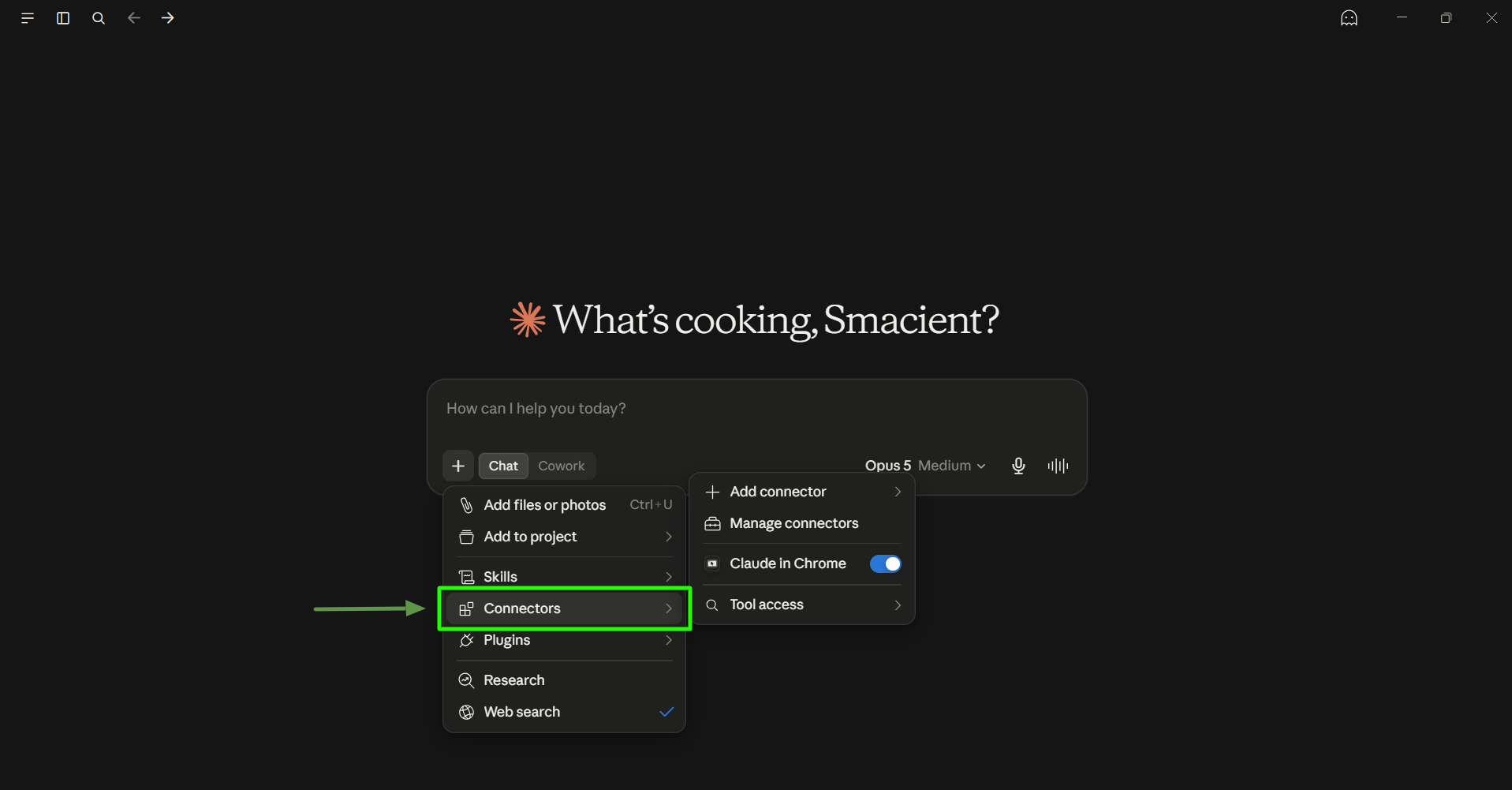 Click to zoom
From the menu, select Connectors.
 Click to zoom
Select Add connector, then choose Browse connectors.
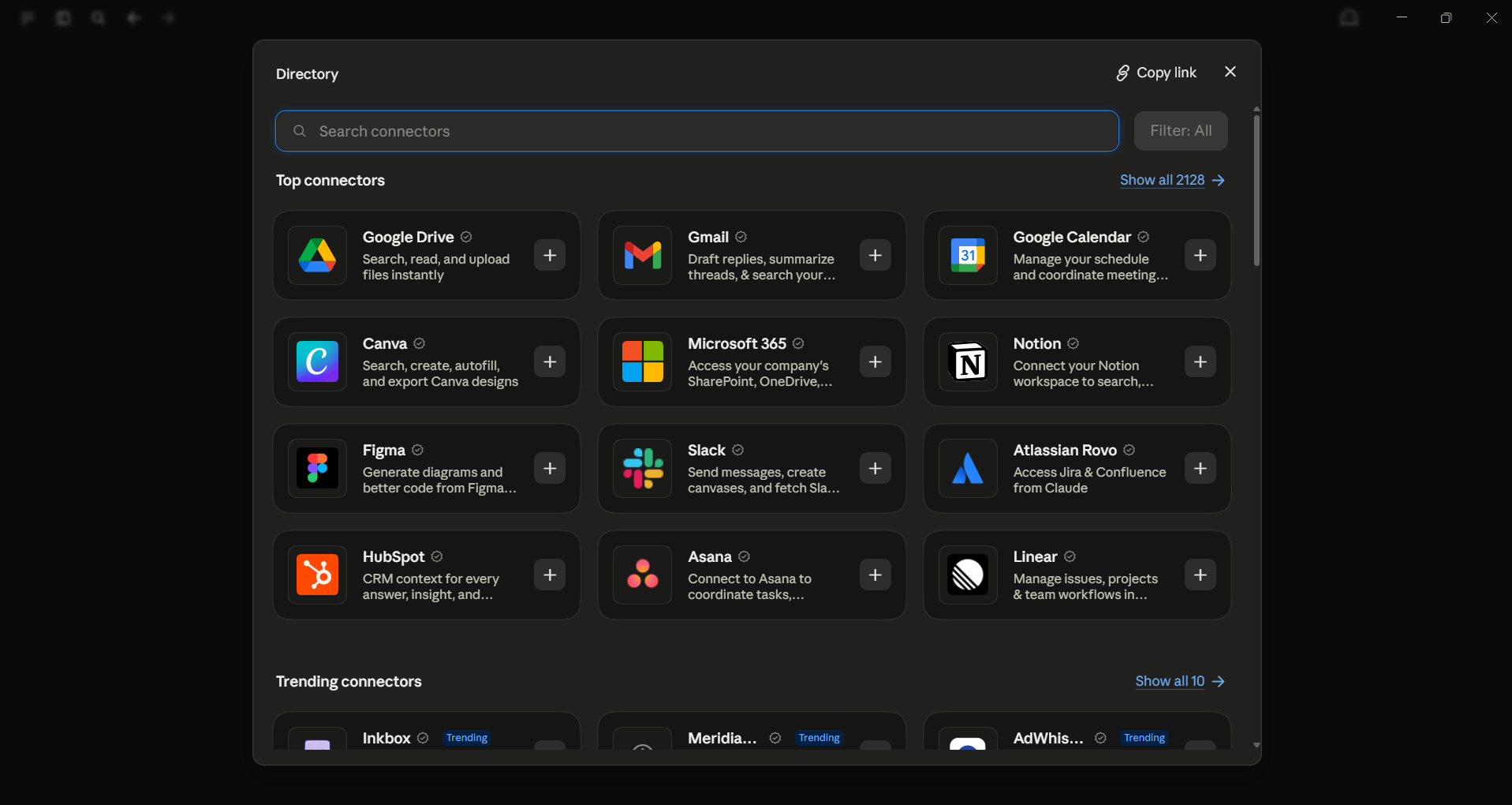 Click to zoom
In the connector directory, search for "Smacient".
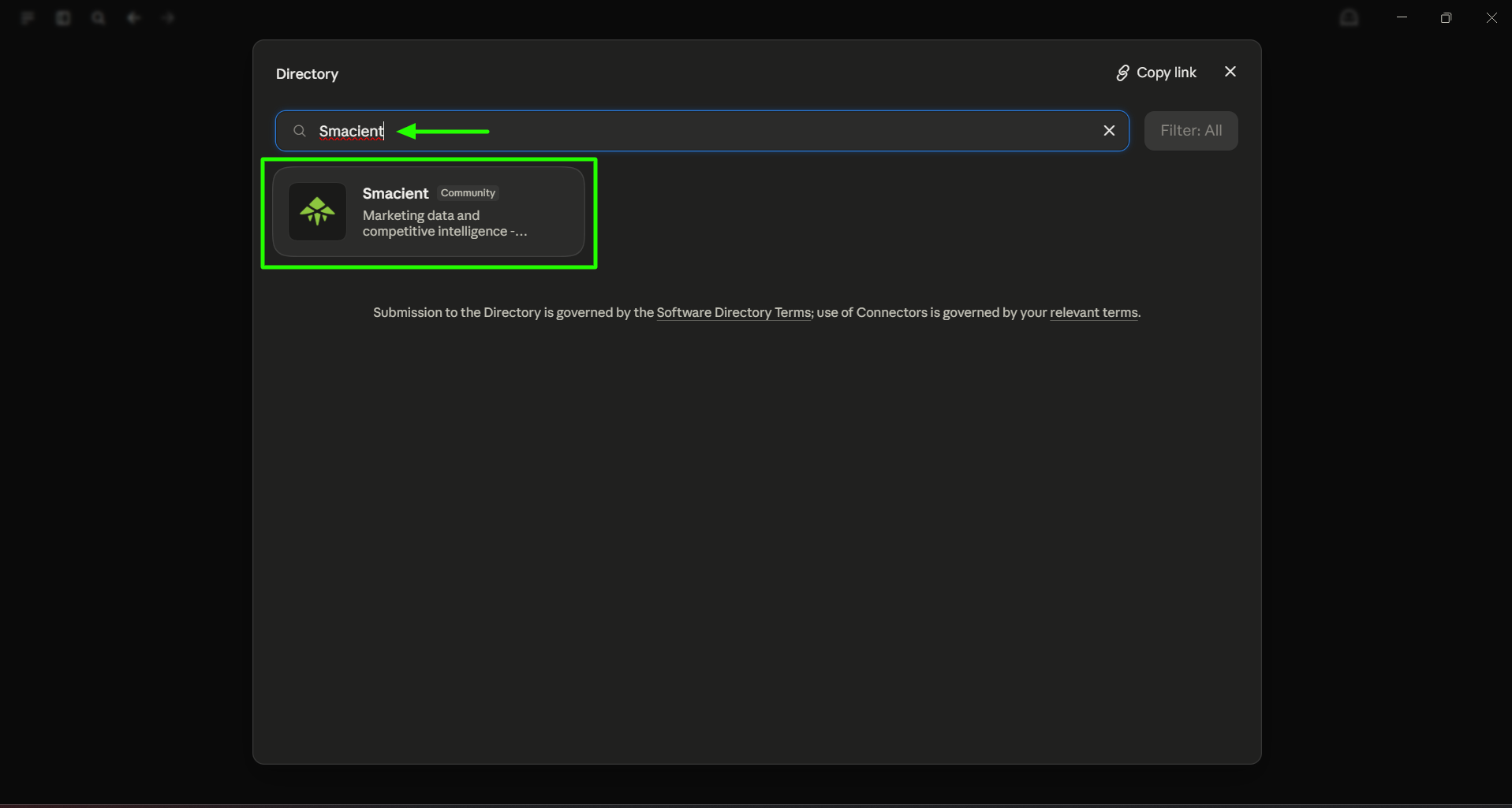 Click to zoom
Click the Smacient connector from the search results to open its connector page.
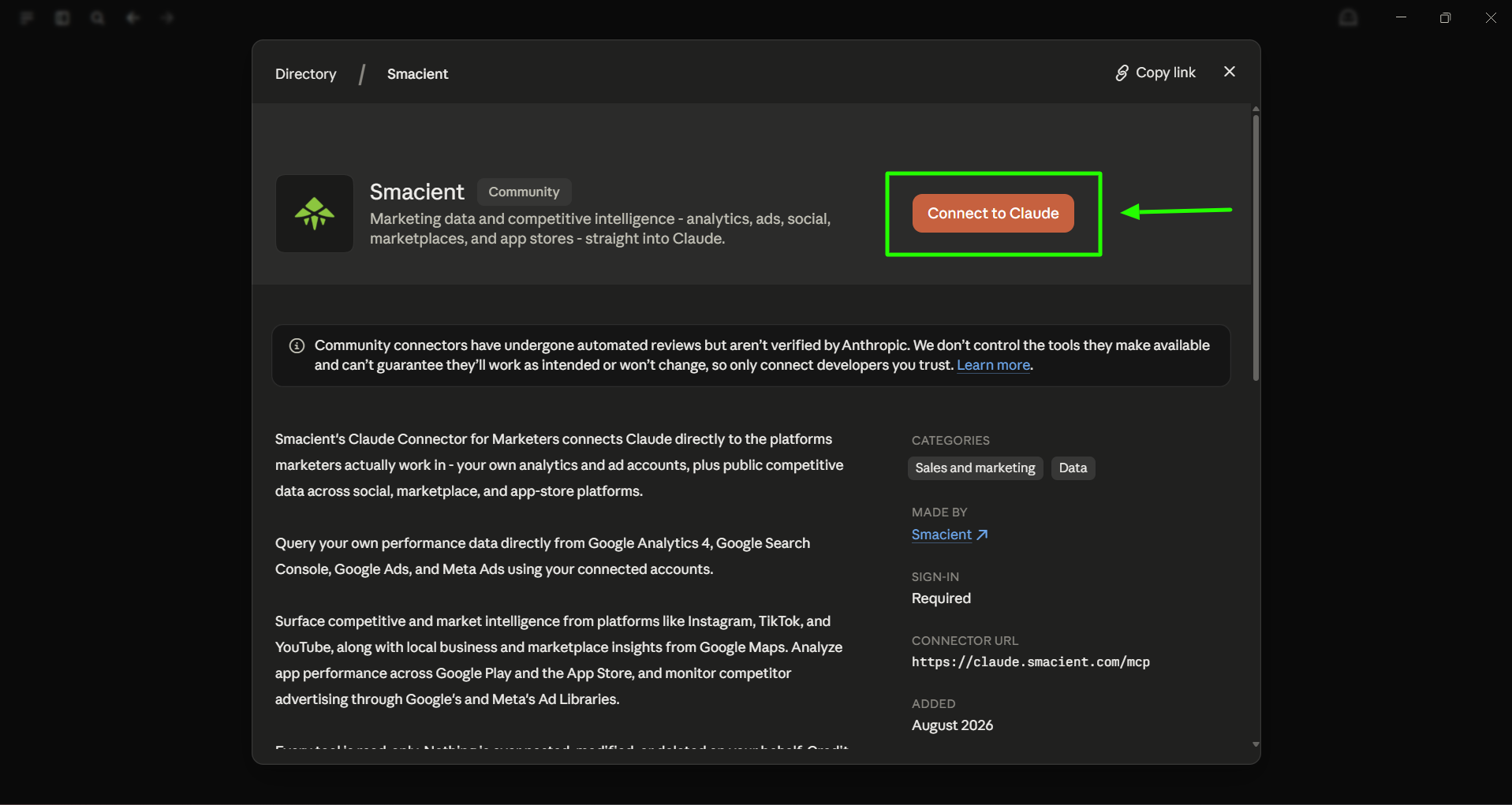 Click to zoom
On the Smacient connector page, click Connect to Claude.
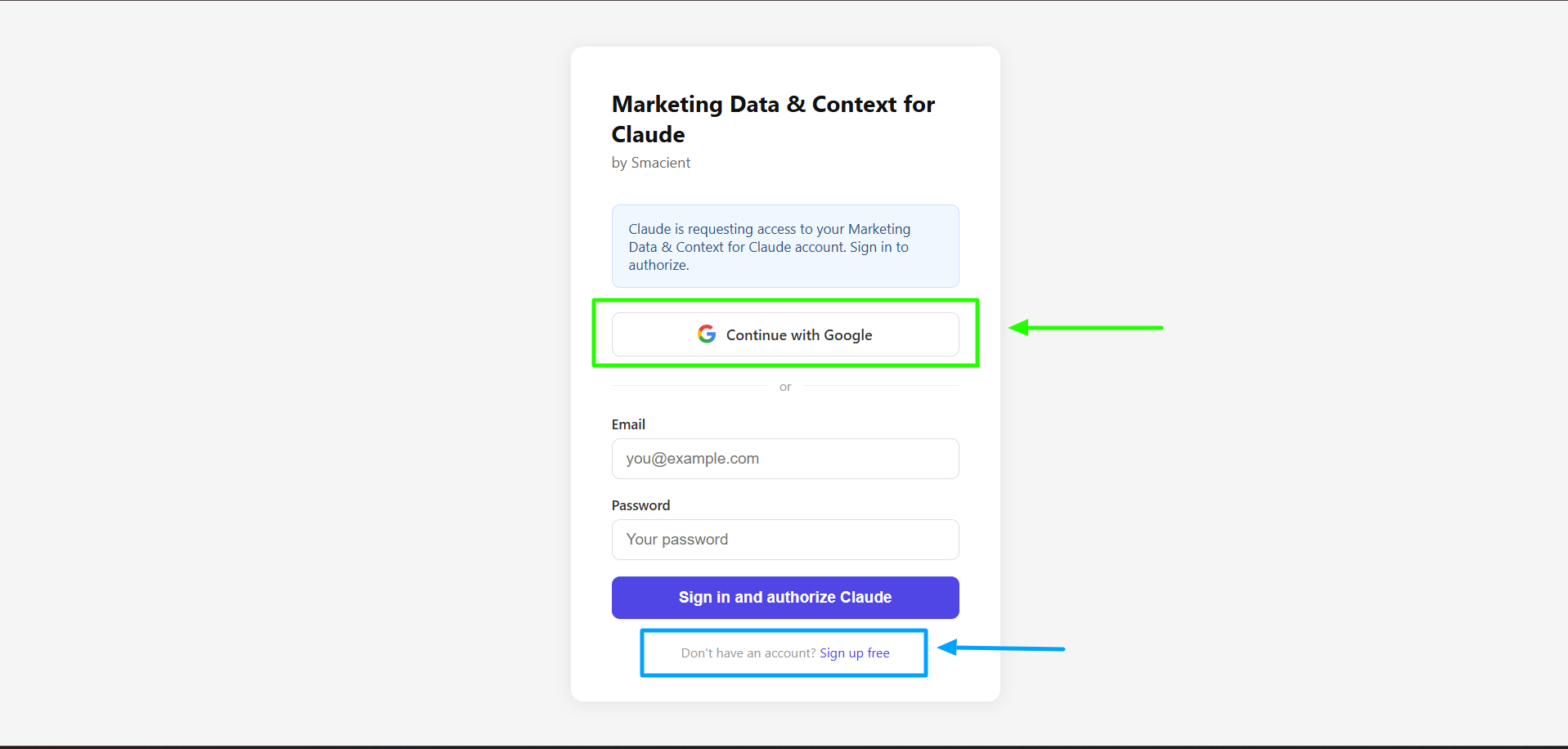 Click to zoom
Sign in to authorise the connection. Click Continue with Google, or enter your email and password and click Sign in and authorize Claude. New here? Click Sign up free to create an account.
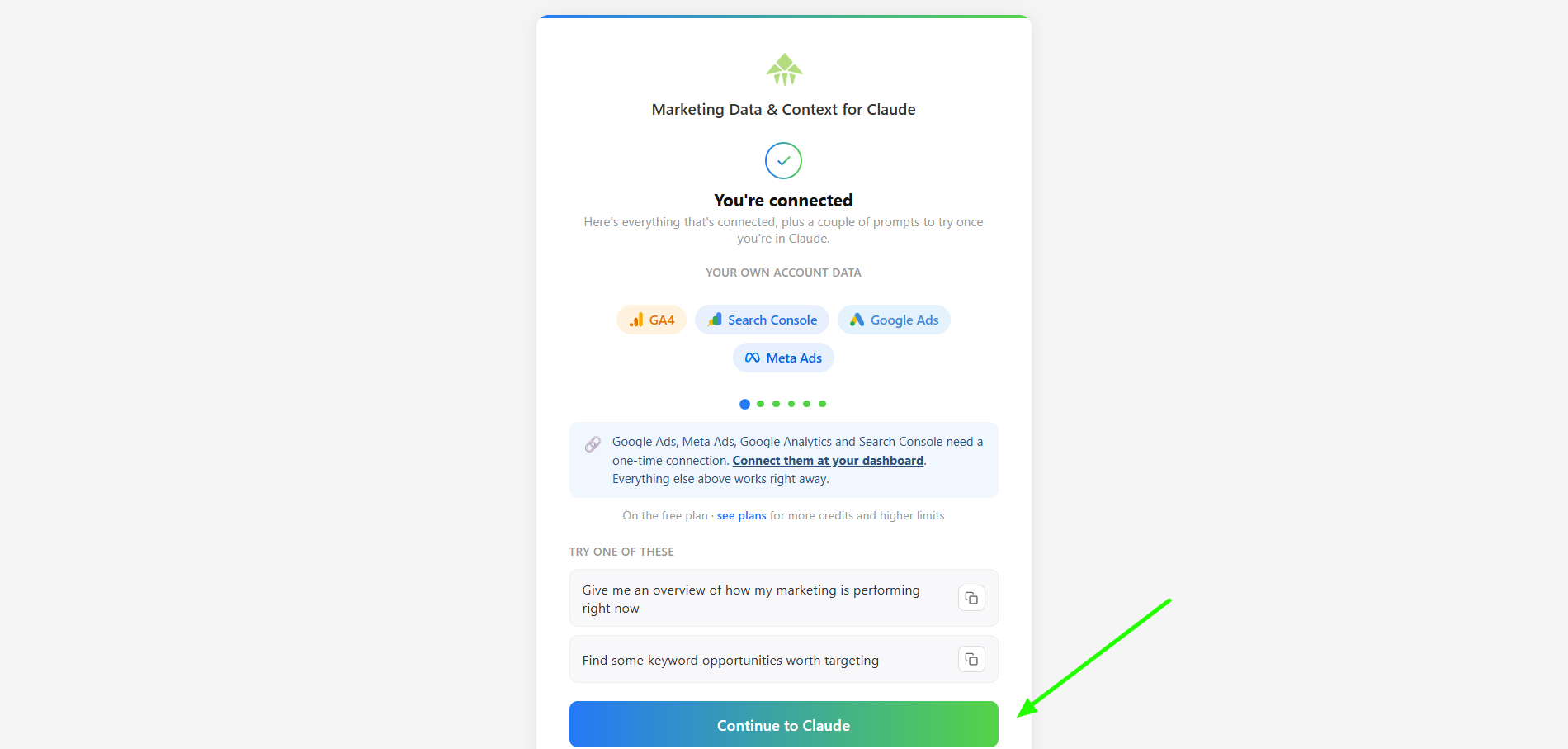 Click to zoom
Once authorised, you will see a You're connected confirmation. Review the available data sources, then click Continue to Claude.
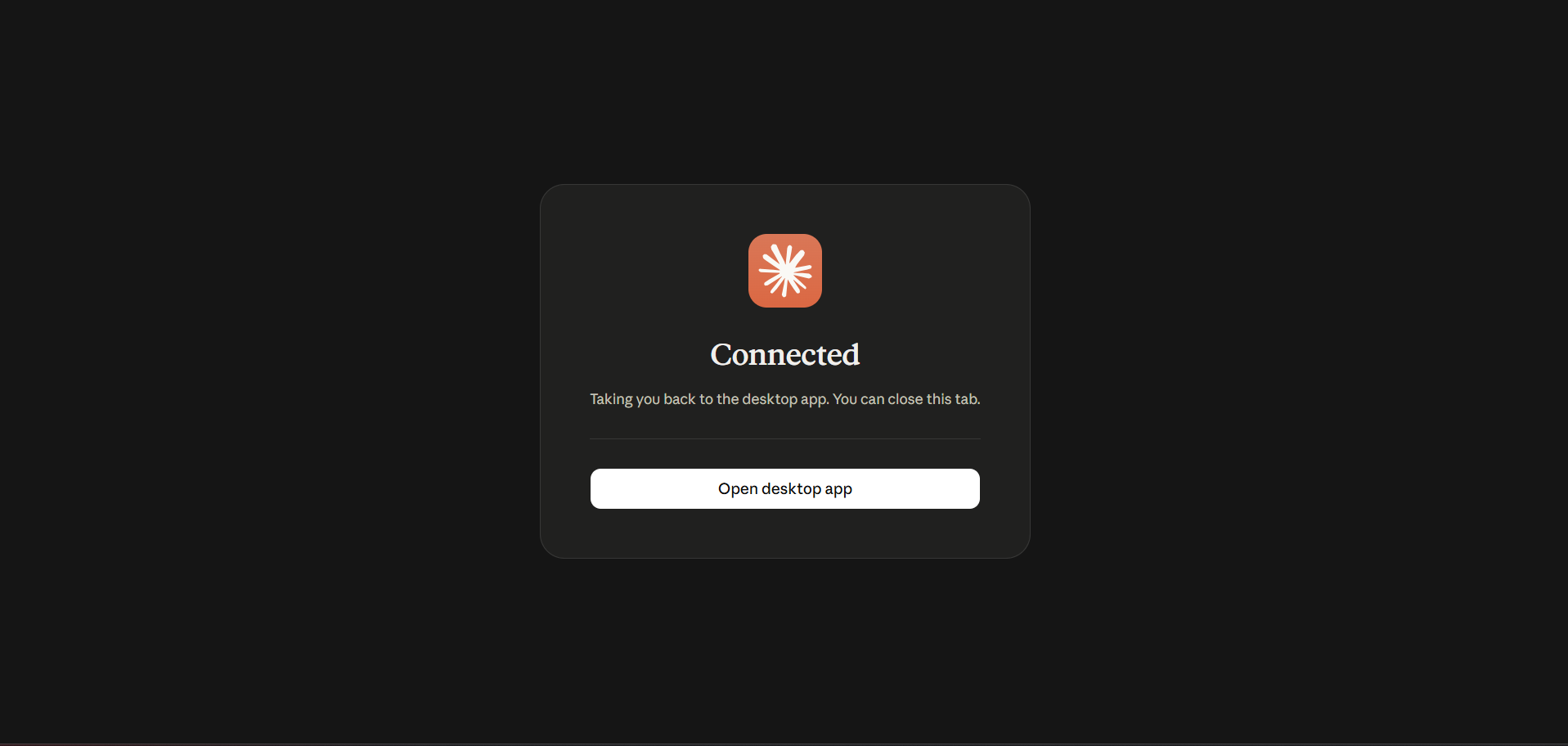 Click to zoom
 Click to zoom
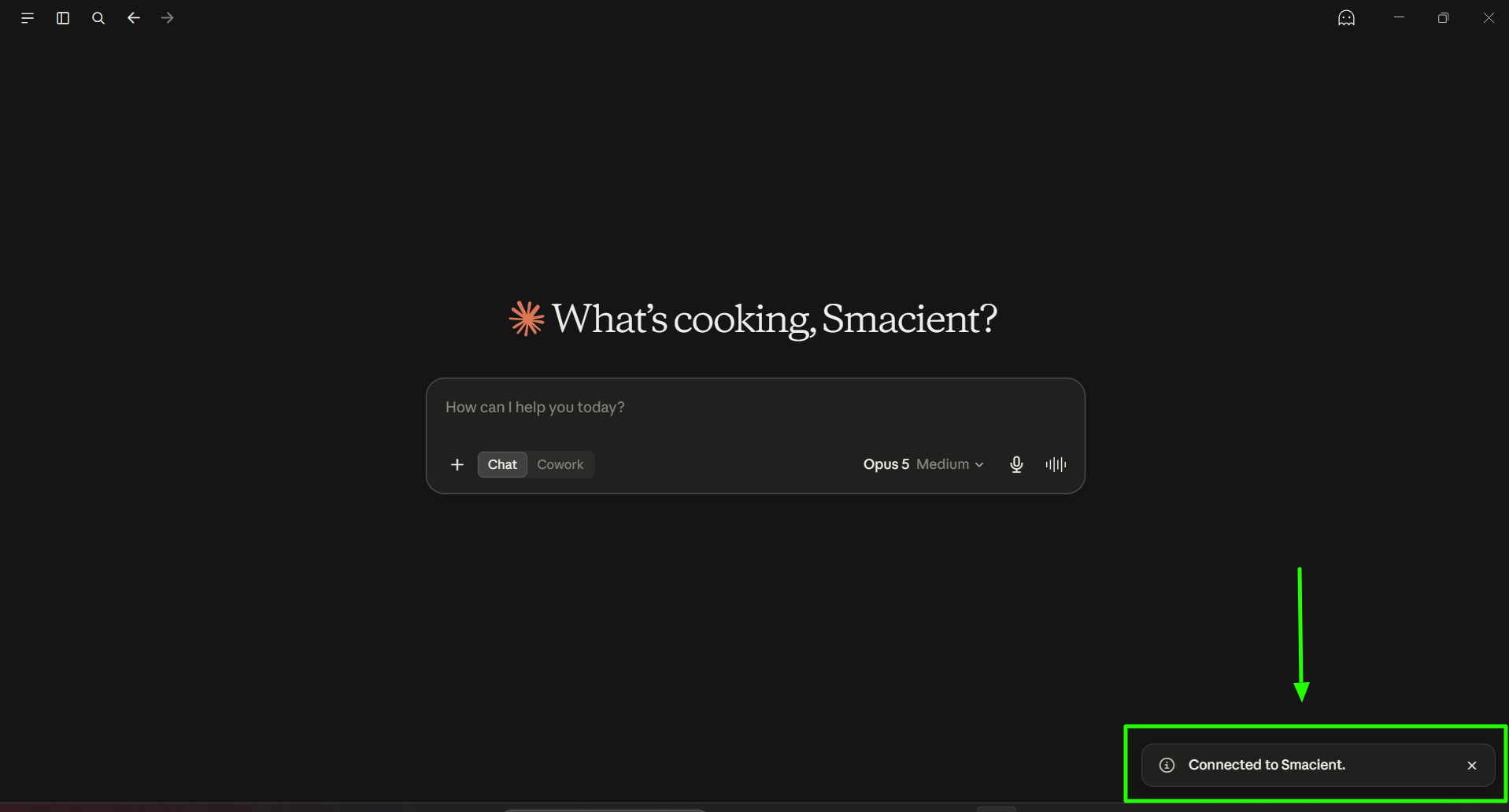
You will see a Connected confirmation in your browser, while Claude Desktop shows a Connected to Smacient notification at the same time. Close the browser tab and return to Claude Desktop.
 Click to zoom
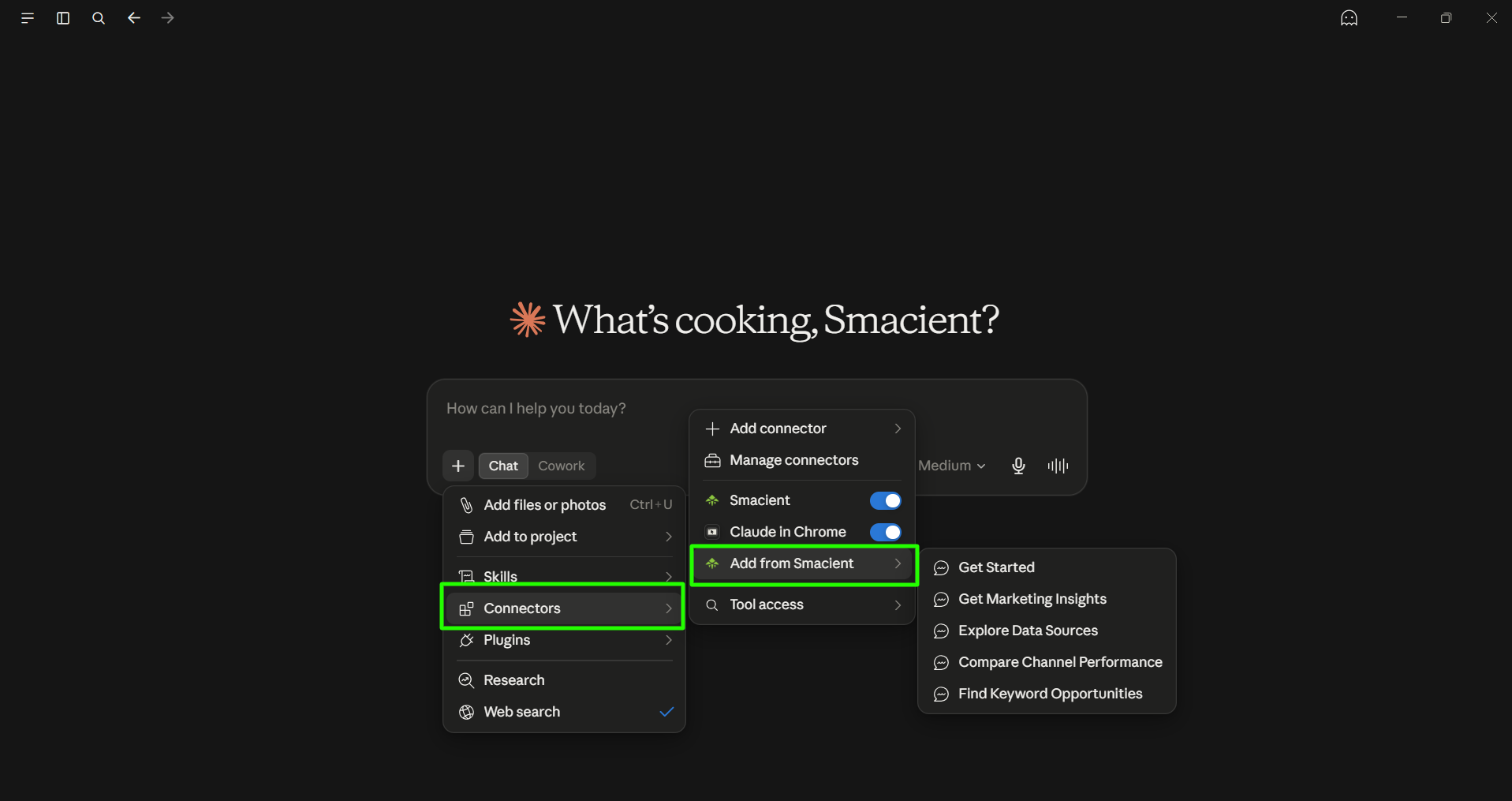
Open + → Connectors → Add from Smacient to access ready-to-use prompts: Get Started, Get Marketing Insights, Explore Data Sources, Compare Channel Performance, and Find Keyword Opportunities. Click any prompt to add it to the chat box, then send it.
Need more detail? Read the full setup guide →
Available tools
Connect your accounts to unlock analytics and ads tools in Claude. GA4, Search Console, Google Ads, and Meta Ads tools are free to use.
Buy credits
Credits never expire.
Usage history
| Date | Tool | Platform | Credits used | Results |
|---|---|---|---|---|
| Loading usage history... | ||||