If you’re an SEO professional or marketer, you already know how valuable Google Keyword Planner data is: search volumes, competition levels, bid estimates, and seasonal trends. The problem has never been the data itself. The problem is the workflow.
You open Google Keyword Planner, run your research, export a CSV, clean up the formatting, copy the relevant rows, paste them into Claude, write your prompt, get your analysis, and then realise you need fresher data or a different keyword set. So you start again from the top.
This loop is broken. It was designed for a world where AI assistants and live data sources didn’t talk to each other. That world no longer exists.
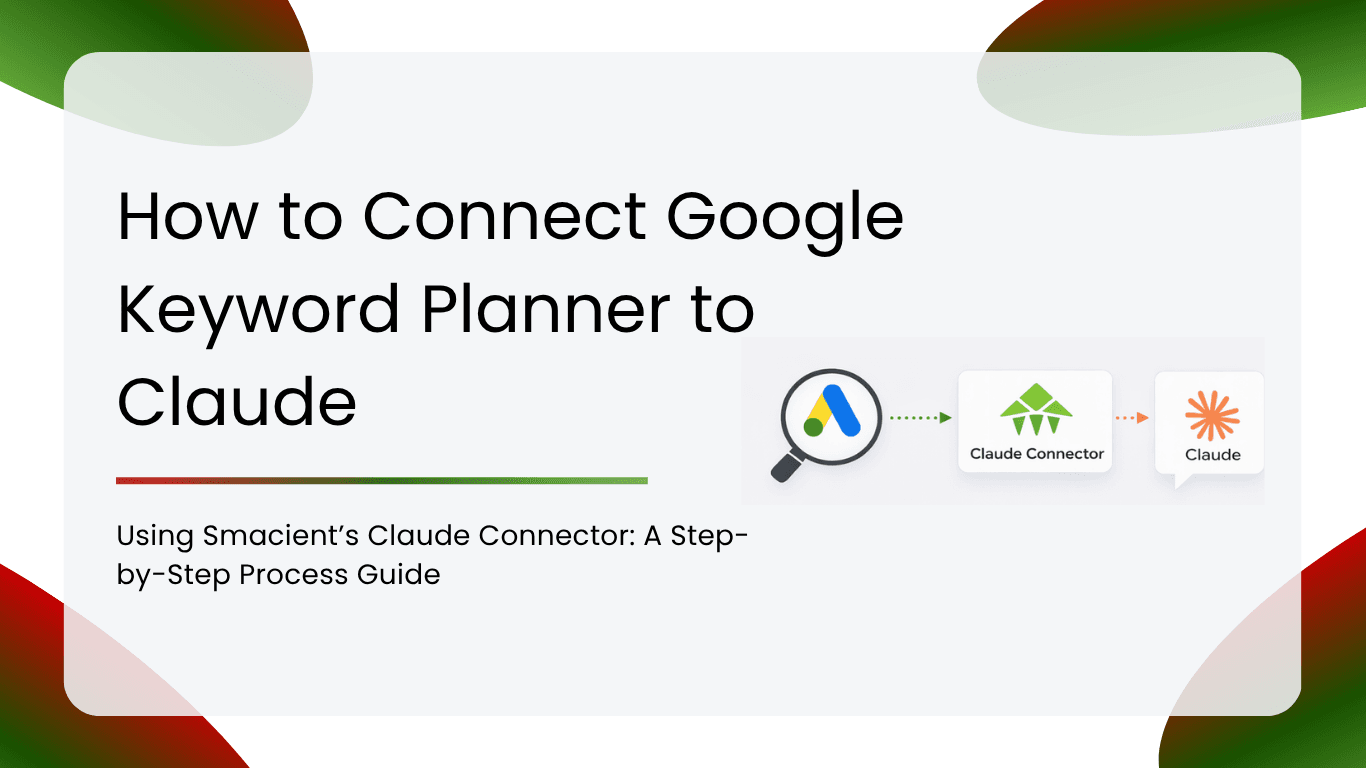
Smacient’s Marketing Data & Context for Claude connector closes the gap entirely. Once set up, you can ask Claude to pull keyword data directly from Google Keyword Planner, live, inside the same conversation, using plain English – no exports, spreadsheets, or copy-pasting. Just ask, and Claude handles the rest.
This guide walks you through the full setup and shows you exactly how to use it for real SEO work.
Table of contents
Why Google Keyword Planner Still Matters in an AI-First World
Before diving into the setup, it’s worth addressing a question that comes up a lot: With so many AI-powered keyword tools emerging, is Google Keyword Planner still relevant?
The short answer is yes, for one reason that hasn’t changed: the data comes directly from Google. Search volume figures, competition levels, and bid range estimates in Keyword Planner reflect what Google’s own systems are measuring. Third-party tools model and estimate this data. Keyword Planner reports it.
For SEOs making content investment decisions, that distinction matters. When you’re deciding whether to build a full content cluster around a topic or prioritise one keyword over another in a paid campaign, you want Google’s numbers, not an approximation of them.
The problem was never the quality of Keyword Planner’s data. It was the friction involved in actually using it alongside your AI workflows. Smacient removes that friction.
What Smacient’s Connector Actually Does
Smacient connects to Claude as an MCP (Model Context Protocol) server. MCP is the standard that allows Claude to integrate with external tools and live data sources. Rather than Claude working only with information you manually paste into the conversation, MCP lets Claude reach out and pull data on demand.
Once your Smacient connector is active, Claude gains access to two dedicated Google Keyword Planner tools:
get_keyword_ideas Generates keyword ideas from any seed keyword or URL. For each keyword returned, you get monthly search volume, competition level (low, medium, or high), and bid range estimates. This is the tool you’ll use for standard keyword research, topic discovery, and content gap analysis.
get_historical_keyword_data Fetches up to 24 months of monthly search volume history for one or more keywords. This is where Keyword Planner’s data becomes genuinely powerful for SEOs. Instead of a single snapshot of search volume, you get a full two-year trend line, which lets you identify seasonal patterns, spot growing or declining topics, and time your content and campaign pushes with real data behind them.
Both tools operate on a credit system. Keyword ideas cost 5 credits per search, and historical data costs 10 credits per keyword. Every Smacient account comes with 30 free credits every month, with no credit card required to get started.
Step 1: Create Your Smacient Account
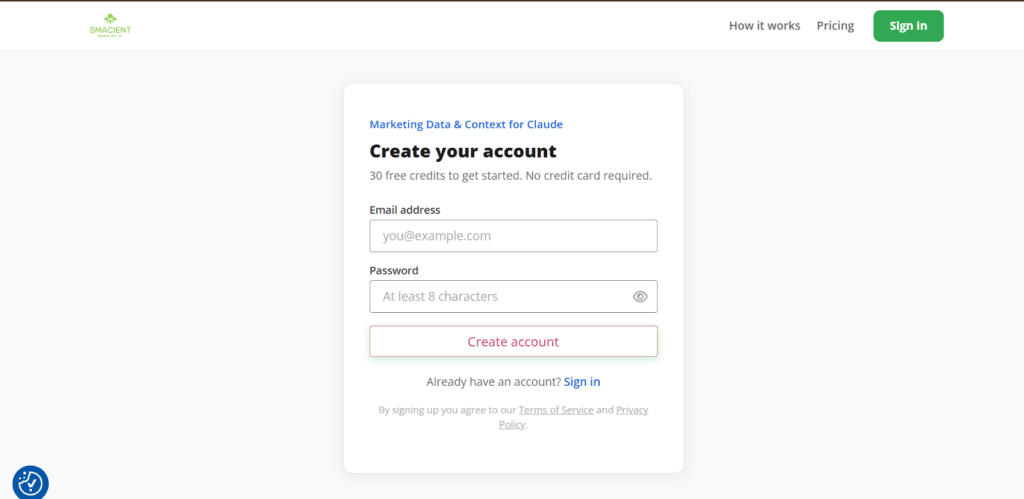
Go to smacient.com/mde/signup and create a free account. You’ll receive 30 credits immediately, no payment details needed. These credits work across all platforms the connector supports, including Instagram, TikTok, YouTube, Google Maps, Meta Ads Library, and Google Keyword Planner, so you can explore the full toolkit before deciding whether to top up.
The signup process takes under two minutes. Once your account is live, you’ll land in the Smacient dashboard, where you can track your credit balance, view your extraction history, and find your connector URL.
Step 2: Copy Your MCP Connector URL
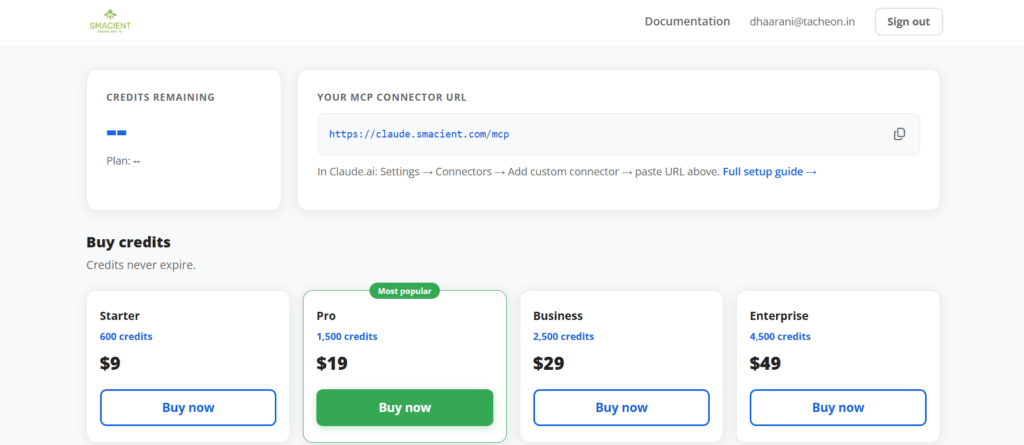
Inside your Smacient dashboard, locate your personal MCP connector URL. It will look like this: https://claude.smacient.com/mcp.
Copy this URL. You’ll paste it into Claude in the next step. This is the address Claude uses to communicate with Smacient’s servers and, through them, Google Keyword Planner’s API.
Step 3: Add the Connector to Claude.ai
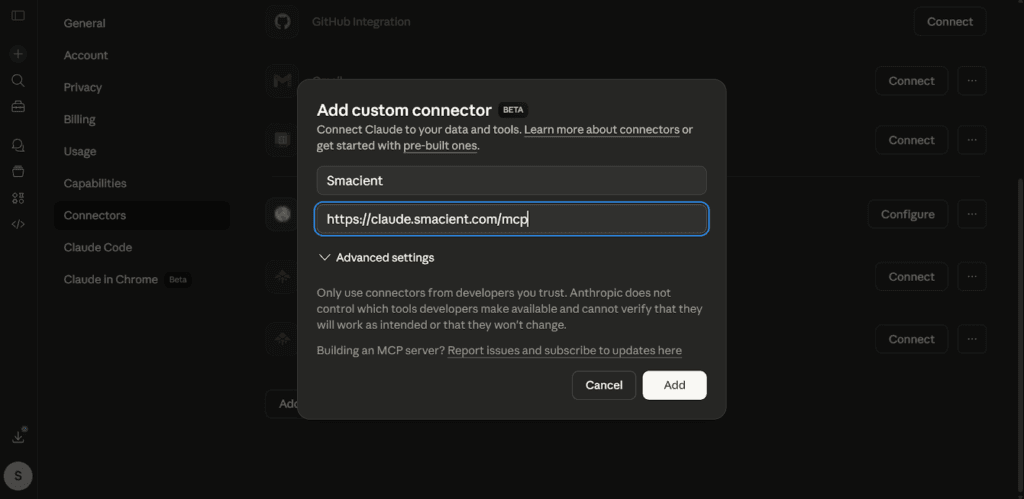
Custom connectors in Claude.ai are available on Pro and Team plans. If you’re on either of those plans, here’s how to connect:
- Go to claude.ai and open Settings
- Navigate to Connectors → Add custom connector
- In the Name field, type: Smacient
- In the Remote MCP server URL field, paste: https://claude.smacient.com/mcp
- Click Add
Claude will redirect you to a Smacient sign-in screen. Enter the email and password you used to create your Smacient account. Once you authorise the connection, the connector will appear as active in your Settings panel.
Note: Once connected via Claude.ai, the connector also works automatically in Claude Desktop and Claude Code. You do not need to repeat the setup process for those clients.
Step 4: Verify the Connection
Open a new conversation in Claude. Before pulling any keyword data, confirm the connector is live by running a free check:
“Check my Smacient credits balance.”
The get_credits_balance tool is completely free to call. Claude will return your current credit balance and plan details. If you see your balance, the connection is working, and you’re ready to start pulling data.
If the connector doesn’t respond, go back to Settings in Claude.ai and confirm the connector shows as active. Occasionally, a fresh sign-in to the Smacient dashboard resolves any authentication issues.
Step 5: Pull Keyword Data in Plain English
This is where the workflow shifts. You don’t need to remember tool names, write structured queries, or format your requests in any special way. Just describe what you need as you would to a colleague.
Here are the core use cases with example prompts:
Standard Keyword Research
“Get keyword ideas for ’email marketing automation’ in the United States.”
Claude will return a structured list of keyword suggestions, each with monthly search volume, competition level, and bid range. You can immediately follow up with analysis prompts in the same conversation: cluster by intent, filter by competition level, and identify quick wins versus long-term targets.
Seasonality and Trend Analysis
“Get 24 months of historical search volume for ‘Black Friday email campaigns’ and tell me when demand peaks and how early it starts building.”
This kind of query is where the get_historical_keyword_data tool earns its credits. Instead of eyeballing a chart in Keyword Planner’s interface, Claude receives the raw month-by-month data and can analyse it for you in plain English: when the peak hits, how long the tail is, whether year-over-year volume is growing or declining.
Competitive Content Gap Analysis
“Get keyword ideas for ‘social media analytics tools’ and identify which keywords have high search volume but low competition. These are my priority targets.”
Claude handles the filtering logic instantly. No pivot tables, no manual sorting in a spreadsheet.
Campaign Budget Planning
“Get keyword ideas for ‘accounting software for small business’ and give me an estimate of monthly ad spend if I bid at the top of the suggested range for the top 10 keywords.”
Because Claude receives bid range data alongside volume data, it can run basic spend projections on the fly. This is particularly useful for agencies building media plans inside client conversations.
Intent Mapping for Content Strategy
“Get keyword ideas for ‘project management’ and group them into informational, navigational, and transactional intent categories. Then suggest which ones are best suited for blog content versus landing pages.”
This kind of structured analysis used to require building a spreadsheet framework and manually tagging hundreds of rows. With live data flowing into Claude, it becomes a single prompt.
Credit Cost Reference for Keyword Planner
| Tool | What It Does | Cost |
| get_keyword_ideas | Seed keyword → ideas with volume, competition, bids | 5 credits per search |
| get_historical_keyword_data | 24 months of monthly volume per keyword | 10 credits per keyword |
| get_credits_balance | Check your current balance | Free |
With 30 free monthly credits, you can run 6 keyword idea searches or pull historical trend data for 3 keywords. That’s enough for a meaningful test of the workflow. Paid credit packs start at $9 for 600 credits and never expire, so there’s no pressure to use them within a billing cycle.
Using Keyword Planner Alongside Other Platform Data
One of the strongest use cases for the Smacient connector isn’t using Keyword Planner in isolation. It’s combining keyword data with other platform data in the same Claude conversation.
Consider this research workflow for a content audit:
“First, get keyword ideas for ‘influencer marketing platform’ in the United States. Then extract the last 20 posts from @[competitor Instagram handle] and tell me which of these keywords their content is targeting, explicitly or implicitly.”
Claude pulls keyword volume data from Google and social content data from Instagram, then synthesises both into a single competitive analysis. This kind of cross-platform insight is nearly impossible to replicate manually without significant time investment.
Or for paid search and organic alignment:
“Get historical search volume for ‘CRM software for startups’ over the last 24 months. Then search Meta Ads Library for [competitor brand] and show me whether their ad activity correlates with the seasonal search spikes.”
You’re connecting paid ad timing from Meta with organic demand data from Google, in one conversation, in minutes. That’s the real value proposition of having live data tools built into Claude rather than working from static exports.
Why This Changes Your SEO Workflow
The traditional keyword research workflow has three invisible costs that most SEOs don’t account for: the time spent switching between tools, the cognitive load of reassembling context every time you start a new analysis, and the delay between deciding you need data and actually having it in front of you.
Every time you leave Claude to pull a fresh export from Keyword Planner, you lose the thread of your analysis. You reassemble context. You re-read what you were working on. You re-prompt. Over a full day of keyword research, these micro-interruptions add up to significant time lost.
With Smacient connected, your keyword research loop becomes:
- Open Claude
- Ask your question in plain English
- Get live data and instant analysis in one step
- Follow up in the same conversation with deeper questions
For solo SEOs, that means more analysis in less time. For agencies running keyword research across multiple client accounts, it means the work that used to take a junior analyst half a day can be done conversationally in under an hour. You’re not just pulling data faster, you’re fundamentally changing how keyword research gets done.
Frequently Asked Questions
No. Smacient handles the API connection on the backend. You only need a Smacient account. There is no requirement to set up, authenticate, or maintain a Google Ads account on your end.
The data is sourced directly from Google Keyword Planner via the API, so search volumes, competition levels, and bid estimates are the same figures you would see inside the native interface. The difference is that the data arrives inside Claude ready to be analysed, rather than sitting in a CSV waiting to be formatted.
Yes. Simply specify the country or region in plain English when making your request, for example: “Get keyword ideas for ‘fitness apps’ in the United Kingdom.” The get_keyword_ideas tool supports geo-targeting so your volume and competition data reflect the market you actually care about.
Claude will receive a message indicating insufficient credits, and the extraction will stop. Your conversation history stays intact. You can top up instantly from your Smacient dashboard and continue exactly where you left off, without needing to rebuild the conversation context.
Yes, and this is one of the most powerful aspects of the connector. In a single Claude conversation, you can pull keyword data from Google, extract posts from Instagram, search Meta Ads Library for a competitor, and get YouTube channel stats. Claude can cross-reference all of it and surface insights that would be impossible to generate from siloed tools working separately.