
Designing a great user experience is more than just colors and shapes. It’s about creating websites and apps that feel natural, helpful, and easy to use for real people.
Today, artificial intelligence is opening new doors for designers, helping them understand users better, spot issues early, and come up with fresh ideas faster than ever. These smart tools can save time, reduce guesswork, and make designs more focused on what users really need.
In this blog, we will look at the best AI tools shaping the future of UX design and how they can help create experiences that truly connect and delight users.
What is AI in UX Design?
AI in UX design refers to the use of intelligent technology to help build user experiences that are smoother, more intuitive, and better suited to people’s needs. It collects and analyzes data on how users interact with a website or app to spot patterns and pain points. AI then suggests design changes or automates repetitive tasks, freeing designers to focus on creativity and strategic thinking.
By learning from user behavior, AI tools can predict what users want, personalize experiences, and continuously improve designs. This blend of human skill and machine learning helps create products that feel natural and effective for users.
Key Features to Look for in a Good AI UX Design Tool
- In-depth User Behavior Analysis: Tracks clicks, scrolling, and engagement to reveal what works and what needs fixing.
- Smart Design Recommendations: Suggest layouts, color schemes, and content placement based on data and best practices.
- Rapid Prototyping & Testing: Helps create test versions of designs and gather user feedback quickly to make improvements.
- Team Collaboration Tools: Enable real-time sharing and editing so that designers and stakeholders can work together smoothly.
- Easy Integration: Plays well with popular tools like Figma, Sketch, and Adobe XD to fit seamlessly into your existing workflow.
Best AI UX Design Tools at a Glance
| Tool Name | Best For | Pricing (Approximate) | Standout Feature |
| Figma | Team collaboration and prototyping | Free plan; paid plans from $3/month | Real-time collaboration with AI design suggestions |
| Uizard | Rapid design from sketches | Free tier available; paid from $12/month | Converts hand-drawn sketches into digital designs |
| Visily | Easy wireframing and prototyping | Free trial; paid plans from $11/month | AI-powered wireframe and component suggestions |
| Framer | Detailed interactive prototypes | Basic plan: 10, Pro plans start at $30/month | Combines design with code and AI auto layouts |
| Maze | Remote user testing and feedback | Pay-as-you-go and subscription options | AI analysis of user test data and clear reporting |
| Hotjar (AI/Sense) | Website UX analytics and user behavior | Plus: $32/month, Business: $80/month, Scale: $171/month | AI behavioral analysis combined with heatmaps |
| Lookback | User session recording and interviews | Freelancer plan starting from 299/year | AI-driven tagging and easy sharing of user insights |
| TeleportHQ | No-code web interface building | Free tier; paid plans starting at $9/month | AI-generated clean code for fast web production |
Table of Contents
Best AI UX Design Tools
1. Figma
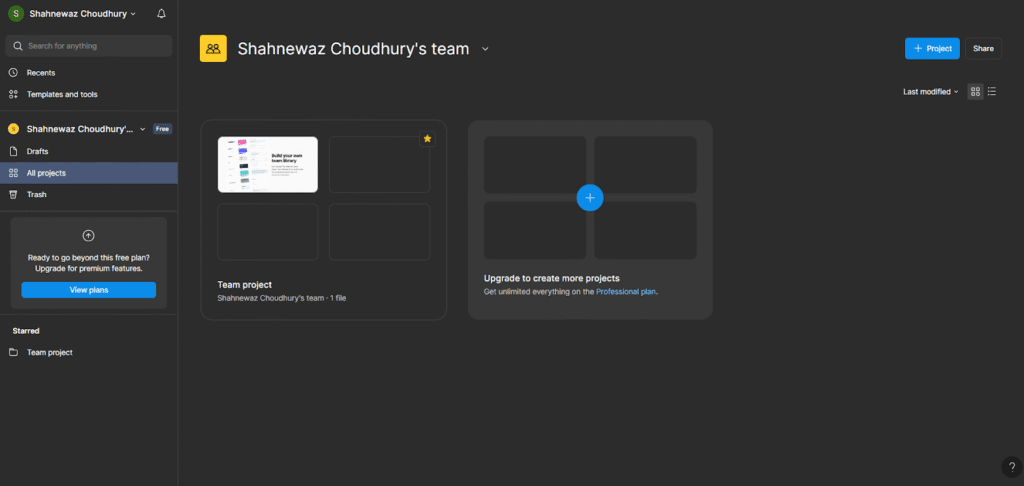
Figma is a widely loved design tool used by teams of all sizes around the world. It combines the power of traditional design software with useful AI features that make the design process quicker and easier. Designers can collaborate live, no matter where they are, which makes teamwork smooth and efficient. Figma supports everything from basic sketches to full interactive prototypes. Its AI-driven helpers suggest layout improvements and color choices to make decisions. This tool fits both beginners and experts who want a flexible platform with smart design support.
Key Features
- Live Team Collaboration: Multiple people can work on one file at the same time, add comments, and make real-time changes without confusion.
- Intelligent Design Suggestions: AI recommends layouts, color palettes, and visual adjustments to improve design quality fast.
- Built-in Prototyping: Create clickable, interactive prototypes directly inside Figma to test user flows without extra software.
- Extensive Plugin Support: Access a variety of AI-powered plugins that add extra features and automate repetitive tasks.
- Cross-Platform Usage: Figma works on web browsers and desktop apps, making it easily accessible on Windows or Mac systems.
Pros
- Smooth and easy team collaboration.
- Great AI suggestions that save design time.
- Friendly for both beginners and experienced designers.
- Flexible and accessible anywhere with an internet connection.
Cons
- Needs a steady intranet connection for the best experience.
- It can be overwhelming due to a large number of features and plugins.
- Some advanced options require time to learn.
2. Uizard
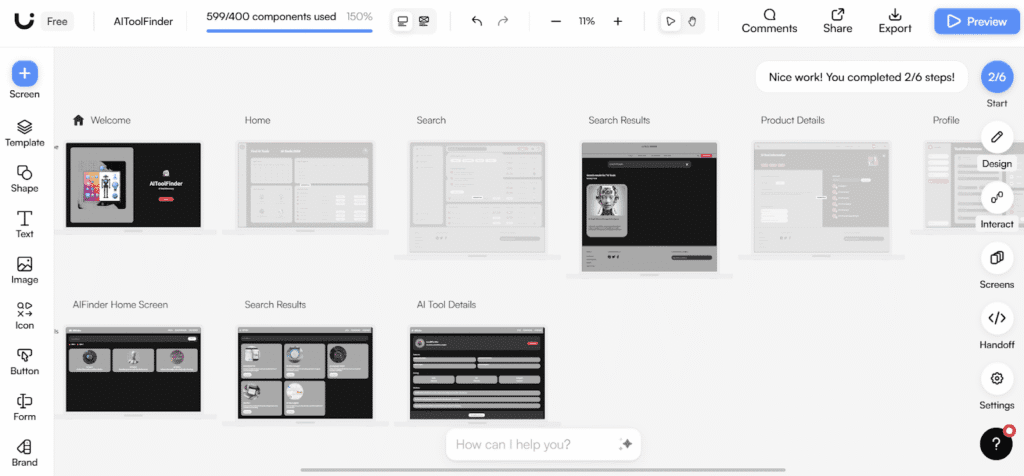
Uizard is a fast-growing AI design tool focused on turning ideas into real designs quickly. It stands out for its ability to change hand-drawn sketches into digital wireframes automatically. This makes early-stage design fast and accessible, even for those without design skills. Uizard uses AI to suggest layouts, fonts, and colors, cutting down the time needed to finalize creative decisions. It supports rapid prototyping, which lets teams test ideas early and often. This tool is perfect for startups or teams needing a quick way to build usable designs without deep technical work.
Key Features
- Automatic Sketch Conversion: Turn simple pen-on-paper sketches into interactive wireframes without starting from scratch.
- AI-Based Style Suggestions: Automatically recommends design styles, fonts, and color schemes based on current trends and user preferences.
- Fast Prototyping: Create working prototypes quickly to share and get feedback early in the process.
- Template Library: Offers ready-made templates and components to jumpstart projects and maintain brand consistency.
- Export Flexibility: Easily export designs to common formats to integrate with other design tools for further refinement.
Pros
- Speeds up early design steps drastically.
- Easy to use for non-designers and small teams.
- Smart AI reduces manual and repetitive work.
- Clear and simple user interface.
Cons
- Less suited for highly detailed or complex projects.
- Few collaborative features compared to competitors.
- AI design suggestions sometimes need manual adjustments.
3. Visily
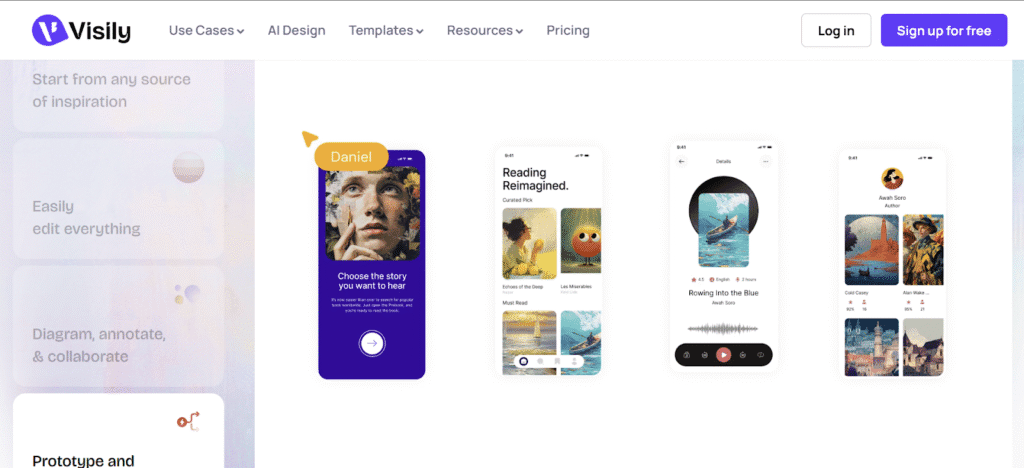
Visily brings AI-powered simplicity to UX design by helping create wireframes and prototypes with less effort. It guides users through design with AI that suggests components, layouts, and flow patterns based on best practices. The tool is built for people who want quick, clear, and effective designs without needing deep design knowledge. It includes easy ways to collaborate, share feedback, and iterate on ideas faster. Its goal is to make UX design accessible to a wide audience and speed up the entire process from idea to prototype.
Key Features
- AI-Powered Wireframe Creation: Generate basic wireframes automatically from your ideas or sketches to get started quickly.
- Smart UI Component Suggestions: Adds buttons, menus, forms, and other elements based on the design’s goals and flow.
- Interactive Prototyping Linking: Connect screens and flows to simulate real users’ navigation and experience.
- Built-in Collaboration: Supports sharing, commenting, and real-time feedback to improve teamwork and communication.
- Pre-Built Templates & Assets: Access a library of UI elements and design themes to speed up project setup and consistency.
Pros
- Designed for beginners and non-designers.
- Cuts down time on repetitive wireframing tasks.
- Encourages quick iteration with easy feedback features.
- Collaboration tools are built in for smooth teamwork.
Cons
- Not ideal for detailed or pixel-perfect design work.
- Still developing with some limitations on custom options.
- Lacks deep integrations seen in larger platforms.
4. Framer
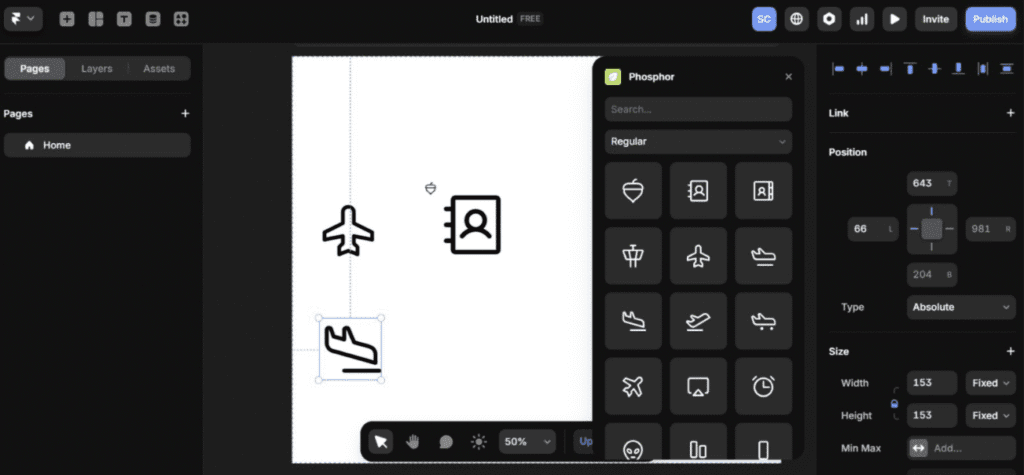
Framer is a powerful design tool that blends visual design with code, making it popular among UX designers who want both creativity and precision. Using AI, Framer helps speed up the design process and improve prototypes with smart suggestions and automation. It offers smooth transitions from wireframes to interactive prototypes, allowing for realistic user testing. Framer is especially favored by designers who want to create highly detailed and dynamic experiences while saving time with AI assistance.
Key Features
- Design with Code Flexibility: Combines drag-and-drop design with the ability to add code for full control.
- AI-Powered Auto Layouts: Automatically arranges design elements for clean and balanced layouts.
- Interactive Prototyping: Build realistic, animated prototypes to test user interactions early.
- Team Collaboration: Work closely with teammates through shared projects and comments.
- Component Library: Access reusable design components to maintain consistency across projects.
Pros
- Offers advanced design control for detailed projects.
- Balances visual design and coding freedom.
- Helps create highly interactive prototypes.
- Supports smooth team collaboration.
Cons
- It may be complex for beginners without coding skills.
- Requires some learning curve to use advanced features.
- Focused more on design and prototyping than on user research.
5. Maze
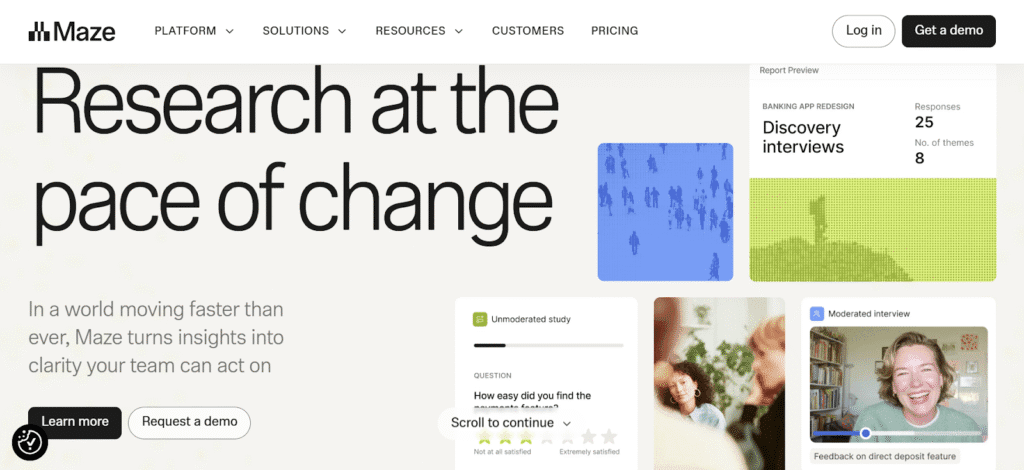
Maze is a user testing and feedback platform that uses AI to analyze and understand how users interact with designs. It makes remote testing easier by gathering real insights quickly. Maze’s AI tools help identify problems in user flows and highlight which parts of a design work best. This helps teams make data-driven improvements before launching products. It is designed to bridge the gap between design and user feedback for better final experiences.
Key Features
- Remote User Testing: Conduct tests on prototypes or live sites with real users from anywhere.
- AI-Powered Result Analysis: Automatically gathers and interprets user feedback, pointing out key patterns.
- Heatmaps & Click Tracking: Visualizes where users interact most and where they get stuck.
- Fast Reporting: Generates clear, actionable reports that teams can share easily.
- Integration with Design Tools: Works smoothly with Figma, Adobe XD, and Sketch for seamless workflows.
Pros
- Speeds up user testing with remote access.
- Provides clear and easy-to-understand feedback.
- Connects tightly with popular design platforms.
- Helps spot and fix issues before launch.
Cons
- Some advanced analysis options require time to learn.
- Focused on testing and feedback rather than full design.
- Pricing might be high for small teams or startups.
6. Hotjar
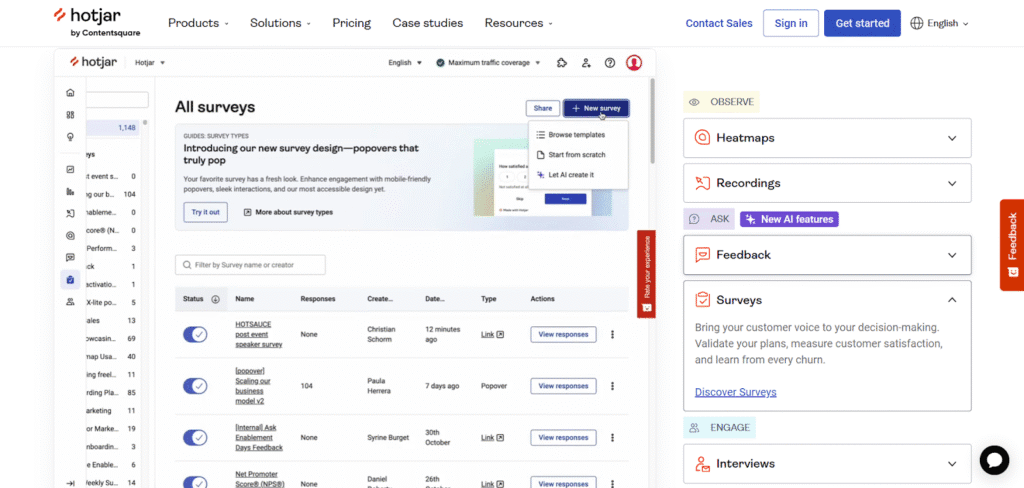
Hotjar is a well-known user experience analytics platform that uses heatmaps, session recordings, and surveys to understand how users interact with websites. Recently, Hotjar introduced AI-powered tools under the names Hotjar AI and Hotjar Sense. These features use artificial intelligence to automatically analyze user behavior data, identify trends, and generate insights without manual effort. Hotjar’s AI tools help businesses improve UX by quickly showing what works and what needs to change.
Key Features
- Heatmaps & Session Recordings: Visual maps and video replays show where users click, scroll, and hesitate.
- AI-Based Behavioral Analysis: Automatically detects common user patterns and frustration points.
- Feedback Polls & Surveys: Collect direct feedback from users to understand needs and concerns.
- Insight Reports: AI summarizes data into easy reports highlighting critical UX issues.
- Integration with Marketing Tools: Works well with platforms like Google Analytics and CRM systems.
Pros
- Simple to set up and use for website analysis.
- Combines traditional UX tools with AI insights.
- Helps find problems quickly with minimal manual work.
- Good for both beginners and experienced UX teams.
Cons
- Primarily focused on website UX research, not design creation.
- Some AI features are still evolving and may have limits.
- Insight reports sometimes need manual interpretation.
7. Lookback
Lookback is a user research platform that helps teams observe and understand how real users interact with their products. It focuses on capturing detailed user sessions through video recordings, live interviews, and feedback collection. Lookback’s AI features assist in organizing and analyzing this data to highlight important patterns and issues. It supports UX designers in gaining deep insights that lead to more user-friendly designs. The platform is easy to use and encourages continuous learning from real user behavior.

Key Features
- User Session Recordings: Capture full video sessions for interacting with apps or websites in real time or asynchronously.
- Live User Interviews: Conduct recorded interviews and observe user reactions directly during sessions.
- AI-Driven Data Tagging: Automatically tags and categorizes user actions and feedback to speed up analysis.
- Collaboration Tools: Teams can comment, share highlight reels, and collaborate on findings easily.
- Multi-Platform Support: Works across web, mobile, and desktop apps for broad research coverage.
Pros
- Provides rich, real user insights beyond traditional analytics.
- Helps catch subtle UX issues by observing actual user behavior.
- Easy to organize and share research with teams.
- Supports both live and recorded research sessions.
Cons
- It can generate large volumes of data, needing careful management.
- Some tools and AI tagging may need manual review.
- Pricing may be high for very small businesses or solo researchers.
8. TeleportHQ
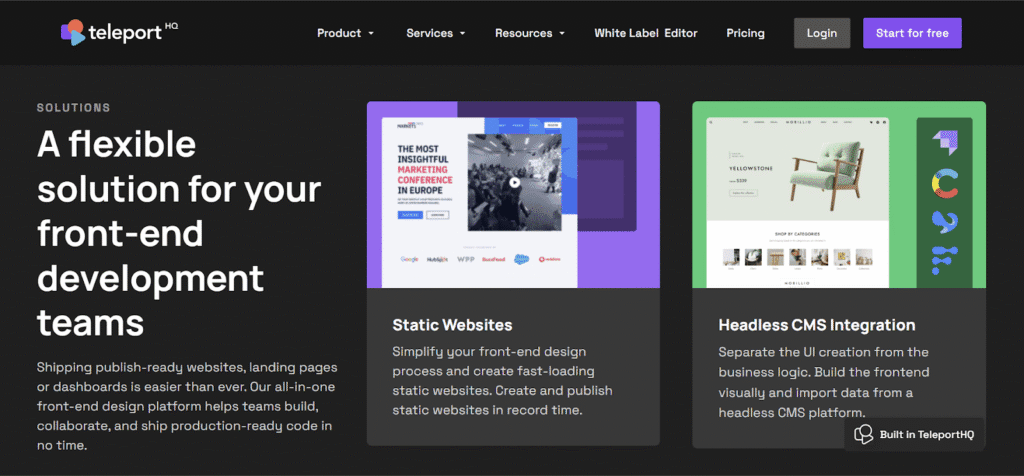
TeleportHQ is a no-code platform focused on creating web interfaces quickly and efficiently. It uses AI to help designers and developers build UI with drag-and-drop tools and auto-generated code. TeleportHQ speeds up the handoff between design and development by producing clean, ready-to-use code, saving time and reducing errors. The platform is useful for teams weaning faster web production without deep coding skills and values design consistency and flexibility.
Key Features
- No-Code Drag-and-Drop Builder: Easily design interfaces visually without needing to write code.
- AI-Generated Clean Code: Automatically produces HTML, CSS, and React code ready for deployment.
- Component Reusability: Create reusable UI components to speed up design and development cycles.
- Cloud Collaboration: Work together with team members in real time on web projects from anywhere.
- Export & Integration Options: Export code to preferred development environments and integrate with other tools.
Pros
- Speeds up web design and development without coding knowledge.
- Generates clean, usable code to reduce manual work.
- Supports team collaboration in the cloud.
- Useful for rapid prototyping and production-ready websites.
Cons
- Limited customization compared to hand-coded projects.
- Best for simpler web projects, less suited for complex apps.
- Learning curve for mastering all features effectively.
Conclusion
The world of UX design is changing quickly, and AI is playing a big role in that change. These smart tools do more than just help designers work faster. They help create user experiences that feel thoughtful and ready for real needs.
When human creativity meets AI support, the results can be fresh ideas, faster testing, and designs that truly connect. No matter your skill level, using AI in your design process can make your work stronger and more user-friendly.
The future of UX is bright, and those who start using AI today will lead the way tomorrow.
Want to know more about different AI tools? Read our blogs:-
- Top 15 AI Video Generator Tools
- Top 15 AI Logo Design Tools
- 10 Creative AI Design Assistant Tools for Marketers
- 20 Best AI Marketing Tools to Improve Marketing ROI
FAQs
Choosing the right tool depends on your team’s skill level, project needs, and budget. It helps to try free trials and see which tools fit your workflow best. Some tools are better for beginners, while others suit more advanced designers.
Prices vary widely. Some tools offer free plans or affordable options for small teams, while others are priced for larger businesses. It is important to consider what features you need and compare costs before deciding.
Many AI design tools are made for users without coding knowledge and offer drag-and-drop features. But some tools do offer coding options for more control. Knowing basic coding can help, but it is not always required.
Most reputable AI tools follow strict data privacy rules and protect user information with encryption. Before using any tool, review its privacy policies and make sure they comply with laws relevant to your region.