If you do SEO, you already know how much insight lives inside Google Search Console data. Clicks, impressions, average position, CTR by query, page performance, device split, geographic breakdown. The Google Search Console data is all there. The problem has never been what GSC reports. The problem is what happens between reading it and actually doing something about it.
You open Search Console, navigate to the Performance report, set your date range, filter by query or page, export to CSV, clean up the columns, paste the relevant rows into Claude, write your prompt, get your analysis, and then realise you need a different time window or a different dimension. So you go back to GSC and start again.
This loop is broken. It was designed for a world where AI assistants and live search data didn’t talk to each other. That world no longer exists.
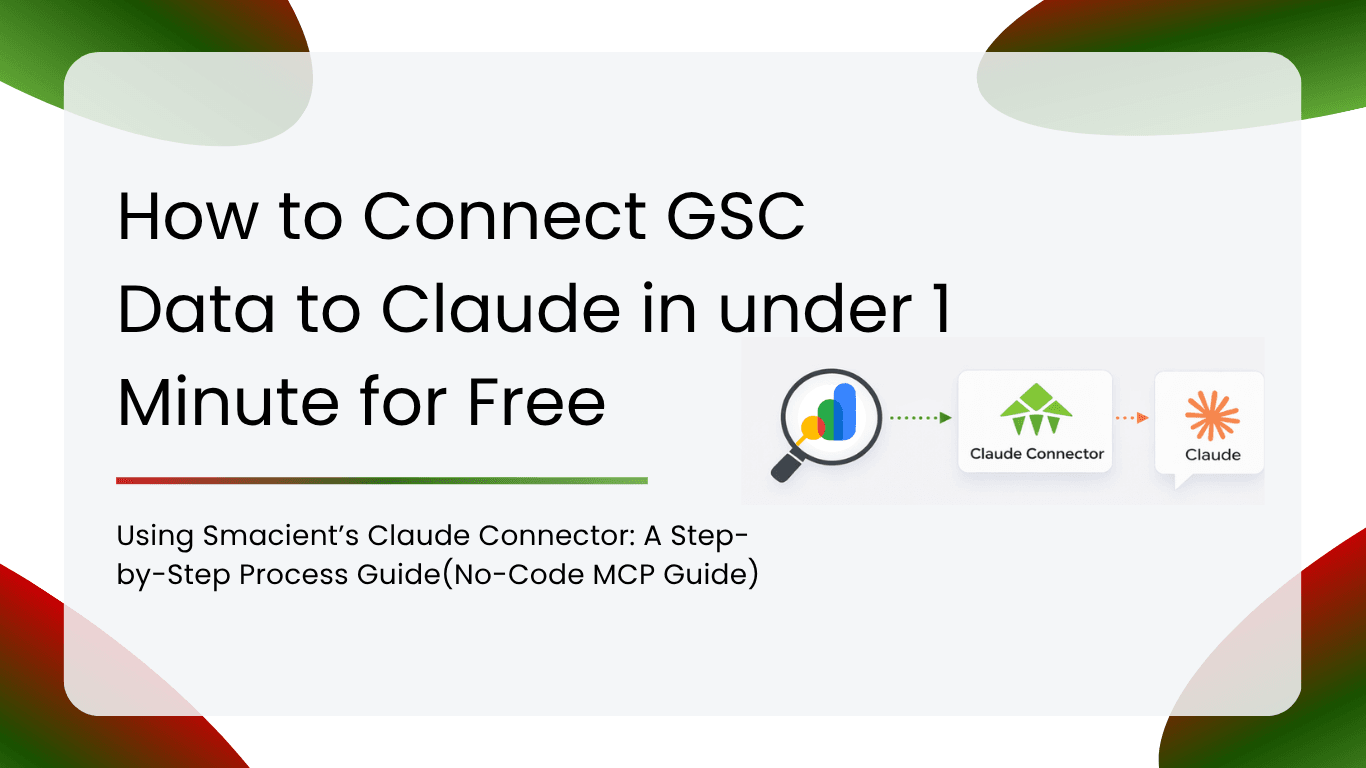
Smacient’s Marketing Data & Context for Claude connector closes the gap entirely. Once set up, you can ask Claude to pull live Google Search Console data directly from your verified property, inside the same conversation, using plain English. No exports, spreadsheets, or copy-pasting. Just ask, and Claude handles the rest.
This guide walks you through the full setup and shows you exactly how to use it for real SEO work.
Table of Contents
Why Google Search Console Data Is Still the Gold Standard for SEO
There is no shortage of SEO platforms that report on keyword rankings, organic traffic, and search visibility. Ahrefs, Semrush, Moz, Sistrix: they all model and estimate organic performance from various data sources. They are genuinely useful tools.
But none of them reports on what actually happened in Google Search for your website. Google Search Console does. The Google Search Console data on clicks, impressions, CTR, and average position comes directly from Google’s search systems. It reflects what real users searched, which of your pages Google showed them, and how many of those users clicked through.
Third-party tools approximate this. Google Search Console data reports it.
For SEOs making content investment decisions, prioritising optimisation work, or diagnosing traffic drops, that distinction matters. When you need to know which queries are losing ground or which pages are sitting at position 8 with deep impressions but low CTR, you want Google’s numbers, not a model of them.
The problem was never the quality of Google Search Console data. It was the friction involved in actually using it alongside your AI workflows. Smacient removes that friction.
What Smacient’s Connector Actually Does for GSC
Smacient connects to Claude as an MCP (Model Context Protocol) server. MCP is the standard that allows Claude to integrate with external tools and live data sources. Rather than Claude working only with information you manually paste into the conversation, MCP lets Claude reach out and retrieve Google Search Console data on demand, directly from your verified GSC properties.
Once your Smacient connector is active, Claude gains access to four dedicated Google Search Console tools:
gsc_list_sites: Lists all verified GSC properties linked to your Google account, along with permission levels. This is always the starting point; it gives you the exact site URLs needed to run any other GSC tool.
gsc_query_analytics: The core Google Search Console data tool. Pull clicks, impressions, CTR, and average position broken down by any combination of dimensions: query, page, country, device, or date. Supports all search types: web, news, image, and video.
gsc_top_pages: Returns your best-performing pages ranked by organic clicks, with impressions, CTR, and average position for each. The fastest way to understand which content is driving your organic traffic is from your Google Search Console data.
gsc_find_opportunities: Surfaces keywords within your Google Search Console data where your site is getting significant impressions but a low click-through rate. These are queries where Google is already showing your pages, but users aren’t clicking, making them high-priority candidates for title and meta description optimisation. You can tune the thresholds for minimum impressions and maximum CTR.
All tools operate on Smacient’s credit system. Every account receives 30 free credits every month, no credit card required, giving you room to explore the full workflow before committing.
Step 1: Create Your Smacient Account
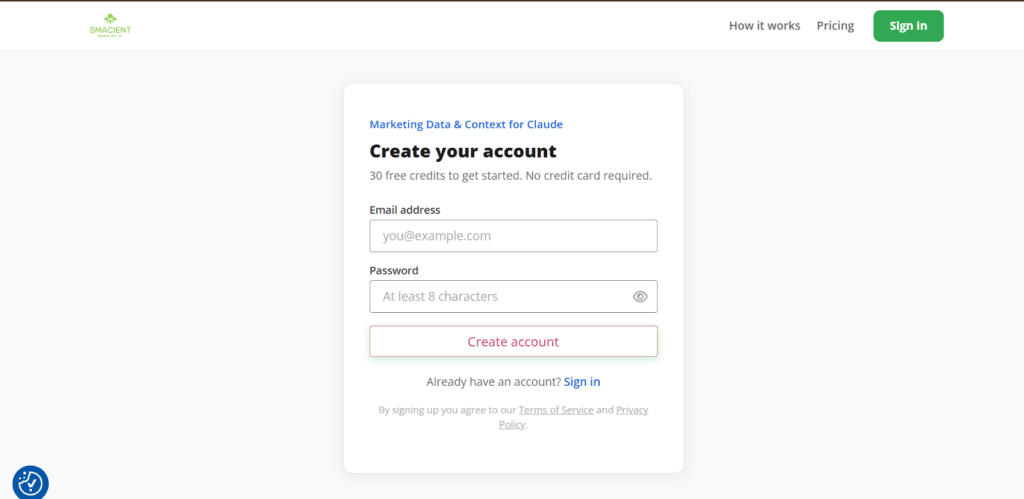
Go to smacient.com/mde/signup and create a free account. Your 30 monthly credits are applied immediately. No payment details needed. These credits work across the entire Smacient connector, including Instagram, TikTok, YouTube, Google Keyword Planner, Google Analytics 4, Meta Ads Library, and Google Search Console.
The signup process takes under two minutes. Once your account is live, you’ll land in the Smacient dashboard, where you can track your credit balance, view extraction history, and access your connector URL.
Step 2: Copy Your MCP Connector URL
Inside the Smacient dashboard, locate your personal MCP connector URL:
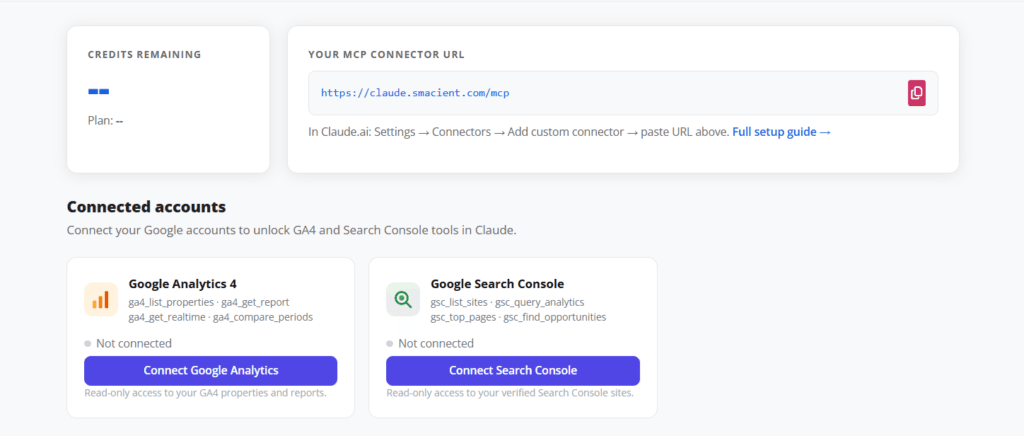
Copy this URL. You’ll paste it into Claude in the next step. This is the address Claude uses to communicate with Smacient’s servers and, through them, your GSC properties via Google’s API.
Step 3: Add the Connector to Claude.ai
Custom connectors in Claude.ai are available on Pro and Team plans. Here’s how to connect:
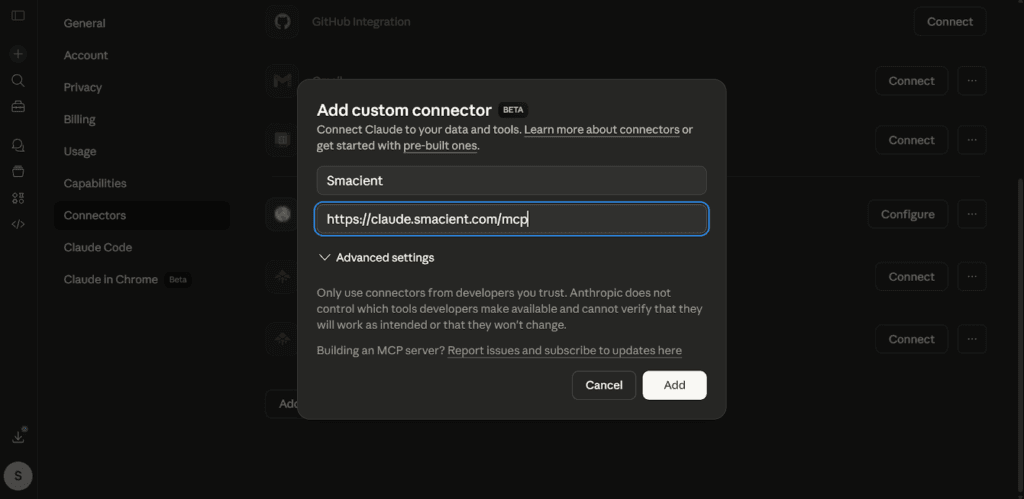
- Go to claude.ai and open Settings
- Navigate to Connectors → Add custom connector
- In the Name field, type: Smacient
- In the Remote MCP server URL field, paste: https://claude.smacient.com/mcp
- Click Add
Claude will redirect you to a Smacient sign-in screen. Enter the email and password you used to create your Smacient account. Once you authorise the connection, the connector will appear as active in your Settings panel. One last step. Head back to the Smacient dashboard and scroll down to Connected Accounts. Click Connect Google. Google’s consent screen will appear, grant read-only access to Search Console. Read-only means Smacient can see your data but cannot make any changes to your account. Authorise it, go back to Claude, and your Search Console tools are now fully active
Note: Once connected via Claude.ai, the connector also works automatically in Claude Desktop and Claude Code. You do not need to repeat the setup for those clients.
Step 4: Verify the Connection
Open a new conversation in Claude and run a free check before pulling any Google Search Console data:
“Check my Smacient credits balance.”
The get_credits_balance tool is completely free to call. Claude will return your current balance and plan details. If you see your balance, the connection is live, and you’re ready to start.
If the connector doesn’t respond, go back to Settings in Claude.ai and confirm the connector shows as active. A fresh sign-in to the Smacient dashboard typically resolves any authentication issues.
Step 5: Pull Google Search Console Data in Plain English
This is where the workflow changes. You don’t need to remember tool names, know GSC’s filtering syntax, or format your requests in any particular way. Describe what you need as you would to a colleague, and Claude handles the rest.
Real-World Use Cases with Example Prompts
Keyword Performance Analysis
“Pull Google Search Console data for my site for the last 90 days. Show me clicks, impressions, CTR, and average position broken down by query. Sort by impressions.”
Claude lists your verified properties, confirms which one to use, then pulls the query-level Google Search Console data. You can immediately follow up in the same conversation: ask Claude to identify declining queries, flag keywords where position improved, but CTR dropped, or group queries by topic cluster.
Top Pages by Organic Clicks
“Show me the top 20 pages in my Google Search Console data by organic clicks for the last 28 days.”
Claude calls gsc_top_pages and returns a ranked list with clicks, impressions, CTR, and average position per page. This is the fastest way to understand which content is actually earning organic traffic, and to spot pages that are ranking well but underperforming on CTR.
You can immediately follow up: “Which of these pages have an average position below 10 but a CTR lower than 3%? These might need better titles.”
Quick-Win Opportunity Discovery
“Find keyword opportunities in my Google Search Console data for the last 60 days: queries with high impressions but low click-through rate. Focus on anything with more than 200 impressions and less than 4% CTR.”
This is where gsc_find_opportunities earns its place. Claude returns a prioritised list of queries where Google is already showing your pages, but users aren’t clicking. These are your highest-leverage optimisation targets: the title tag and meta description changes that can move the needle without requiring new content.
“Now group these opportunities by the page they’re associated with and tell me which pages have the most opportunities concentrated on them.”
One follow-up question turns a list of keywords into an actionable page-level optimisation brief.
Device and Country Breakdown
“Pull Google Search Console data for the last 30 days, broken down by device. Tell me how clicks and average position differ between desktop and mobile users.”
Mobile vs. desktop performance gaps are one of the most consistently actionable insights inside Google Search Console data, and one of the most tedious to extract manually. With Claude, it’s a single prompt.
“Now do the same breakdown by country and highlight any markets where impressions are high but average position is significantly lower than our overall average.”
International SEO opportunities that would normally require building a custom report in GSC Explore become a follow-up question.
Trend Analysis Over Time
“Get Google Search Console data for my site broken down by date for the last 90 days. Show me weekly click trends and flag any weeks where clicks dropped by more than 10% compared to the week before.”
Time-series analysis of Google Search Console data usually means exporting, building a chart in a spreadsheet, and eyeballing it for anomalies. With Claude, the anomaly detection is part of the prompt. Claude can flag the specific weeks where drops occurred and help you correlate them with known events: algorithm updates, content changes, or seasonal patterns.
GSC Tool Reference
| Tool | What It Does |
| gsc_list_sites | Lists all verified GSC properties on your account. Run this first to get your site URL. |
| gsc_query_analytics | Google Search Console data: clicks, impressions, CTR, and position by query, page, country, device, or date. |
| gsc_top_pages | Top pages ranked by organic clicks with full performance metrics. |
| gsc_find_opportunities | High-impression, low-CTR keywords from your Google Search Console data. Your quickest optimisation wins. |
Combining Google Search Console Data with Other Sources
One of the most powerful use cases for the Smacient connector isn’t using Google Search Console data in isolation. It’s combining GSC data with other platform data in the same Claude conversation.
Consider this workflow for a content audit:
“Pull Google Search Console data for my top pages over the last 30 days. Then pull GA4 data for the same period and show me which high-impression pages have good organic visibility but poor on-site engagement (high impressions in GSC but high bounce rate in GA4). These pages are attracting clicks but failing to retain visitors.”
Claude combines Google Search Console data with on-site behavioural data from GA4, then synthesises both into a prioritised list of pages that need attention. That cross-platform correlation is nearly impossible to do manually without significant time investment.
Or for keyword and content strategy:
“Find keyword opportunities in my Google Search Console data for the last 60 days: queries with high impressions and low CTR. Then get keyword ideas from Google Keyword Planner for the top 10 opportunity keywords and tell me which ones have the highest search volume. I want to know which optimisations are worth prioritising by traffic potential.”
You’re connecting real observed search data from GSC with forward-looking search volume data from Keyword Planner, inside one conversation, in minutes.
Why This Changes Your SEO Workflow
The traditional GSC workflow has several hidden costs that most SEOs don’t fully account for: the time spent navigating reports and building custom explorations, the friction of exporting and reformatting Google Search Console data, and the loss of analytical momentum every time you context-switch between tools.
Every time you leave Claude to pull a fresh export from Search Console, you lose the thread of your analysis. You reassemble context. You re-read what you were working on. You re-prompt. Over a full day of SEO work, those micro-interruptions compound into significant time lost.
With Smacient connected, your Google Search Console data analysis loop becomes:
- Open Claude
- Ask your question in plain English
- Get live Google Search Console data and immediate analysis in one step
- Follow up in the same conversation with deeper questions
For solo SEOs, that means more insight in less time. For agencies running search performance analysis across multiple client sites, it means the work that used to take a half-day of report-building can be done conversationally in under an hour.
Frequently Asked Questions
No changes are needed inside GSC itself. You just need an existing verified property. Smacient handles the API connection on the backend using your Google account credentials, which you authorise once during the connector setup.
The Google Search Console data is pulled directly via Google’s API, so clicks, impressions, CTR, and average position figures are identical to what you would see in the native GSC interface. The difference is that the data arrives inside Claude, ready for analysis, rather than inside a report you then have to manually interpret and export.
Yes. Run gsc_list_sites at the start of your conversation to see all verified properties, then switch between them by specifying the site you want in each prompt. Claude uses the correct property for each request.
Yes. The gsc_query_analytics tool supports web, news, image, and video search types. Just specify the search type in your prompt. For example, “Pull Google Search Console data for image search only for the last 30 days.”
Yes, and this is one of the most powerful aspects of the connector. In a single Claude conversation, you can pull GSC search data, query Google Analytics 4 for on-site behaviour, run keyword research in Google Keyword Planner, and pull competitor ad data from Meta Ads Library. Claude can cross-reference all of it and surface insights that would be very difficult to generate from tools working in isolation.