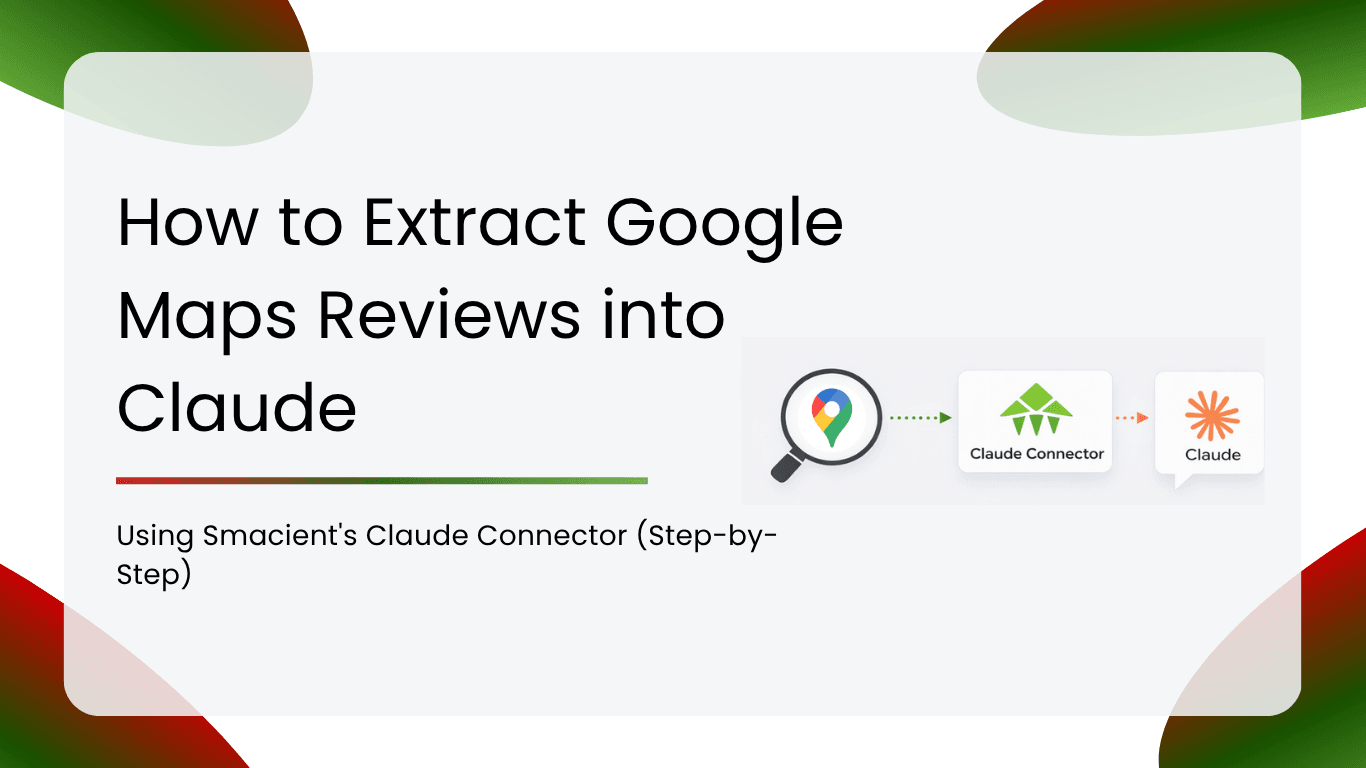
You can extract Google Maps reviews into Claude using Smacient’s Google Maps Claude Connector, an MCP connector available in Anthropic’s Claude connectors directory. It finds any business on Google Maps by name and city and pulls up to 50 reviews per call directly into your Claude conversation. Claude then analyzes sentiment, themes, and competitor gaps in the same chat, with no exports or spreadsheets.
Google Maps reviews are one of the richest sources of unfiltered customer feedback available to any local business, agency, or brand. According to BrightLocal’s Local Consumer Review Survey 2026, 97% of consumers read reviews for local businesses, and Google remains the most used review platform at 71%. The challenge is getting that feedback out of Google Maps and into a place where you can actually analyze it.
In this guide, we walk through how to set up Smacient’s Google Maps Claude Connector, with real example prompts for reputation monitoring, competitor analysis, and local market research.
Table of Contents
Key Takeaways
- Smacient’s Claude Connector adds two Google Maps tools to Claude: search_google_maps and extract_google_maps_reviews.
- You can add Smacient to Claude in a few clicks from Anthropic’s Claude connectors directory.
- You can extract up to 50 reviews per call, sorted by Relevant, Newest, Highest, or Lowest.
- No Google account connection is needed because Google Maps reviews are public.
- A business search costs 1 credit and reviews cost 1 credit per 10 reviews. The free plan includes 30 credits every month.
- The connector works in Claude on the web and Claude Desktop with Pro, Max, Team, and Enterprise plans.
Why Google Maps Reviews Matter in 2026
Reviews shape local buying decisions more than ever. BrightLocal’s Local Consumer Review Survey 2026, based on 1,002 US consumers, found that:
- 97% of consumers read reviews for local businesses
- 71% use Google to read reviews, making it the most used review platform
- 68% require a business to have at least 4 stars before they consider it
- 74% prioritize reviews from the last three months
- 47% won’t use a business with fewer than 20 reviews
- 89% expect business owners to respond to reviews
With customers paying this much attention to recent reviews, businesses that monitor and act on their Google Maps feedback regularly have a clear advantage over those that check it once a quarter.
The Problem with Manual Google Maps Review Analysis
Google Maps shows every business’s rating, review count, and individual customer reviews. For a single location, reading through them is manageable. For a multi-location brand, an agency managing dozens of clients, or anyone researching a local market, it quickly becomes unworkable.
There is no simple way to export Google Maps reviews. Most teams end up copying reviews into spreadsheets by hand, scrolling endlessly through listings, or relying on memory to spot patterns. Comparing your business against three competitors means opening multiple tabs and reading hundreds of reviews side by side.
And even once you have the reviews, the real work is still ahead: identifying recurring complaints, spotting sentiment shifts, and turning feedback into decisions. By the time the analysis is done, newer reviews have already come in.
What Smacient’s Claude Connector Does for Google Maps
Smacient connects to Claude through the Model Context Protocol (MCP), which lets Claude access external tools and live data sources during a conversation. Smacient is listed in Anthropic’s Claude connectors directory, so you can add it to Claude in a few clicks. For Google Maps, the connector provides two tools:
| Tool | What It Does | Data Returned |
| search_google_maps | Finds any business on Google Maps by name and city | Place name, address, rating, review count, phone number, and dataId |
| extract_google_maps_reviews | Pulls reviews for a business | Rating, full review text, and reviewer name for each review |
Key capabilities include:
- Finding businesses by name and city, or directly from a Google Maps URL
- Extracting up to 50 reviews per call (10 by default)
- Sorting reviews four ways: Relevant (Google’s default ranking), Newest, Highest, and Lowest
- Analyzing sentiment, themes, and patterns in the same conversation
Because Google Maps reviews are public, there is no account to connect. Once the connector is added to Claude, you can research any business immediately.
How the Integration Works (Quick Overview)
The workflow is simple: create a Smacient account, add Smacient from Anthropic’s Claude connectors directory, and start asking questions. Claude handles the tool calls, pulls the reviews, and analyzes them for you.
How to Extract Google Maps Reviews into Claude
Setting up the connector takes just a few minutes. Follow these four steps.
Step 1: Create Your Smacient Account
Visit smacient.com/mde/signup and complete the registration. You get 30 free credits every month, with no credit card required. Signup takes under two minutes and gives you access to the Smacient dashboard, where you can track your credits.
Step 2: Add Smacient from Anthropic’s Claude Connectors Directory
Connectors from Anthropic’s directory are available on Claude Pro, Max, Team, and Enterprise plans, on Claude web and Claude Desktop.
Option A: Add from Anthropic’s directory (recommended)
- Open Claude and click the Search and tools button at the bottom left of the chat box
- Select Add connectors
- Search for Smacient in the directory
- Click on Smacient and review its description and capabilities
- Click Connect
- Sign in with your Smacient account credentials and authorize the connection
You can also add it from Settings > Connectors > Browse connectors, then follow steps 3 to 6.
Option B: Add as a custom connector
If you prefer to add Smacient manually:
- Open claude.ai and go to Settings
- Select Connectors, then Add custom connector
- Enter “Smacient” in the Name field
- Paste https://claude.smacient.com/mcp in the Remote MCP server URL field
- Click Add, then sign in with your Smacient account credentials and authorize the connection
Either way, the connector activates immediately. Once connected on web or desktop, it is also available when you use Claude on mobile.
Step 3: Verify the Connection
Open a new Claude conversation and type:
Example prompt:
“Check my Smacient credits balance.”
Claude calls the get_credits_balance tool (free to use) and returns your current balance and plan details. If you see your balance, the connection is active and ready.
Step 4: Pull Google Maps Reviews in Plain English
You don’t need to know tool names or parameters. Describe what you want in plain language, and Claude finds the business, pulls the reviews, and analyzes them.
Example prompt:
“Search for physiotherapy clinics in Mumbai and pull the 30 most relevant reviews for the highest-rated result.”
Claude searches Google Maps, picks the top-rated clinic, extracts 30 reviews sorted by relevance, and summarizes what customers are saying, all in one response. This prompt uses 4 credits: 1 for the search and 3 for 30 reviews.
Google Maps Review Use Cases with Example Prompts
Once the connector is set up, here are seven ways to put Google Maps reviews to work in Claude. Copy any prompt below and replace the placeholders with your own business, competitor, or city.
Use Case 1: Reputation Monitoring
Example prompt:
“Find [your business name] in [city] on Google Maps and pull the 50 newest reviews. Summarize the overall sentiment, list the top three things customers praise, and flag any recurring complaints I should address.”
Since 74% of consumers prioritize reviews from the last three months, sorting by Newest shows you exactly what potential customers are reading right now. A monthly reputation check that used to mean reading every review now takes one prompt.
Use Case 2: Critical Review Analysis
Example prompt:
“Pull the 50 lowest-rated Google Maps reviews for [your business name] in [city]. Group the complaints into themes such as service, pricing, wait times, or product quality. Which issue comes up most often, and what should we fix first?”
Sorting by Lowest surfaces your most critical feedback first, so you can prioritize fixes based on what customers actually say.
Use Case 3: Competitor Gap Analysis
Example prompt:
“Search for [competitor name] in [city] on Google Maps and pull their 50 most relevant reviews. Then do the same for [second competitor]. What do customers love about each one? What do they complain about? Where is there a gap we could fill?”
Competitor reviews show you exactly where rivals are winning and losing, straight from their customers.
Use Case 4: Local Market Research
Example prompt:
“Search for dental clinics in Bangalore. For the top three results by rating, pull 20 relevant reviews each. What do patients value most in this market? Are there any unmet needs that come up across multiple clinics?”
This works well for businesses planning to enter a new city or launch a new location.
Use Case 5: Voice of Customer for Marketing Copy
Example prompt:
“Pull the 50 highest-rated Google Maps reviews for [your business name] in [city]. Extract the exact phrases customers use to describe what they love. Suggest five ad headlines and three landing page taglines based on this language.”
Your happiest customers are your best copywriters. This prompt turns their words into ready-to-test marketing messages.
Use Case 6: Multi-Location Performance Comparison
Example prompt:
“Search for [brand name] locations in [city 1], [city 2], and [city 3]. Compare their ratings and review counts. Then pull 20 of the newest reviews for the lowest-rated location. What is driving the lower rating there compared to the others?”
With 68% of consumers requiring at least 4 stars, a single underperforming branch can cost a multi-location brand real customers. This prompt shows which branches need attention and why.
Use Case 7: Agency Client Audit
Example prompt:
“Find [client business name] in [city] on Google Maps. Pull 30 relevant reviews and 30 of the lowest-rated reviews. Write a short reputation audit for the client covering overall sentiment, strengths, weaknesses, and three recommended actions.”
Agencies can produce a client-ready reputation audit in minutes instead of hours.
Combining Google Maps Reviews with Other Sources
Smacient’s Claude Connector supports cross-platform analysis in a single conversation. Here’s how Google Maps reviews work alongside other data sources.
Reviews and search demand:
“Pull the 50 most relevant Google Maps reviews for [your business name] in [city] and identify the top services customers mention. Then use Google Keyword Planner to check search volume for those services in [country]. Are the services customers talk about most also the ones people are searching for?”
Reviews and competitor advertising:
“Pull 30 of the lowest-rated Google Maps reviews for [competitor name] in [city]. Then pull Meta Ads Library data for [competitor name] and show me their active ads. Are their ads promising things their customers say they fail to deliver?”
Reviews and organic search performance:
“Pull the 50 newest Google Maps reviews for [your business name] and list the most common topics. Then pull my Google Search Console data for the last 30 days. Do the queries bringing traffic to my site match what customers value in their reviews?”
For more on these sources, see our guides on getting Meta Ads Library data in Claude and connecting Google Keyword Planner to Claude.
Why This Changes Your Local Marketing Workflow
The traditional workflow for review analysis looks like this: open Google Maps, scroll through reviews, copy them into a spreadsheet, read and tag them by hand, then repeat for every competitor. It’s slow, inconsistent, and rarely done often enough to catch problems early.
With Smacient’s Claude Connector, the workflow becomes:
- Open Claude
- Ask your question in plain English
- Get live reviews and analysis together
- Follow up with deeper questions in the same conversation
Business owners get a clear picture of their reputation without reading every review. Agencies can run reputation audits for multiple clients in a single session. Marketers can turn customer language into campaigns, and researchers can map an entire local market in minutes.
FAQs
No. Google Maps reviews are public, so there is no account to connect. Once you add Smacient to Claude, you can search any business right away.
Yes. You can find Smacient in Anthropic’s Claude connectors directory by clicking Search and tools, then Add connectors, and searching for Smacient. You can also add it manually as a custom connector using https://claude.smacient.com/mcp.
Up to 50 reviews per call, with a default of 10. You can ask Claude to pull reviews for multiple businesses in the same conversation.
Each review includes the rating, the full review text, and the reviewer’s name. Business searches return the place name, address, rating, review count, phone number, and a dataId.
There are four sort options: Relevant (Google’s default ranking of the most useful reviews), Newest, Highest, and Lowest.
Yes. You can paste a Google Maps URL directly into your prompt, and Claude uses the place details embedded in the link.
A business search costs 1 credit, and reviews cost 1 credit per 10 reviews extracted. The free plan includes 30 credits every month. The Starter pack is $9 for 600 credits, and the Pro pack is $19 for 1,500 credits. Credits never expire.
Connectors from Anthropic’s directory are available on Claude Pro, Max, Team, and Enterprise plans, on Claude web and Claude Desktop. Once connected, the connector is also available in the Claude mobile app.
Claude receives an insufficient credits message and the extraction stops. Your conversation stays intact, and you can top up from your dashboard to continue.
Final Thoughts: Smarter Local Insights with Claude
Google Maps reviews hold some of the most honest customer feedback a business can get, but manual collection and analysis make it hard to use consistently. The analysis that used to take hours of reading now takes a single conversation.
Smacient’s Claude Connector brings Google Maps reviews into Claude so you can monitor your reputation, benchmark competitors, and research local markets with plain-English prompts.
Add Smacient from Anthropic’s Claude connectors directory, learn more on the Google Maps Claude Connector page, or get started at smacient.com/mde/signup. You get 30 free credits every month, with no credit card required.
Related Posts
- How to Extract Google Play Store Data into Google Sheets
- How to Extract Apple App Store Data into Google Sheets (No Code)
- How to Extract YouTube Channel Data and Comments in Google Sheets
- How to Connect Instagram Data to Claude (No API Needed)
- How to Connect GSC Data to Claude in Under 1 Minute for Free