If you run paid social campaigns on Facebook or Instagram, you already know how much time lives inside Meta Ads Manager. Campaign performance, creative results, audience breakdowns, placement data, conversion funnels, and budget efficiency reports. The data is all there. The problem has never been what Meta Ads Manager shows. The problem is what happens between pulling that data and actually making decisions with it.
You open Ads Manager, navigate to the breakdown you need, wait for the table to load, export to CSV, clean up the columns, paste the relevant rows into Claude, write a prompt, get your analysis, and then realise you need a different date range or a different dimension. So you go back to Ads Manager and start again.
And that is just for your own account. If you also want to know what your competitors are running on Facebook and Instagram right now, that requires a completely separate manual process. Getting Meta Ads Library data into Claude means searching for the brand, browsing through active ads, noting down copy and creative details, and trying to synthesise what you see into something useful, all without any structured way to analyse it.
Both of these workflows are broken. Smacient’s Marketing Data and Context for Claude connector fixes both of them in two distinct but complementary ways.
For your own Meta Ads account, Smacient gives Claude direct access to your live performance data across seven analytical tools, all completely free to use once your Meta account is connected. For competitor research, Smacient gives Claude direct access to Meta Ads Library data, letting you pull active and historical ads from any brand by name, with credits charged per extraction.
This guide walks you through the full setup and shows you exactly how to use both sides of the integration for real paid social work.
Table of Contents
The Problem with Manual Meta Ads Analysis
Meta Ads Manager is a robust platform that tracks spend, reach, impressions, clicks, conversions, and ROAS across every campaign, ad set, and individual creative. It breaks down performance by age, gender, country, device, and placement, and maps your full conversion funnel from the first impression all the way to purchase.
But working with all of that data still requires a trained media buyer to navigate the interface, build the right breakdowns, apply the right filters, and then manually carry that data wherever analysis actually happens.
The insight generation does not happen inside Ads Manager. It happens after you have exported the data, reformatted it, and brought it into whatever tool you use for thinking. And every export is a snapshot. By the time your data reaches your analysis environment, you have already lost the ability to ask follow-up questions without going back to pull another export.
On the competitor side, the Meta Ads Library is valuable but deliberately limited in what it surfaces. You can browse ads, but you cannot export them systematically, you cannot compare multiple brands at once, and you cannot bring Meta Ads Library data into Claude or any analysis tool without doing it all manually.
Smacient removes both handoffs entirely.
What Smacient’s Connector Actually Does for Meta Ads Library Data
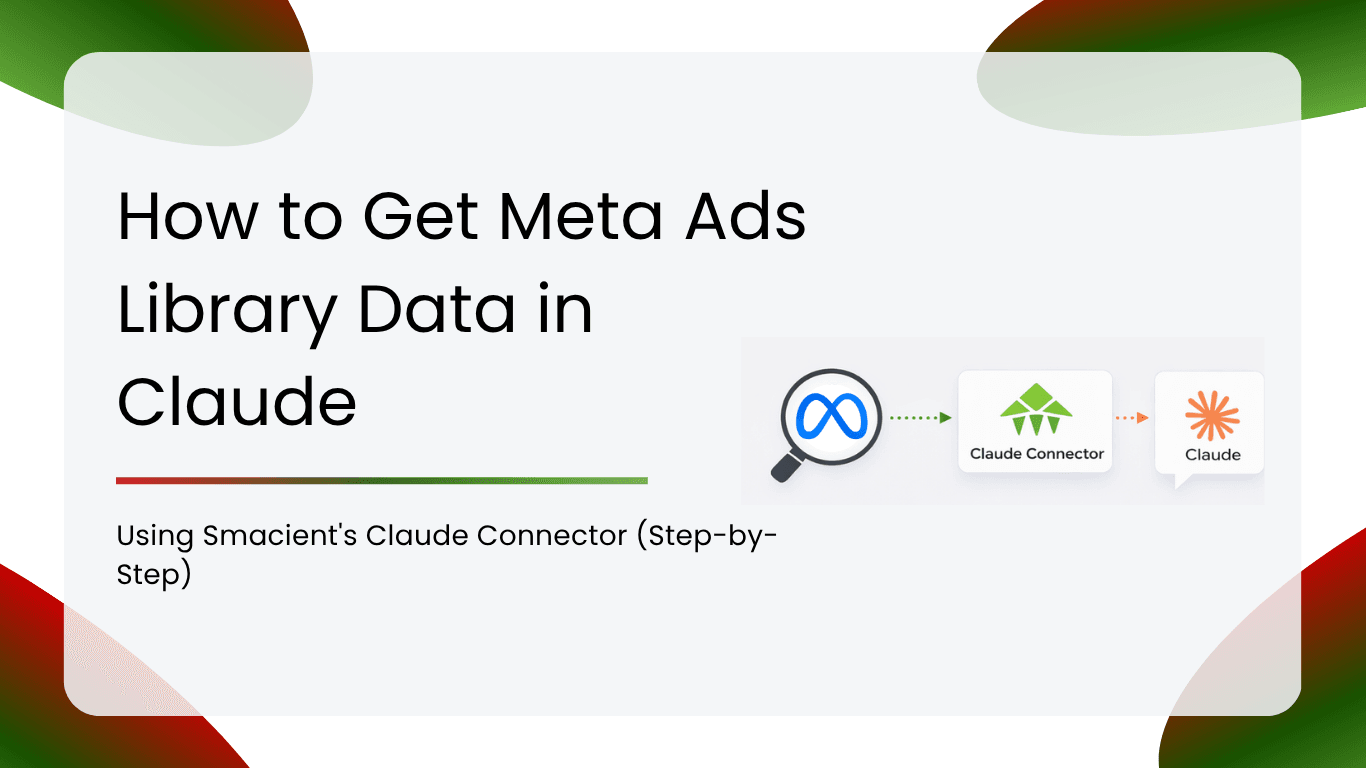
Smacient connects to Claude as an MCP (Model Context Protocol) server. MCP is the standard that allows Claude to integrate with external tools and live data sources. Once your Smacient connector is active in Claude, you gain access to Meta Ads Library data through a single dedicated tool.
search_meta_ads is how you get Meta Ads Library data into Claude directly. It searches the Meta Ads Library for any brand’s active or historical ads. You can find a brand by name (Smacient resolves it to the correct Facebook page automatically) or by passing a direct Facebook page URL. You can filter by active status, time period (last 7, 14, or 30 days, or all time), and country. Each ad result includes the ad copy, call to action, media details, run dates, and platform. This is the competitive intelligence tool: understand what any brand is running on Facebook and Instagram right now, and how their messaging has evolved over time.
How the Integration Works (Quick Overview)
You create a Smacient account, copy your personal MCP connector URL, add it to Claude.ai, and connect your Meta Ads account from the Smacient dashboard. From that point on, your own account data is available to Claude on demand at no credit cost. Getting Meta Ads Library data into Claude for competitor research draws from your credit balance. You ask in plain English, Claude calls the right tool, and you get structured analysis without leaving the conversation.
Step 1: Create Your Smacient Account
Go to smacient.com/mde/signup and create an account. You receive 30 free credits instantly, with no credit card required at signup.
The signup process takes under two minutes. Once your account is live, you will land in the Smacient dashboard, where you can track your credit balance, connect your Meta Ads account, and access your connector URL.
Step 2: Copy Your MCP Connector URL
Inside the Smacient dashboard, locate your personal MCP connector URL:
Copy this URL. You will paste it into Claude in the next step.
Step 3: Add the Connector to Claude.ai
Custom connectors in Claude.ai are available on Pro and Team plans. Here is how to connect:
- Go to claude.ai and open Settings
- Navigate to Connectors, then Add custom connector
- In the Name field, type: Smacient
- In the Remote MCP server URL field, paste: https://claude.smacient.com/mcp
- Click Add
Claude will redirect you to a Smacient sign-in screen. Enter the email and password you used to create your Smacient account. Once you authorise the connection, the connector will appear as active in your Settings panel.
Note: Once connected via Claude.ai, the connector also works automatically in Claude Desktop and Claude Code. You do not need to repeat the setup for those clients.
Step 4: Connect Your Meta Ads Account
The own-account tools require a one-time Meta Ads account connection from your Smacient dashboard. This gives Smacient read-only access to your Meta Ads data.
- Sign in at smacient.com/mde/dashboard and scroll to the Connected Accounts section.
- Click Connect Meta Ads
- You will be redirected to Meta’s authorisation screen. Grant read-only access to your ad account.
- Return to Claude. Your Meta Ads account ID will now be accessible to Claude through the connector.
Once connected, the own-account tools become available immediately and are free to call. To disconnect, return to your dashboard and click Disconnect Meta. Your credentials are deleted immediately.
Step 5: Verify the Connection
Open a new conversation in Claude and run a quick check:
“Check my Smacient credits balance.”
Claude will return your current balance and plan details. The get_credits_balance tool is completely free to call. If you see your balance, the connection is live, and you are ready to start pulling Meta Ads data and Meta Ads Library data into Claude.
Step 6: Pull Meta Ads Data in Plain English
This is where the workflow changes. You do not need to remember tool names, build breakdowns in Ads Manager, or format your requests in any particular way. Describe what you need as you would to a media buyer or analyst.
Real-World Use Cases with Example Prompts
Account Health Check
“Give me an account summary for my Meta Ads account for the last 30 days. What are my overall ROAS, CTR, and CPC? How does that look compared to a healthy benchmark for e-commerce?”
In one prompt, you get a full top-level read on your account performance and an immediate strategic assessment, without opening Ads Manager, running a report, or exporting anything.
Campaign Performance Review
“Analyse my Meta Ads campaigns for the last 30 days, sorted by spend. Which campaigns have the highest ROAS? Which are spending the most but delivering the weakest results? What should I prioritise based on this data?”
This replaces the standard weekly campaign review process. Claude pulls the data, identifies the patterns, and gives you a prioritised action list in one conversation.
Creative Performance and Winner Identification
“Run a creative analysis on my Meta Ads account for the last 14 days. Which individual ads have the highest CTR and the lowest CPC? Which creatives are delivering conversions at the best cost? Flag any ads that are spending significantly but not converting.”
Ad-level creative analysis is one of the most important and time-consuming tasks in paid social. This turns it into a single prompt and gives you a clear ranking of your creatives by what actually matters.
Audience and Demographic Breakdown
“Break down my Meta Ads performance by age group for the last 30 days. Which age ranges are converting at the best rate? Are there any segments that are receiving a disproportionate share of spend but not contributing to conversions?”
You can run this for any of the five breakdown dimensions: age, gender, country, device platform, or publisher platform. Follow up in the same conversation by asking Claude to make targeting recommendations based on what the data shows.
Placement Optimisation
“Show me my Meta Ads placement performance for the last 30 days. Which placements are delivering the best ROAS? Are there any placements where I am paying high CPMs but seeing low conversion rates? Should I be excluding any placements?”
Most advertisers run ads across all Meta placements by default and rarely audit which ones are actually working. This prompt surfaces that data immediately and gives you the basis for an informed placement exclusion strategy.
Funnel Diagnosis
“Show me my full conversion funnel for the last 30 days. Where is the biggest drop-off happening? Is the problem between click and content view, content view and add to cart, or add to cart and purchase? What does that suggest about where I should focus my optimisation effort?”
Understanding where you are losing users in the funnel tells you whether the problem is in your ads, your landing page, your product page, or your checkout. This prompt gives you that diagnosis without building a custom funnel report in Ads Manager.
Budget Reallocation
“Run a budget optimisation analysis for my Meta Ads account for the last 30 days. Which campaigns should I scale based on their current performance? Which should I reduce the budget on? Are there any I should consider pausing entirely?”
This turns budget decision-making from a judgment call into a data-driven recommendation, and it updates every time you ask based on live performance data rather than a stale export.
Competitor Research with Meta Ads Library Data in Claude
“Pull Meta Ads Library data for [competitor brand name] and show me their active ads. What messaging angles are they currently running? What calls to action are they using? Are there any creative formats they are testing heavily right now?”
“Pull Meta Ads Library data for [competitor brand name] and show me their ads from the last 14 days. Then do the same for [second competitor]. Compare the two: are they going after the same audience with similar messaging, or are they positioning differently?”
Bringing Meta Ads Library data into Claude makes competitor creative intelligence a systematic research process rather than a manual browse session. You can compare multiple brands in one conversation and immediately use those insights to brief your own creative team.
Combining Meta Ads Data with Other Sources
One of the most powerful uses of the Smacient connector is combining your Meta Ads data with other platform data inside the same Claude conversation.
Consider this workflow for a full-funnel paid social review:
“Give me an account summary and campaign performance breakdown for my Meta Ads account for the last 30 days. Then pull my GA4 data for the same period and show me sessions and conversions by traffic source. Are the campaigns that look strong in Meta Ads actually delivering sessions and conversions in GA4, or is there a discrepancy I should investigate?”
You are cross-referencing Meta’s attribution data with your own analytics, which often tells a very different story and surfaces discrepancies that neither platform would reveal on its own.
Or for a creative strategy session that combines Meta Ads Library data in Claude with your own account performance:
“Run a creative analysis on my Meta Ads account for the last 30 days. Identify my three best-performing ads by CTR. Then pull Meta Ads Library data for [top competitor] and show me their active ads. Compare the messaging and creative approaches: where are we aligned with what the market is doing, and where are we taking a different angle? Is that differentiation intentional and working, or is there something the competitor is doing that I should be testing?”
Or for connecting paid social with organic search:
“Show me my Meta Ads campaign performance for the last 30 days and identify the top three offers or messages I am promoting. Then use Google Keyword Planner to check search volume for the core terms behind those offers. Are the things I am paying to promote also things people are actively searching for? If not, there may be a gap between my paid and organic strategies worth closing.”
Why This Changes Your Paid Social Workflow
The traditional Meta Ads workflow has friction at every stage: the time spent navigating Ads Manager to build the right breakdowns, the back-and-forth between reports and exports, the context switching between Ads Manager, spreadsheets, and wherever analysis actually happens.
Every time you leave Claude to pull a fresh export from Meta, you lose the thread of your analysis. You re-read your previous notes, re-prompt, and reassemble context from scratch. Over a full morning of paid social management, those interruptions quietly eat into your time and break your strategic focus.
With Smacient connected, your Meta Ads workflow becomes:
- Open Claude
- Ask your question in plain English
- Get live Meta Ads data and immediate analysis in one step
- Follow up in the same conversation with deeper questions
For solo media buyers, that means faster decisions and more time spent on actual optimisation rather than report building. For agencies managing multiple client accounts, it means the weekly performance reviews that used to take a morning can be done conversationally in a fraction of the time. And for anyone monitoring competitors, it means Meta Ads Library data is in Claude and ready to analyse the moment you ask.
FAQs
No. The connection uses Meta’s standard OAuth authorisation flow. You grant read-only access through Meta’s own consent screen, and Smacient never sees your password. You can revoke access at any time from your Smacient dashboard.
Yes. Once your Meta Ads account is connected, all seven own-account tools (account summary, campaign analysis, creative analysis, audience breakdown, placement performance, conversion funnel, and budget optimisation) are completely free to use. They do not draw from your credit balance regardless of how many times you call them.
The connector can retrieve your performance data for analysis. It cannot create, edit, pause, or delete any campaigns, ad sets, or ads. No changes can be made to your account through Claude.
Yes. If you manage multiple ad accounts, you can use meta_list_accounts to see all accounts connected to your Meta credentials, then specify which account you want to analyse in each tool call.
It works for any brand that has run ads on Facebook or Instagram. The Meta Ads Library is a public transparency tool, and search_meta_ads can pull Meta Ads Library data into Claude for any brand’s public page, regardless of whether you have any connection to that account.
Yes. The search_meta_ads tool accepts a two-letter country code parameter, which sets the geographic context for the search. This is useful when a brand runs different creative strategies in different markets.
Claude will receive a message indicating insufficient credits, and the extraction will stop. Your conversation history stays intact. You can top up instantly from your Smacient dashboard and continue exactly where you left off.
Yes. In a single Claude conversation, you can pull your Meta Ads performance data, cross-reference it with GA4 analytics, compare your own creatives against Meta Ads Library data from competitor brands, check keyword demand via Google Keyword Planner, and pull organic social content from TikTok or Instagram. Claude can synthesise all of it into a single strategic view.
Final Thoughts: Smarter Paid Social with Claude
Meta Ads Manager has never been more capable. The reporting is detailed, the breakdowns are granular, and the data is all there. The problem has always been the workflow around it: the exports, the reformatting, the context switching, and the friction between raw performance data and actual decisions.
Smacient’s connector removes that friction on both sides. Your own account data becomes a live resource inside Claude, free to query on demand in plain English. Getting Meta Ads Library data into Claude for competitor creative intelligence becomes a systematic research process rather than a manual browse session.
The analysis that used to take a morning now takes a conversation.
Get started at smacient.com/mde/signup. 30 free credits, no credit card required.
Related Posts
- How to Connect Instagram Data to Claude (No API Needed): Smacient Claude Connector Guide
- How to Connect GSC Data to Claude in under 1 Minute for Free(No-Code MCP Guide)
- How to Connect Google Analytics 4 to Claude for Free Using Smacient’s Claude Connector (Step-by-Step)
- How to Connect Google Keyword Planner to Claude Using Smacient’s Claude Connector (Step-by-Step)