If you work in marketing, product, or growth, you already know how much time lives inside Google Analytics 4 data. Sessions, user behaviour, traffic sources, conversion funnels, and cohort trends. The Google Analytics 4 data is all there. The problem has never been what GA4 reports. The problem is what happens between pulling it and actually doing something with it.
You open GA4, navigate to Explore or Reports, build your query, export to CSV, clean up the columns, paste the relevant rows into Claude, write your prompt, get your analysis, and then realise you need a different date range or a different breakdown. So you go back to GA4 and start again.
This loop is broken. It was designed for a world where AI assistants and live analytics platforms didn’t communicate. That world no longer exists. And now, closing that gap is completely free.
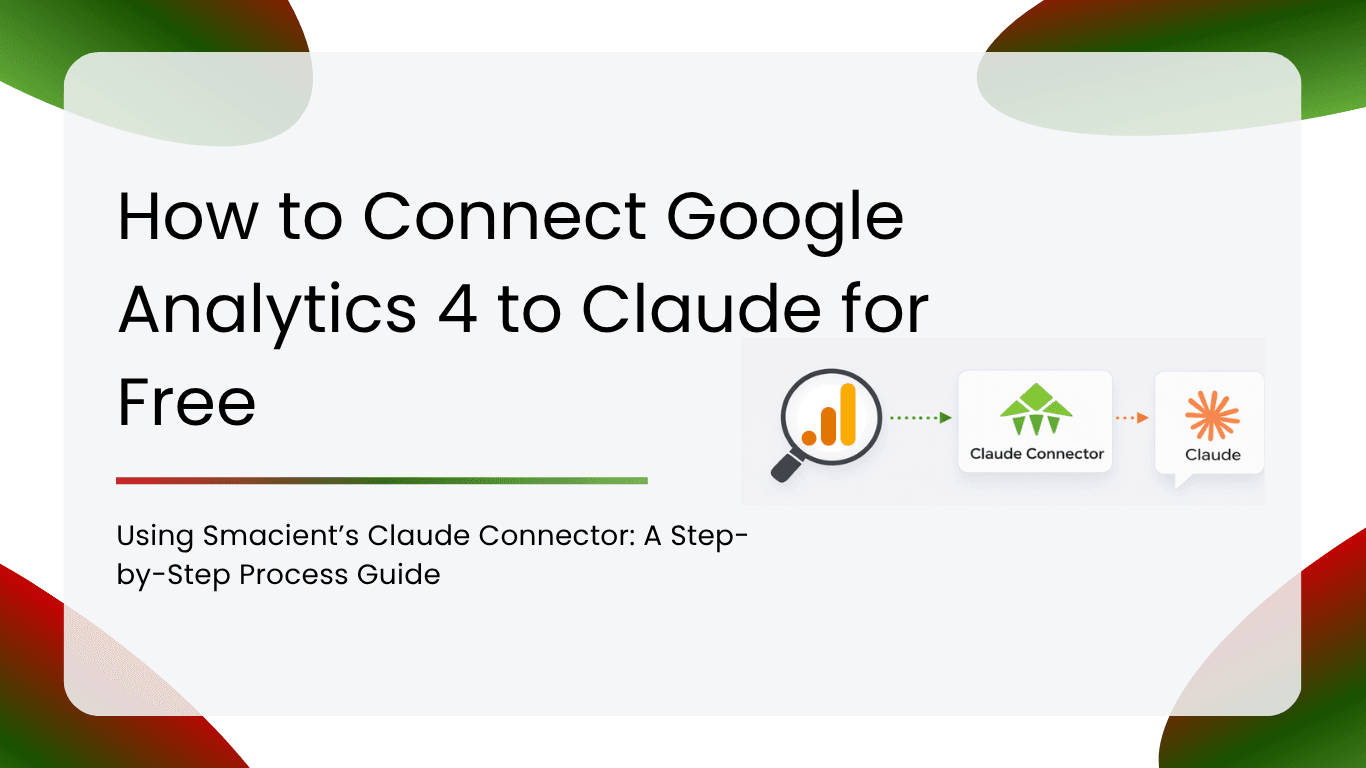
Smacient’s Marketing Data & Context for the Claude connector closes the gap entirely. Once set up, you can ask Claude to pull live Google Analytics 4 data directly from your GA4 property, inside the same conversation, using plain English. No exports, spreadsheets, or copy-pasting. Just ask, and Claude handles the rest.
This guide walks you through the full setup and shows you exactly how to use it for real analytics work.
Table of Contents
Why Google Analytics 4 Data Still Requires a Human Analyst (And How to Change That)
GA4 is extraordinarily capable. It tracks events, builds audiences, models attribution, and surfaces cross-device behaviour in ways that Universal Analytics never could. But working with Google Analytics 4 data still requires a trained analyst to navigate its interface, build the right explorations, and then manually carry that data wherever analysis actually happens.
The insight generation doesn’t happen inside GA4. It happens after you’ve exported the Google Analytics 4 data, reformatted it, and brought it into whatever tool you use for thinking: a spreadsheet, a slide deck, or increasingly, an AI assistant.
That handoff is where time and context get lost. Every export is a snapshot. By the time your Google Analytics 4 data reaches your analysis environment, it’s already slightly stale, and you’ve lost the ability to ask follow-up questions without going back to the source.
Smacient removes that handoff entirely.
What Smacient’s Connector Actually Does for GA4
Smacient connects to Claude as an MCP (Model Context Protocol) server. MCP is the standard that allows Claude to integrate with external tools and live data sources. Instead of Claude working only with information you manually paste into the conversation, MCP lets Claude reach out and retrieve Google Analytics 4 data on demand, in real time, from your actual GA4 property.
Once your Smacient connector is active, Claude gains access to five dedicated GA4 tools:
ga4_list_properties: Lists all GA4 accounts and properties linked to your Google account. This is always the starting point; it returns the property IDs you need to run any other GA4 tool.
ga4_get_realtime: Returns real-time active users in the last 30 minutes, broken down by page and traffic source. Ideal for monitoring live campaigns, content launches, or any situation where you need to know what’s happening on your site right now.
ga4_get_report: The core reporting tool. Pull custom Google Analytics 4 data reports by combining any dimensions (page path, session source, device category, country, and more) with any metrics (sessions, active users, bounce rate, conversions, revenue, and more) across any date range you specify.
ga4_compare_periods: Compares two date ranges side by side and returns absolute change and percentage change per metric. Built for week-over-week, month-over-month, or pre/post campaign comparisons, optionally broken down by dimension.
All tools operate on Smacient’s credit system. Every account receives 30 free credits every month with no credit card required, giving you room to explore the full workflow before committing.
Step 1: Create Your Smacient Account
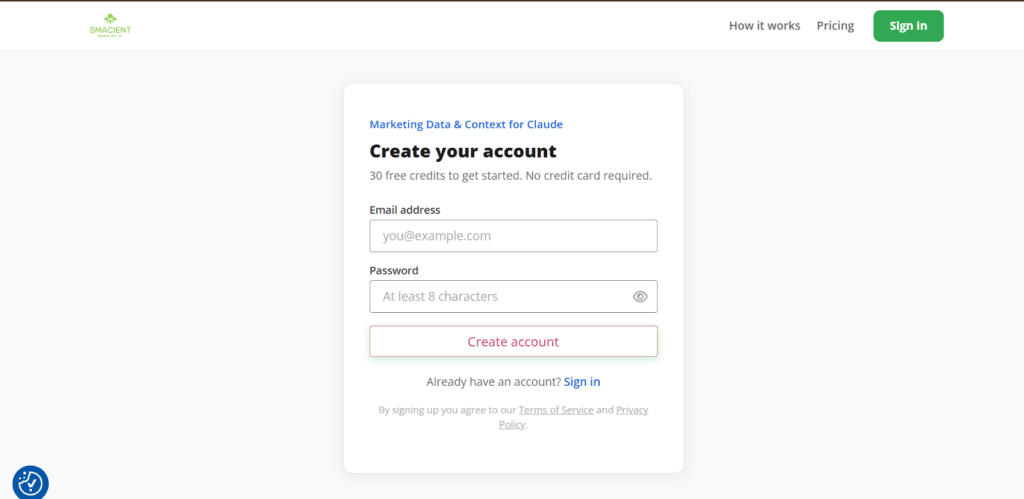
Go to smacient.com/mde/signup and create a free account. No payment details, no trial period, no credit card ever required. The signup process takes under two minutes. Once your account is live, you’ll land in the Smacient dashboard, where you can track your usage, view extraction history, and access your connector URL.
The signup process takes under two minutes. Once your account is live, you’ll land in the Smacient dashboard, where you can track your credit balance, view extraction history, and access your connector URL.
Step 2: Copy Your MCP Connector URL
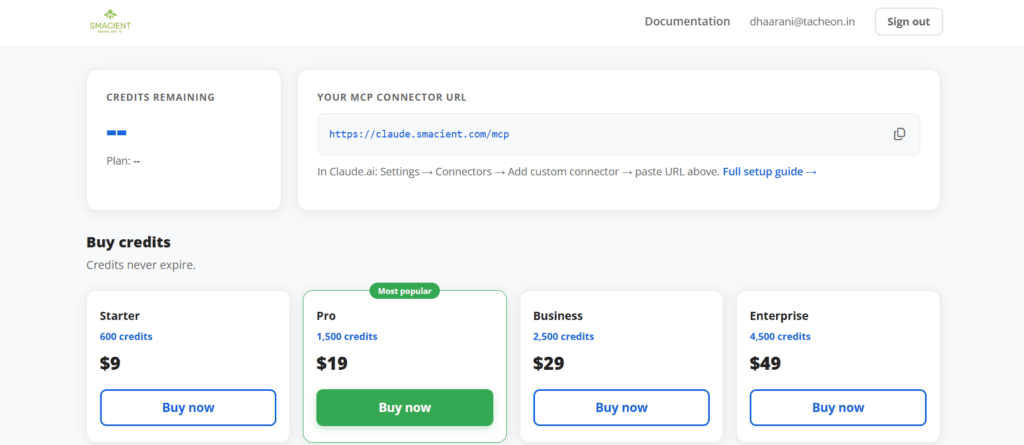
Inside the Smacient dashboard, locate your personal MCP connector URL:
Copy this URL. You’ll paste it into Claude in the next step. This is the address Claude uses to communicate with Smacient’s servers and, through them, your GA4 property via Google’s API.
Step 3: Add the Connector to Claude.ai
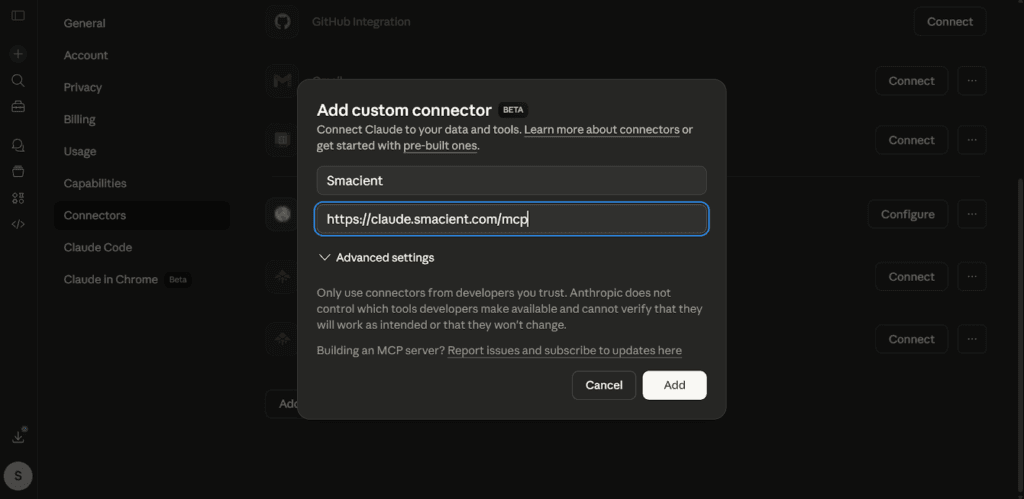
Custom connectors in Claude.ai are available on Pro and Team plans. Here’s how to connect:
- Go to claude.ai and open Settings
- Navigate to Connectors → Add custom connector
- In the Name field, type: Smacient
- In the Remote MCP server URL field, paste: https://claude.smacient.com/mcp
- Click Add
Claude will redirect you to a Smacient sign-in screen. Enter the email and password you used to create your Smacient account. Once you authorise the connection, the connector will appear as active in your Settings panel.
Note: Once connected via Claude.ai, the connector also works automatically in Claude Desktop and Claude Code. You do not need to repeat the setup for those clients.
Step 4: Verify the Connection
Open a new conversation in Claude and run a quick check before pulling any Google Analytics 4 data: “Check my Smacient credits balance.” Claude will return your current balance and plan details. If you see your balance, the connection is live and you’re ready to start.
“Check my Smacient credits balance.”
The get_credits_balance tool is completely free to call. If the connector doesn’t respond, go back to Settings in Claude.ai and confirm the connector shows as active. A fresh sign-in to the Smacient dashboard typically resolves any authentication issues.
Step 5: Pull Google Analytics 4 Data in Plain English
This is where the workflow changes. You don’t need to remember tool names, understand GA4’s dimension and metric naming conventions, or format your requests in any particular way. Describe what you need as you would to a colleague.
Real-World Use Cases with Example Prompts
Traffic Analysis
“Get Google Analytics 4 data for my property for the last 30 days. Break down sessions and active users by session source and medium.”
Claude will list your properties, let you confirm which one to use, then pull the report. You can immediately follow up: filter by source, ask which channels are declining, or request a comparison to the previous period, all in the same conversation.
Real-Time Monitoring
“What’s happening on my site right now? Show me, active users by page and traffic source.”
This is particularly valuable during a campaign launch, a product announcement, or a PR mention. Instead of refreshing the GA4 real-time dashboard, you get a structured summary of your Google Analytics 4 data that you can act on immediately.
Period-over-Period Comparison
“Compare sessions, active users, and conversions in my Google Analytics 4 data for the last 30 days versus the 30 days before that. Break it down by device category.”
Claude calls the ga4_compare_periods tool and returns a structured comparison with absolute and percentage changes per device type. You don’t have to build a comparison report inside GA4 Explore, and you don’t have to set up the metric calculations manually in a spreadsheet.
Channel Performance Breakdown
“Get Google Analytics 4 data for the last quarter and tell me which traffic channels are driving the most conversions. Flag any channels with high sessions but low conversion rates.”
This kind of analysis used to require a pivot table or an analyst who knew their way around GA4 Explore. With live Google Analytics 4 data flowing into Claude, the filtering and flagging logic becomes part of a single prompt.
Content and Page Analytics
“Get Google Analytics 4 data for the last 28 days, broken down by page path. Show me which pages have the most sessions, then highlight any pages where the average session duration is significantly below the site average.”
You get content performance data and immediate qualitative insight in one step: which pages are drawing traffic but losing attention, and which might need an update.
GA4 Tool Reference
| Tool | What It Does |
| ga4_list_properties | Lists all GA4 properties linked to your account. Always run this first to get your property ID. |
| ga4_get_realtime | Active users in the last 30 minutes, by page and traffic source. |
| ga4_get_report | Custom Google Analytics 4 data report: any dimensions + metrics + date range. |
| ga4_compare_periods | Two periods side-by-side with absolute and percentage change. |
Combining Google Analytics 4 Data with Other Sources
One of the most powerful use cases for the Smacient connector isn’t using Google Analytics 4 data in isolation. It’s combining GA4 data with other platform data in the same Claude conversation.
Consider this workflow for a content performance audit:
“Get Google Analytics 4 data for the last 30 days, broken down by page path. Then query Google Search Console for the same period and show me which high-traffic pages have a declining average position in search. These are the pages that need immediate attention.”
Claude pulls on-site engagement from GA4 and organic search visibility from GSC, then synthesises both into a single prioritised list of pages worth investigating. That cross-platform correlation is nearly impossible to do manually without significant time investment.
Or for campaign alignment:
“Pull Google Analytics 4 data for sessions by source over the last 90 days. Then search Meta Ads Library for [competitor brand] and tell me whether their ad activity correlates with any traffic spikes I’m seeing from paid social.”
You’re connecting your own analytics data with competitor advertising intelligence, inside one conversation, in minutes.
Why This Changes Your Analytics Workflow
The traditional GA4 workflow has several hidden costs that most teams don’t account for: the time spent building reports and explorations inside GA4’s interface, the friction of exporting and reformatting Google Analytics 4 data, and the loss of analytical context every time you context-switch between tools.
Every time you leave Claude to pull a fresh export from GA4, you lose the thread of your analysis. You re-read what you were working on. You re-prompt. You reassemble context. Over a full day of analytics work, those micro-interruptions add up to significant time lost.
With Smacient connected, your Google Analytics 4 data analysis loop becomes:
- Open Claude
- Ask your question in plain English
- Get live Google Analytics 4 data and immediate analysis in one step
- Follow up in the same conversation with deeper questions
For solo marketers, that means more insight in less time. For teams running analytics across multiple client accounts, it means the work that used to take a morning of report-building can be done conversationally in under an hour.
Frequently Asked Questions
No. You describe what you want in plain English, and Claude handles the translation into the correct dimensions, metrics, and tool calls. If you’re unsure what metric you need, just describe the question you’re trying to answer, and Claude will figure out how to pull the right Google Analytics 4 data.
The data is pulled directly from GA4 via Google’s API, so the figures match what you would see in the native GA4 interface. The difference is that the Google Analytics 4 data arrives inside Claude, ready to be analysed, rather than inside a report you then have to manually interpret and export.
Can I pull Google Analytics 4 data for multiple properties in one conversation?
Yes. Run ga4_list_properties to see all properties linked to your account, then switch between them by specifying the property you want in your prompt. Claude will use the correct property ID for each request.
Claude will receive a message indicating insufficient credits, and the extraction will stop. Your conversation history stays intact. You can top up instantly from your Smacient dashboard and continue exactly where you left off, without needing to rebuild the conversation context.
Can I combine Google Analytics 4 data with data from other platforms?
Yes, and this is one of the most powerful aspects of the connector. In a single Claude conversation, you can pull GA4 analytics, query Google Search Console, extract competitor ads from Meta Ads Library, and analyse social content from Instagram or TikTok. Claude can cross-reference all of it and surface insights that would be difficult to generate from siloed tools working independently.