YouTube is one of the most data-rich platforms available to marketers, researchers, and content strategists. Channel subscriber counts, video view trajectories, comment sentiment, like-to-view ratios, and video duration patterns. The data is all public and incredibly useful. The problem has never been that the data does not exist. The problem is that getting it into a format where Claude can actually reason over it has always required too many steps.
The old workflow looked like this: open YouTube, find a channel, manually note view counts and titles, copy video descriptions, screenshot stats, export to a spreadsheet, attach the spreadsheet to Claude, and then finally start asking questions. By the time you finish building the dataset, the analysis you wanted has taken an hour instead of five minutes. And if you need to compare three channels, multiply that by three.
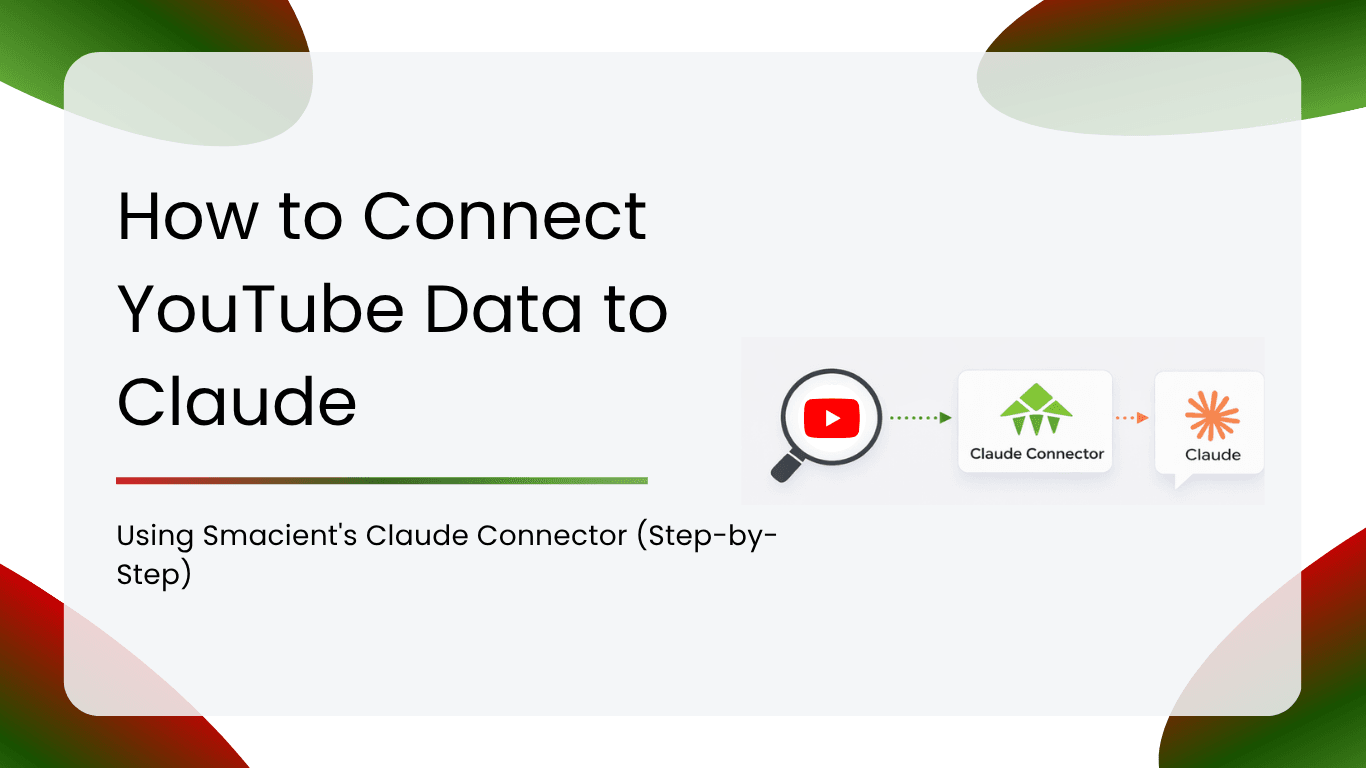
Smacient’s Marketing Data and Context for Claude connector removes every one of those steps. You connect once, and from that point forward, you ask Claude in plain English to pull YouTube data directly into your conversation. Channel stats, video lists, comments and all the associated metrics come back structured and ready for analysis without leaving Claude.
This guide walks through the full setup from account creation to your first live YouTube query, plus a library of example prompts for competitive research, content strategy, comment analysis, and cross-platform intelligence.
Table of Contents
What Smacient’s YouTube Tools Actually Do
Before getting into setup, it helps to understand exactly what Claude gains access to once the connector is active. Smacient exposes three dedicated YouTube tools to Claude via the MCP protocol.
get_youtube_channel retrieves profile-level data for any public YouTube channel. This includes subscriber count, total view count, channel description, and other account-level metadata. You can point Claude at a channel using its @handle, full channel URL, or channel ID. This is the tool Claude uses when you want a high-level read on a channel before diving into individual videos.
get_youtube_videos pulls the video catalogue from a specific channel. For each video, Claude receives the title, view count, like count, duration, and publish date. You can specify how many recent videos to retrieve. This is the tool that powers competitive content research, posting cadence analysis, and engagement benchmarking across channels.
get_youtube_comments retrieves top-level comments from a specific video, including the comment text, author, and like count per comment. This is the tool that unlocks audience sentiment analysis, pain point research, and community intelligence without watching the video or manually scrolling through comments.
All three tools return data in a structured, LLM-ready format. Claude can immediately reason across channels, rank videos by performance, extract patterns from comment text, and compare results side by side in the same conversation.
Prerequisites
Before starting the setup, make sure you have the following:
- A Smacient account (30 free credits are applied at signup, no payment details required)
- A Claude.ai Pro or Team plan (custom connectors require a paid Claude plan)
- The YouTube channel handles, URLs, or video links you want to research (no login required for the channels you are studying)
Step 1: Create Your Smacient Account
Go to smacient.com/mde/signup and create your free account. You will need just your name and email address. No credit card is required at signup. The process takes under two minutes, and your 30 free credits are applied immediately.
These credits work across the entire Smacient connector, meaning the same balance covers YouTube, TikTok, Instagram, Meta Ads Library, Google Keyword Planner, Google Analytics 4, and Google Search Console.
Once your account is active, you land in the Smacient dashboard. This is where you track your credit balance, view your extraction history, and access your personal MCP connector URL.
Note on YouTube credits: The YouTube tool calls draw from your credit balance. Your 30 free monthly credits give you enough runway to run several meaningful research sessions before topping up. Additional credits are available from your dashboard and never expire.
Step 2: Copy Your MCP Connector URL
Inside the Smacient dashboard, locate your personal MCP connector URL. It will look like this:
https://claude.smacient.com/mcp
Copy this URL. This is the address Claude uses to communicate with Smacient’s servers and retrieve YouTube data on your behalf. You will paste it into Claude in the next step.
Step 3: Add the Smacient Connector in Claude
Open Claude.ai and follow these steps:
- Click on your profile icon and go to Settings
- Navigate to the Connectors section
- Click Add custom connector
- In the Name field, type: Smacient
- In the Remote MCP server URL field, paste: https://claude.smacient.com/mcp
- Click Add
- Claude will redirect you to a Smacient sign-in screen
- Enter the email and password you used at smacient.com/mde/signup
- Authorize the connection
Once authorized, the Smacient connector will appear as active in your Settings panel.
Quick tip: Set the connector permissions to “Always allow” so Claude can query YouTube data across different chats without prompting you to re-authorize each time.
Note: Once connected via Claude.ai, the connector also works automatically in Claude Desktop and Claude Code. You do not need to repeat this setup for those clients.
Step 4: Verify the Connection
Before pulling any YouTube data, open a new Claude conversation and run this free check:
“Check my Smacient credits balance.”
Claude will call the get_credits_balance tool and return your current balance and plan details. This call is completely free. If you see your balance, the connection is live, and you are ready to start querying YouTube.
If the connector does not respond, go back to Settings in Claude.ai and confirm it shows as active. A fresh sign-in to the Smacient dashboard typically resolves any authentication issues.
Step 5: Start Querying YouTube in Plain English
From this point forward, the workflow is completely different from anything you have done before. No tool names to memorize, no structured queries to format, no exports to manage. Just describe what you need in plain English, and Claude handles the rest.
Here are your first three prompts to get started:
Get channel stats:
“Get the channel info for @mkbhd and give me a summary of their overall presence on YouTube.”
Pull videos from a channel:
“Get the last 20 videos from @[channel handle] and tell me which topics and formats are driving the most views.”
Analyse comments on a video:
“Pull the top comments from this video [URL] and summarise what the audience loves, what they are asking for, and what criticisms keep coming up.”
Example Prompts by Use Case
Competitive Research
“Get the channel stats for @[competitor1] and @[competitor2]. Compare their subscriber counts, total views, and overall channel positioning. Which channel has the stronger presence and why?”
“Pull the last 30 videos from @[competitor channel]. Identify the top 10 by view count and tell me what topics, formats, and video lengths they have in common.”
“Get the last 25 videos from each of these three channels: @[channel1], @[channel2], @[channel3]. Rank them by average view count and identify which channel has the most consistent performance.”
“Pull the last 40 videos from @[competitor]. How frequently are they posting? What percentage of their content is tutorials versus reviews versus opinion pieces? Is there a content type that consistently outperforms the others?”
Content Strategy and Format Research
“Get the last 50 videos from @[creator in my niche]. Identify the 10 highest-performing by views and analyse the title structure. Are they using numbers, questions, how-to formats, or curiosity gaps?”
“Pull the last 30 videos from @[channel]. Look at the video lengths of the top performers versus the bottom performers. Is there a duration range that consistently drives more views in this niche?”
“Get the last 20 videos from @[channel]. Extract all the video titles and look for recurring keywords, topics, and framing patterns. I want to reverse-engineer what this channel knows about what their audience searches for.”
“Pull the last 25 videos from @[competitor]. Analyse the gap between the like count and view count across their top videos. Which videos have the strongest like-to-view ratio and what do those videos have in common?”
Comment and Audience Intelligence
“Pull the top comments from this video [URL]. What questions are the audience asking most often? I want to use these to build a FAQ section for a landing page.”
“Get the top comments from these three videos [URL1, URL2, URL3] from the same channel. Summarise the recurring themes in what the audience loves and what they feel is missing. I want to brief a content team on what this audience actually wants.”
“Pull the top comments from this video [URL]. Identify any comments that mention competing products or brands. What are viewers saying about the alternatives?”
“Get the top comments from this video [URL]. Sort by the most liked comments and tell me what the community is most strongly agreeing with. I want to understand which parts of this video resonated the most.”
Channel and Creator Research
“Get the channel info for @[creator handle]. What is their total view count and subscriber count? Based on those numbers, estimate roughly what their average view-to-subscriber ratio looks like and whether the channel appears to be growing or plateauing.”
“Pull channel info for each of these five creators: @[list of handles]. Rank them by subscriber count and total views. I am shortlisting YouTube creators for a sponsorship campaign and need to compare their scale.”
“Get the last 20 videos from @[channel] and tell me how their posting frequency has changed over the last six months based on the publish dates. Are they accelerating, slowing down, or staying consistent?”
Cross-Platform Analysis with Smacient
One of the most powerful capabilities of the Smacient Claude Connector is combining YouTube data with data from other platforms inside a single Claude conversation. The same connector gives Claude access to TikTok, Instagram, Meta Ads Library, Google Keyword Planner, Google Analytics 4, and Google Search Console simultaneously.
“Get the last 20 videos from @[YouTube handle] and the last 20 TikTok videos from @[TikTok handle] for the same creator. Compare their engagement rates across both platforms. Where is the audience more active, and what content format differences explain it?”
“Pull the last 25 videos from @[YouTube channel] and search the Meta Ads Library for the same brand. Are they covering the same topics organically on YouTube as they are pushing in their paid ads? Where does the strategy align and where does it diverge?”
“Get the top comments from this YouTube video [URL] and pull keyword ideas for the same topic from Google Keyword Planner. Are the questions the audience is asking in comments aligned with what people are searching for on Google? What content gaps does that reveal?”
“Pull the last 30 videos from @[competitor YouTube channel] and extract their top 10 by views. Then check Google Search Console for my own site and find my top pages on the same topic. Am I covering the topics that are proven to drive views on YouTube? Where are my content gaps?”
Frequently Asked Questions
No. Smacient handles all data retrieval on the backend, and no YouTube login or API credentials are required from you.
No. The connector only returns data from public videos and public channels.
As many as you specify in your prompt, with credits consumed proportionally to the volume returned.
Yes. All three formats are supported by the get_youtube_channel and get_youtube_videos tools.
Yes. Once connected via Claude.ai, it is automatically active in Claude Desktop and Claude Code without repeating the setup.
Yes. YouTube can be combined with TikTok, Instagram, Meta Ads Library, Google Keyword Planner, GA4, and Search Console in a single thread.
Claude stops the extraction, but your full conversation history stays intact, so you can top up and continue.
Related Blogs
How to Reverse-Engineer Any Creator’s Content Strategy (Without Watching Hours of Video)
How to Get Meta Ads Library Data in Claude Using Smacient’s Claude Connector
Top Claude Connectors to Automate Workflows and AI Tasks for Marketers