Checking a Google Business Profile usually means opening the performance tab, clicking through each metric, exporting a few numbers and pasting them into a sheet to see what changed. It works, but it is slow, and it rarely answers the question you actually have.
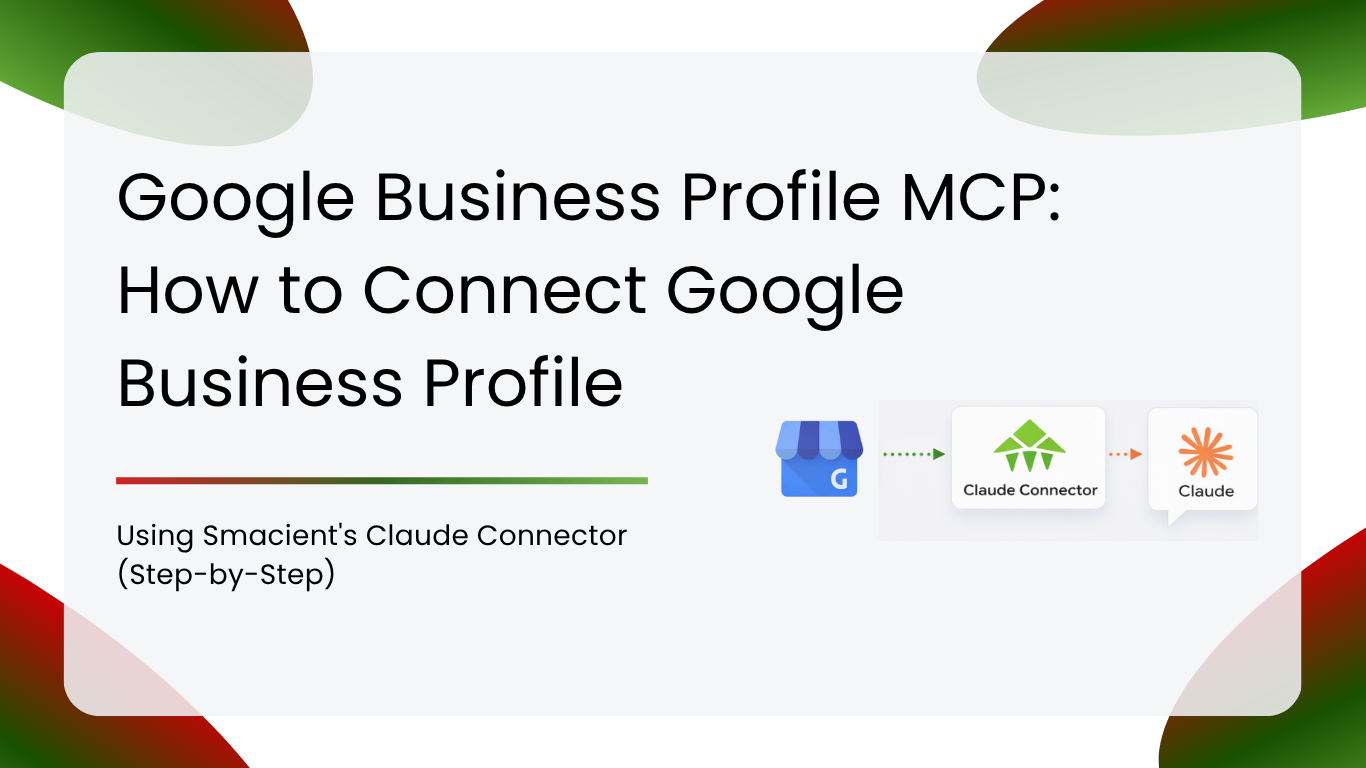
Smacient’s Google Business Profile MCP removes that routine. It connects your Google Business Profile to Claude, so you can ask about impressions, calls, direction requests, search queries and reviews in plain English and get the answer in the same chat.
This guide covers what the connector does, how to set it up in five steps, the six things it can do, and eight workflows with prompts you can copy.
The Google Business Profile MCP is a free part of Smacient’s Claude Connector. You add it from Anthropic’s connectors directory, sign in with Google, and start asking questions. No code, no exports, no dashboards to learn.
Table of Contents
What Is Smacient’s Google Business Profile MCP?
Smacient’s Google Business Profile MCP is a connector that lets Claude read your Google Business Profile data. Once it is connected, Claude can pull performance numbers, search terms and reviews for your locations and explain them in plain language.
It is part of Smacient’s Claude Connector, which is listed in Anthropic’s connectors directory. The same connector also covers other Smacient data sources, so you can keep your marketing data in one Claude workspace.
What Is MCP and Why Does It Matter?
MCP stands for Model Context Protocol. It is an open standard that lets an AI assistant like Claude talk to outside tools and data sources in a structured way. Without it, you copy data into a chat by hand. With it, Claude fetches the data itself at the moment you ask.
For local businesses, this matters because Google Business Profile data sits behind a login and is usually viewed one screen at a time. An MCP connector turns that data into something you can question, compare and combine with other sources.
How to Connect Google Business Profile to Claude in 5 Steps
- Open the connectors menu in Claude. In the chat box, click Search and tools, then Add connectors. You can also go to Settings, then Connectors, then Browse connectors.
- Search for Smacient. Type Smacient into the Anthropic connectors directory search and open the listing. It includes the Google Business Profile tools.
- Click Connect. Claude asks you to confirm the connection. Connectors are available on Pro, Max, Team and Enterprise plans.
- Sign in and authorize Google Business Profile. Use the Google account that manages your listings. If you need a Smacient account, sign up at smacient.com/mde/signup.
- Ask your first question. Try: “Show me impressions, calls and direction requests for my locations over the last 30 days.”
Prefer to add it manually? Use the server URL https://claude.smacient.com/mcp as a custom connector. Full setup details are on the Google Business Profile Claude Connector page.
The Old Way vs. the New Way
| The old way | The new way with the MCP | |
| Getting performance data | Click through the Business Profile performance tab | Ask Claude in one sentence |
| Comparing periods | Export two date ranges and line them up in a sheet | Ask for a comparison and get it explained |
| Finding search terms | Read the search keyword list location by location | Ask which queries drive the most impressions |
| Reading reviews | Scroll the review feed | Ask Claude to summarize themes and flag complaints |
| Comparing locations | Repeat every step per location | Ask for all locations side by side |
| Reporting | Build slides or sheets by hand | Ask Claude to draft the summary |
| Connecting other data | Merge exports from several tools | Combine with GA4 and Search Console in the same chat |
The Six Capabilities in Detail
1. Performance Metrics
Pull impressions across Search and Maps and see how they trend over time.
“How have my profile impressions changed over the last 90 days compared with the previous 90?”
2. Customer Actions
See calls, direction requests and website clicks for each location.
“Which location got the most calls last month, and how does that compare with the month before?”
3. Search Queries
See which search terms lead people to your profile, then group them by intent.
“List the top 20 search queries that showed my profile this quarter and group them by intent.”
4. Reviews
Read recent reviews and summarize what customers say.
“Summarize the main themes in my reviews from the last 60 days and tell me what customers complain about most.”
5. Multi-Location Comparison
Compare every location your account manages in a single answer.
“Rank all my locations by direction requests last month and point out the weakest three.”
6. Profile Information
Check business details such as hours across locations.
“Show me the hours listed for each location and flag any that look inconsistent.”
Who Uses the Google Business Profile MCP
| Who | What they ask Claude |
| Local business owners | How many calls and direction requests did we get this month? |
| Multi-location managers | Which locations are underperforming, and what might explain it? |
| Local SEO specialists | Which search queries drive impressions, and where are the gaps? |
| Agencies | Can you draft this month’s report for my client? |
| Marketing leads | How does local performance line up with our website traffic? |
Real Workflows with Example Prompts
Workflow 1: Monthly performance report
The goal: A quick monthly summary for the team.
“Give me a monthly report for my Google Business Profile locations with impressions, calls, direction requests and website clicks.”
“Now compare it with the previous month and highlight the biggest changes.”
What you get: A readable summary with the changes called out.
Workflow 2: Finding underperforming locations
The goal: Spot weak listings early.
“Rank my locations by impressions and by calls for the last 30 days.”
“Which locations have high impressions but low calls?”
What you get: A ranked list and the locations worth a closer look.
Workflow 3: Search query analysis
The goal: Understand how customers find you.
“List the search queries that showed my profile in the last 90 days.”
“Split them into branded and non-branded searches.”
What you get: A grouped query list you can act on.
Workflow 4: Review theme mining
The goal: Learn what customers repeat.
“Summarize my recent reviews by theme.”
“Which themes appear most in my lowest-rated reviews?”
What you get: Themes, plus the patterns behind low ratings.
Workflow 5: Reviews that need a reply
The goal: Keep response time down.
“Show me recent reviews that look like they need a reply.”
“Draft a polite response for each one.”
What you get: A reply queue with draft responses to review before posting.
Workflow 6: Seasonal trend checks
The goal: Plan around demand.
“Show monthly impressions and calls for the past 12 months.”
“Which months peak, and which dip?”
What you get: A seasonal view for planning staffing and promotions.
Workflow 7: Hours and holiday checks
The goal: Avoid wrong-hours complaints.
“List the hours for each of my locations.”
“Flag any location whose hours differ from the others without an obvious reason.”
What you get: A list of inconsistencies to verify.
Workflow 8: Client reporting for agencies
The goal: Cut reporting time.
“Write a short client update on this month’s Google Business Profile performance.”
“Add three suggested next steps based on the numbers.”
What you get: A client-ready draft you can edit.
Combining Google Business Profile with GA4 and Search Console
The Google Business Profile MCP works alongside Smacient’s other Google connectors. That lets you ask questions that cross sources, such as comparing website clicks from your profile with sessions in GA4, or seeing how local search queries relate to what Search Console reports.
“Compare website clicks from my Google Business Profile with GA4 sessions from the same period and tell me if they line up.”
One caution: profile clicks and GA4 sessions are measured differently, so they will not match exactly. Adding UTM parameters to your profile’s website link makes the comparison cleaner.
Quick Prompt Library
- “Show impressions, calls and direction requests for the last 30 days.”
- “Compare this month with last month for every location.”
- “List my top search queries and group them by intent.”
- “Summarize my reviews from the last 60 days.”
- “Which locations have the most low-rated reviews?”
- “Rank my locations by website clicks.”
- “Show only my five-star reviews and what they praise.”
- “Do I have upcoming special hours set for any location?”
- “Draft a monthly report for my team.”
- “Compare profile website clicks with GA4 sessions.”
Why the Google Business Profile MCP Tools Are Free
We built Smacient’s Claude Connector so marketers can work with their own data in Claude without paying extra for the basics. The Google Business Profile tools are free to use. Read more on the Google Business Profile Claude Connector page, or get started at smacient.com/mde/signup.
Data Access and Privacy
You choose which Google account to connect, and you authorize access through Google’s own sign-in screen. Claude only sees the data your account can access. You can disconnect the connector at any time from Claude’s connector settings. For details on how Smacient handles data, see the product page.
FAQs
It is a connector that lets Claude read your Google Business Profile data, so you can ask questions about performance, search queries and reviews in plain English.
Yes. The Google Business Profile tools in Smacient’s Claude Connector are free to use. You still need a Claude plan that supports connectors.
Connectors are available on Pro, Max, Team and Enterprise plans.
Open Search and tools, then Add connectors, search for Smacient, click Connect and sign in with Google. You can also add it manually with the server URL https://claude.smacient.com/mcp.
Yes. You can ask Claude to compare or rank all the locations your Google account manages.
Yes. You can ask cross-source questions in the same chat. Profile clicks and GA4 sessions will not match exactly because they are measured differently.
It works in four Claude apps. See the Google Business Profile Claude Connector page for the current list.
Related Blogs
- How to Get Meta Ads Library Data in Claude Using Smacient’s Claude Connector (Step-by-Step)
- How to Connect LinkedIn Data to Claude Using Smacient’s Claude Connector
- GSC Claude Connector Servers: Which Ones Are Worth Connecting
- Claude Skill for Amazon Market Research (No Helium10 or JungleScout subscription required)