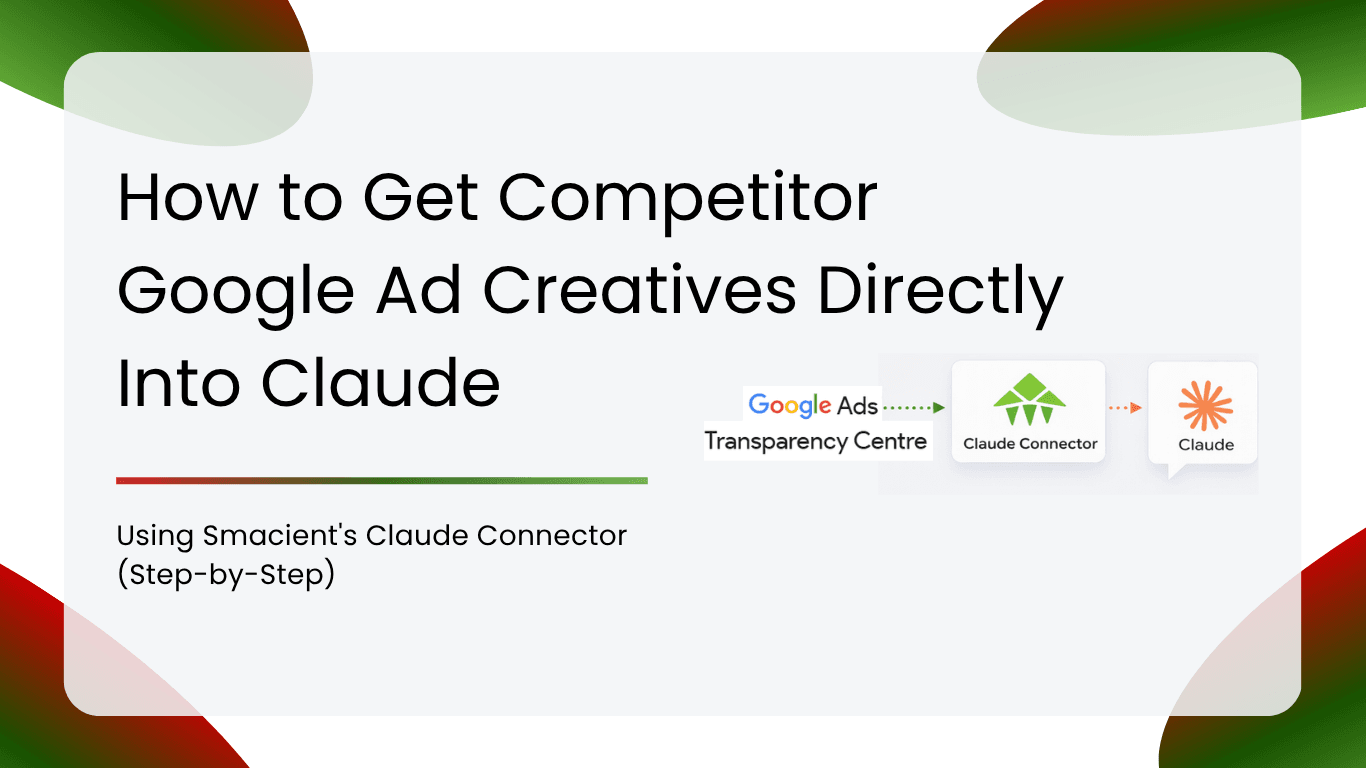
If you have ever spent hours manually visiting the Google Ads Transparency Centre to research a competitor’s creatives, copying ad copy into a spreadsheet, and then trying to make sense of it all inside another tool, you already know how broken that workflow is.
Smacient’s Marketing Context for Claude solves exactly that problem. It is a connector that gives Claude live access to marketing data from 14 platforms, including Instagram, TikTok, YouTube, Amazon, Meta Ads Library, Google Keyword Planner, Google Analytics 4, Search Console, and Google Ads, all without any copy-pasting, CSV exports, or switching between tabs.
Table of Contents
Google Ads Library vs. Google Ads
Before diving into setup, it is worth clearing up the most common point of confusion. The Smacient connector includes two distinct Google Ads features with similar names. Here is how they differ:
| Google Ads Library | Google Ads (Your Account) | |
| What it accesses | Any brand’s public ads on Google’s Ads Transparency Centre | Your own Google Ads campaigns, spend, and search terms |
| Account connection required? | No | Yes (one-time OAuth from dashboard) |
| Credit cost | Paid | Free |
| Use case | Competitor intelligence, ad creative research | Performance analysis, budget optimisation, search term reports |
| Tools | find_google_advertiser, get_google_ads | gads_list_accounts, gads_get_campaign_performance, gads_get_search_terms, and more |
The equivalent distinction exists for Meta too: the Meta Ads Library searches any brand’s public Facebook and Instagram ads, while the Meta Ads tools connect to your own account’s performance data.
This blog focuses on the Google Ads Library side, which requires no account connection and works for any competitor or brand you want to research. If you want to connect your own Google Ads account instead, go to your dashboard, scroll to Connected Accounts, and click Connect on the Google Ads card.
What Is Smacient’s Marketing Context for Claude?
Smacient’s Marketing Context for Claude is a Model Context Protocol (MCP) connector. MCP is the standard that allows Claude to communicate with external services in real time. Once you add the Smacient connector URL to Claude, Claude gains access to 47 tools spread across 14 marketing platforms.
The core idea is simple: instead of extracting data from platforms, cleaning it up, pasting it into a conversation, and then asking Claude a question, you just ask Claude the question directly. Claude calls the relevant tool, pulls live data, and gives you a structured answer, all in one step.
The platforms covered include:
- Social media: Instagram, TikTok, YouTube
- Review platforms: Google Maps, Amazon, Google Play, Apple App Store
- Ad intelligence: Meta Ads Library, Google Ads Library
- Keyword research: Google Keyword Planner
- Your own accounts: Google Analytics 4, Google Search Console, Google Ads, Meta Ads
The connector works with Claude.ai (Pro and Team plans), Claude Desktop, Claude Code, and Claude Cowork. You start with 30 free credits, and no credit card is required.
What Is the Google Ads Library Feature?
The Google Ads Library feature inside Smacient lets you search any brand’s public advertisements on Google’s Ads Transparency Centre and retrieve their actual creative assets, all from inside a Claude conversation.
This is entirely separate from the Google Ads tools that connect to your own account. The Google Ads Library tools require no account connection whatsoever. They work for any advertiser, any brand, any competitor, with no OAuth setup needed.
The feature is built around two tools that are designed to be used in sequence:
find_google_advertiser and get_google_ads
Together, they let you go from a brand name to a full creative analysis in a single conversation.
How the Two Google Ads Library Tools Work Together
Understanding the two-step workflow is the key to getting the most out of the Google Ads Library feature.
Tool 1: find_google_advertiser
This is always your starting point. You give Claude a brand name or domain, and this tool searches Google’s public ads database and returns a list of matching advertisers. Each result includes:
- The advertiser’s unique ID
- Their registered country
- An approximate count of their ads
- Their verified status
Some brands have multiple advertiser accounts (for example, regional subsidiaries or different product lines). find_google_advertiser surfaces all of them so you can choose the right one before pulling creatives.
Tool 2: get_google_ads
Once you have the advertiser ID from the first tool, you pass it to get_google_ads. This fetches the actual ad creatives for that advertiser. Each ad record returned includes:
- Format (text, image, or video)
- Active or inactive status
- How long has the ad been running
- Decoded ad copy
- Thumbnails
You can filter results by region, date range, ad format, and active status only. This means you can narrow in on exactly the ads that matter for your analysis, whether you want to see only currently running video creatives or text ads from the last 90 days in a specific market.
The documentation also notes that get_google_ads requires a known advertiser ID as input, which is why skipping find_google_advertiser will cause the workflow to fail. Think of the first tool as the lookup and the second tool as the extraction.
Step-by-Step: Creating Your Smacient Account
Before you can use any of the 47 tools, including the Google Ads Library tools, you need a Smacient account.
- Go to smacient.com/mde/signup/
- Enter your email and create a password
- Confirm your email address
- You will be taken to your dashboard automatically
Your account comes with 30 free credits instantly. No credit card is required. You will see your credit balance displayed at the top of the dashboard alongside your MCP connector URL, which you will need in the next step.
Step-by-Step: Connecting Smacient to Claude
The connector works by adding a custom MCP server URL to Claude. Here is how to do it for each Claude environment.
Claude.ai (recommended starting point)
- Open claude.ai and click Settings
- Go to Connectors and click Add custom connector
- In the Name field, type: Smacient
- In the Remote MCP server URL field, paste: https://claude.smacient.com/mcp
- Click Add
- You will be redirected to sign in with your Smacient email and password
- After authorising, the connector will appear as active
- Start a new chat to begin using it
Once connected via Claude.ai, the connector also works automatically in Claude Desktop and Claude Code without any additional setup.
Step-by-Step: Using the Google Ads Library in Claude
With the connector active, using the Google Ads Library is entirely conversational. Here is the exact workflow.
Step 1: Find the advertiser
Start a new chat in Claude and ask something like:
“Find Tanishq on the Google Ads Library and show me their advertiser details.”
Claude will call find_google_advertiser, search for the brand, and return a list of matching advertisers with their IDs, countries, and ad volumes. If there are multiple matches, Claude will show them all so you can pick the right one.
Step 2: Pull the ad creatives
Once you know which advertiser you want, follow up with:
“Now fetch their active ads and tell me what formats and messages they are running.”
Claude will call get_google_ads using the advertiser ID it just retrieved, and return structured records for each ad creative. You can ask follow-up questions in the same conversation without having to re-fetch anything.
Filtering your results
You can add filters directly in your prompt. For example:
- “Show me only their video ads from the last 60 days”
- “Filter to ads running in India only”
- “Show me only currently active text ads”
Claude translates these into the appropriate filter parameters automatically.
Handling multiple advertisers
Some brands operate multiple advertiser accounts across regions or product lines. The documentation gives a useful example: searching for “Nalli” may return multiple advertisers. In that case, ask Claude to “show me the options first” before fetching creatives, so you can confirm you are looking at the right account.
Your Dashboard: Tracking Usage
Your Smacient dashboard is the control centre for your account. Here is what you will find there.
Credits and connector URL: At the top of the dashboard, you can see your remaining credit balance, your plan, and the MCP connector URL (https://claude.smacient.com/mcp), ready to copy.
Connected Accounts: This section shows which of your own marketing accounts are connected. You can connect Google Analytics 4, Google Search Console, Google Ads, and Meta Ads here. Each card shows a Connect or Disconnect button. Connecting takes under a minute and goes through Google or Facebook’s own OAuth consent screens. Smacient requests read-only access only and never requests permission to create, edit, or delete any campaigns or ads.
Usage History: Every extraction is logged in a table showing the date, tool name, platform, credits used, and results. This makes it easy to track which queries are consuming the most credits and audit your team’s usage.
Real-World Use Cases and Example Prompts
Here are the kinds of analyses you can run with the Google Ads Library feature, along with the exact prompts to use.
Competitive ad intelligence
“Find Tanishq on the Google Ads Library and show me what ad creatives they are running right now.”
“Search for Nalli on the Google Ads Library. There may be multiple advertisers, so show me the options first, then fetch the active ads for the main brand account.”
Format and messaging analysis
“Find [brand name] on Google’s Ads Library and analyse their creatives. What formats are they using, what messages are they leading with, and how long have their top ads been running?”
Seasonal campaign tracking
“Pull [competitor]’s Google Ads from the last 30 days and tell me if there has been a shift in their messaging or creative style compared to what you found last month.”
Multi-platform ad research (combining Google and Meta Libraries)
“Find [brand] on the Google Ads Library and also search for their Meta ads. Compare their messaging strategy across Google and Facebook. Are they running the same creatives or different angles on each platform?”
This last prompt shows the power of having both the Google Ads Library and the Meta Ads Library available in the same connector. You can pull data from both within a single Claude conversation.
FAQs
No, the Google Ads Library tools work for any public advertiser with no account connection required.
find_google_advertiser looks up the advertiser and returns their ID; get_google_ads uses that ID to fetch the actual ad creatives.
Yes, the free plan includes access to all 47 tools, including the Google Ads Library, subject to your 30-credit balance.
Claude.ai Pro and Team plans, Claude Desktop, Claude Code, and Claude Cowork all support it.
find_google_advertiser will return all matching accounts; you can then ask Claude to show the options before fetching creatives for the correct one.
Related Blogs
How to Extract Google Play Store Data into Google Sheets
How to Extract Apple App Store Data into Google Sheets (No Code)
Connect Apple App Store to Claude in 3 Steps with Smacient
How to Connect a Claude Connector and Analyse Your Meta Ads Data in Minutes
How to Get Live Google Ads Data Into Claude in a Few Minutes
How to Get Meta Ads Library Data in Claude Using Smacient’s Claude Connector
How to Connect GSC Data to Claude in under 1 Minute for Free
How to Connect Google Analytics 4 to Claude for Free Using Smacient’s Claude Connector