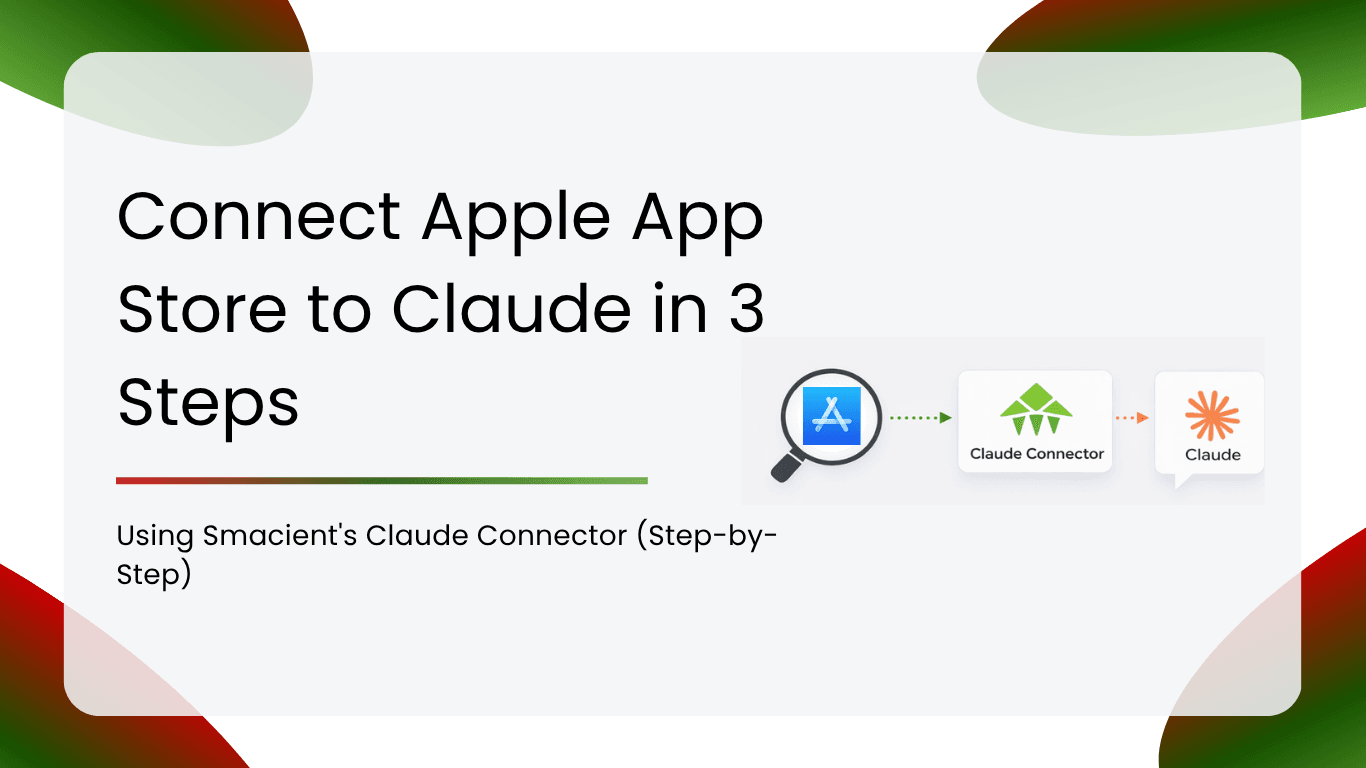
If you have ever wished Claude could tell you what App Store users are actually saying about your app or a competitor’s, you are not far from making that happen. The Smacient Marketing Data and Context Connector brings live App Store data directly into Claude, no exports, no copy-pasting, no API keys to wrangle. This guide walks you through account creation, connecting the MCP server to Claude, and using the Apple App Store tools to pull real reviews and app details on demand.
Table of Contents
What Is the Smacient Connector?
The Smacient Marketing Data and Context connector is an MCP (Model Context Protocol) server that plugs into Claude and gives it live access to 47 tools across 14 marketing platforms. Those platforms include Instagram, TikTok, YouTube, Google Maps, Amazon, Google Play, Apple App Store, Meta Ads Library, Google Ads Library, Google Keyword Planner, Google Analytics 4, Google Search Console, Google Ads, and Meta Ads.
For marketers and app teams, the Apple App Store tools are particularly valuable. Instead of manually browsing App Store reviews or building a scraping pipeline, you simply ask Claude to fetch what you need in plain English.
The connector works with Claude.ai (Pro and Team plans), Claude Desktop, Claude Code, and Claude Cowork. Any Claude client that supports MCP will work once you add the server URL.
What App Store Data Can You Extract?
The Smacient Claude Connector includes three dedicated Apple App Store tools, documented fully at smacient.com/mde/docs/:
search_app_store – Search the Apple App Store by keyword and country. Returns app names, IDs, ratings, pricing, genre, and developer information.
get_app_store_details – Pull detailed information for one or more apps: ratings, pricing, description, version history, file size, and supported languages. Accepts numeric App IDs or full App Store URLs.
get_app_store_reviews – Extract user reviews sorted by most recent or most helpful. Returns review title, review text, star rating, author name, app version, and helpfulness votes.
These three tools cover the core App Store intelligence use cases: discovery, competitive benchmarking, and customer feedback analysis.
Step 1: Create Your Free Smacient Account
Head to smacient.com/mde/signup/ and create a free account. You get 30 credits instantly with no credit card required. Credits never expire, so there is no pressure to use them immediately.
Once you sign up, you will land on your Smacient dashboard. This is where your MCP connector URL lives, where your credit balance is displayed, and where you can see a full history of every extraction you have run.
Step 2: Connect the MCP Server to Claude
This is a one-time setup that takes under two minutes. The full instructions are also available in the Smacient documentation.
On Claude.ai (recommended):
- Go to claude.ai and open Settings.
- Navigate to Connectors, then click Add custom connector.
- In the Name field, type: Smacient
- In the Remote MCP server URL field, paste: https://claude.smacient.com/mcp
- Click Add. Claude will redirect you to sign in with your Smacient account.
- After authorising, the connector appears as active. Open a new chat to start using it.
On Claude Desktop or Claude Code:
Once you connect via Claude.ai, the connector also works automatically in Claude Desktop and Claude Cowork since they share the same account. If you prefer to connect via Claude Code directly, the documentation includes a single npm command to install and set up the MCP.
First use note: The first time Claude calls any tool, it will ask you to approve it. Click “Always allow” to approve permanently, so it does not prompt you again for that tool.
Step 3: Use the Apple App Store Tools in Claude
Once connected, you can ask Claude in plain English. You do not need to reference tool names or pass parameters manually. Claude handles that based on what you describe.
Searching for apps by keyword:
“Search the App Store for expense tracker apps in India and show me the top results with ratings and developer info.”
Claude will call search_app_store with your keyword and country, then return a structured list of matching apps.
Getting detailed information about a specific app:
“Get me the full details for the Swiggy app on the App Store, including its rating, version, and description.”
You can pass either a numeric App ID or a full App Store URL. Claude will use get_app_store_details and return everything from file size to supported languages.
Pulling reviews for sentiment analysis:
“Get the 50 most recent App Store reviews for the Nykaa app and tell me what users are complaining about most.”
This is where the connector saves real time. Claude calls get_app_store_reviews, fetches the reviews, and immediately runs analysis in the same conversation. You get actionable findings without switching between tools or building a separate pipeline.
Comparing multiple apps:
“Get App Store reviews for both Blinkit and Zepto, then compare the main themes in negative reviews.”
Claude can handle multi-app requests in a single turn, which is useful for competitive analysis across D2C or quick commerce apps.
Checking Your Usage from the Dashboard
Your Smacient dashboard gives you a full log of every extraction: the platform, the specific tool used, the credits used, and the timestamp. This is useful for tracking which queries are costing credits so you can optimise your prompts over time.
The dashboard also shows your current credit balance and lets you top up at any time from the pricing page on smacient.com/products/marketing-context-claude/. Credits never expire, so buying a pack whenever you need more is perfectly fine.
Example Prompts to Get You Started
These are taken from the Smacient documentation and adapted for App Store use cases:
- “Search the App Store for ‘gold investment’ apps in India and show me the top 10 with ratings.”
- “Get App Store details for [App Store URL] and tell me what languages it supports and when it was last updated.”
- “Pull the 30 most helpful App Store reviews for com.example.app and identify the top three recurring complaints.”
- “Compare App Store ratings for Swiggy and Zomato and summarise what users prefer about each.”
- “Search the App Store for ‘saree shopping’ apps and give me a competitive overview of the top five results.”
FAQs
No. You get 30 free credits on signup with no credit card required.
Claude.ai Pro and Team plans support custom MCP connectors, and the connector also works in Claude Desktop, Claude Code, and Claude Cowork.
No. The Apple App Store tools extract publicly available data and require no account connection from your dashboard.
Claude will receive an insufficient credits message, and the extraction will not run, but your conversation stays intact, and you can top up instantly from your dashboard.
The complete tool reference and credit cost table is at smacient.com/mde/docs/.
Related Blogs
How to Get Live Google Ads Data Into Claude in a Few Minutes
How to Get Meta Ads Library Data in Claude Using Smacient’s Claude Connector
How to Connect Instagram Data to Claude (No API Needed)
How to Connect GSC Data to Claude in under 1 Minute for Free
How to Connect Google Analytics 4 to Claude for Free Using Smacient’s Claude Connector
How to Get Google Play Store Data in Claude (Step-by-Step Guide)