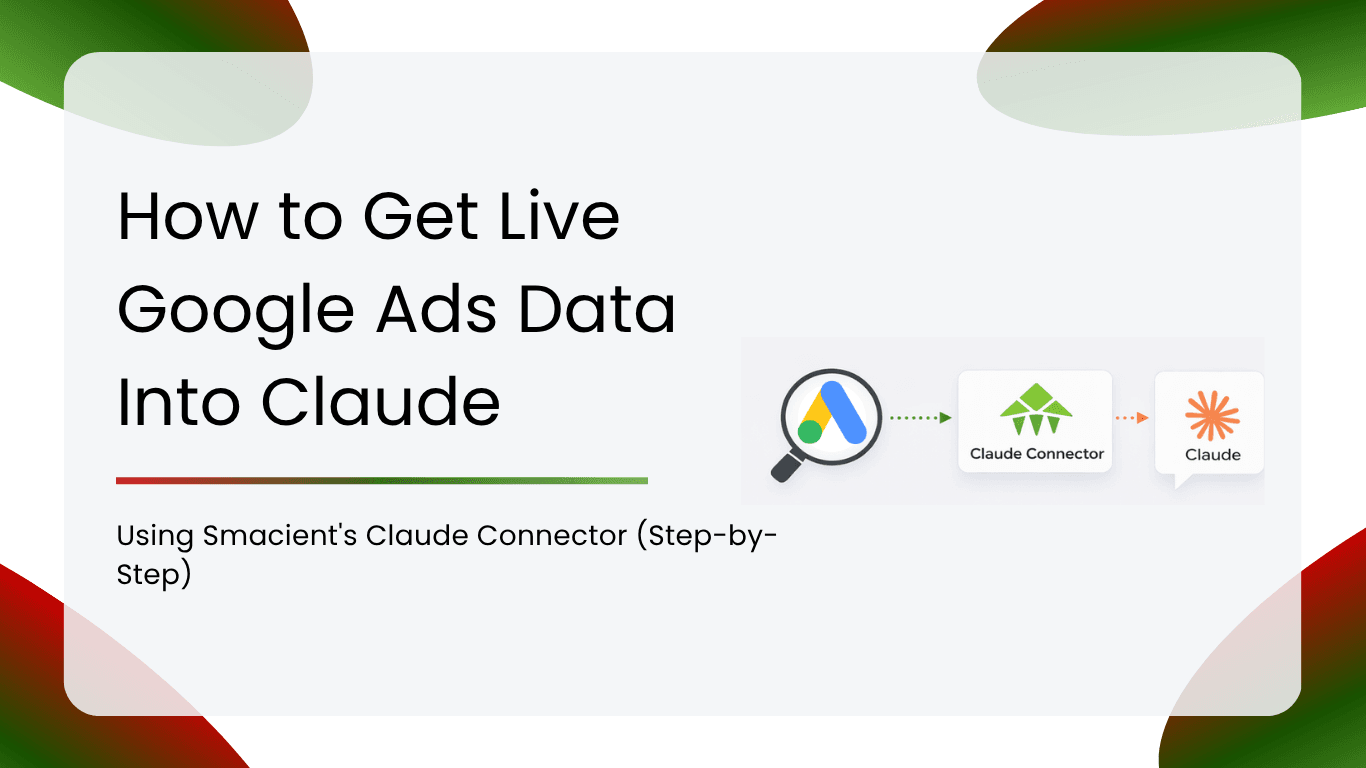
If you manage Google search, shopping, or video campaigns and find yourself constantly switching between Google Ads, spreadsheets, and reporting tabs just to pull a single insight, there is a better way. The Smacient Claude Connector lets you bring your Google Ads data directly into Claude and ask questions in plain English.
This guide walks you through the complete setup, step by step, from creating your Smacient account to running your first Google Ads analysis inside Claude.
Table of Contents
What Is the Smacient Claude Connector for Google Ads?
Smacient is a marketing data platform that connects your advertising and analytics accounts to Claude through the Model Context Protocol (MCP). Once set up, Claude can read your live Google Ads data and answer questions about it the same way a data analyst would, except it takes seconds instead of hours.
The Smacient’s Claude Connector gives Claude access to your Google Ads campaign performance, search term reports, keyword metrics, spend data, conversion figures, and more. You ask a question in plain English, Claude fetches your actual Google Ads data through Smacient, and you get a real answer grounded in your numbers.
This is different from asking Claude general questions about Google Ads. With the connector active, Claude is not guessing or giving generic best practices. It is reading your specific account data and analysing it for you.
Smacient also connects to Google Analytics 4, Google Search Console, Google Keyword Planner, Meta Ads, Instagram, and TikTok, so the same connector opens the door to much broader cross-channel analysis once you are set up.
What You Need Before You Start
Before you begin, make sure you have the following ready:
- A Claude.ai account (Pro or Team plan required for custom MCP connectors)
- A Google Ads account with at least one active or historical campaign
- Admin or standard access to the Google Ads account you want to analyse
- A Smacient account (you can create one for free, no credit card required)
Step 1: Create Your Smacient Account
Go to smacient.com/mde/signup and create your free account. You will need just your name and email address. No credit card is required at signup.
Once you register, your account is activated instantly, and you receive 30 free credits. These credits work across the entire Smacient connecto,r including Google Ads, Google Analytics 4, Google Search Console, Google Keyword Planner, Meta Ads, Instagram, and TikTok.
After signing up, you will land directly in the Smacient dashboard, where you can track your credit balance, connect your data sources, and access your personal MCP connector URL.
Step 2: Copy Your MCP Connector URL
Inside the Smacient dashboard, locate your personal MCP connector URL. This is a unique URL tied to your account.
You can also visit the MCP integration overview page at Smacient’s Claude Connector to see the full list of what the connector supports and how it works.
Copy your MCP connector URL. You will paste it into Claude in the next step. This is the address Claude uses to communicate with Smacient’s servers and, through them, your connected Google Ads account.
Step 3: Add the Connector to Claude.ai
Open claude.ai and go to Settings. Navigate to the Connectors or Integrations section.
Click Add Custom Connector and paste your Smacient MCP connector URL into the field. Give it a name like “Smacient” so you can identify it easily, then save.
Once saved, the Smacient connector will appear as active in your Claude settings. Claude can now communicate with Smacient on your behalf. However, you still need to connect your Google Ads account inside Smacient before Claude can access your data.
On mobile, tap the menu icon at the top left to reach Settings, then follow the same steps.
Step 4: Link Your Google Ads Account Inside Smacient
This is the step where you give Smacient access to your actual Google Ads data. Head back to your Smacient dashboard and follow these steps:
1. Navigate to Connections or Integrations inside the dashboard.
2. Click Connect Google Ads. Smacient will redirect you to Google’s standard OAuth consent screen. Log in with the Google account that has access to your Google Ads account. This must be the account with Admin or Standard access to the campaigns you want to analyse.
3. Grant the required permissions. Google will show you a list of permissions Smacient is requesting, including read access to your Google Ads account data and reporting. Review the list and click Continue or Allow to proceed.
4. Select your Google Ads accounts. After authorising, you will be returned to the Smacient dashboard. Your connected Google Ads accounts will appear in a list. Select the specific account or accounts you want Claude to access, then save your selection.
If you manage a Google Ads Manager Account (MCC), you can connect at the MCC level and access all child accounts underneath it from within the same Claude conversation.
Your Google Ads data is now accessible to Claude through Smacient.
Step 5: Verify the Connection, Inside Claude
Go back to Claude.ai and open a new conversation. Type one of the following to confirm everything is working:
“List my Google Ads accounts”
or
“What campaigns do I currently have running in Google Ads?”
Claude will use the Smacient connector to pull live Google Ads data from your account and show the results in the chat. If you see your campaign names, account IDs, or spend figures, the connection is confirmed and working.
If Claude says it cannot find any Google Ads data, return to Step 4 and confirm that you selected and saved at least one account inside the Smacient dashboard.
Step 6: Start Analysing Your Google Ads Data with Claude
Once the connection is verified, you can ask Claude almost anything about your Google Ads data. Here are examples across the most common use cases:
Account overview
“Give me a performance summary of my Google Ads account for the last 30 days.”
Campaign analysis
“Which of my campaigns had the lowest cost per conversion last month?”
Search terms report
“Show me the search terms that triggered my ads this week and flag any that look irrelevant.”
Keyword performance
“Which keywords are spending the most but converting the least right now?”
Budget decisions
“Based on ROAS, where should I reallocate budget across my campaigns this week?”
Audience and device breakdown
“Break down my conversion rate by device type across all active campaigns.”
Performance Max analysis
“How are my Performance Max campaigns performing compared to my standard search campaigns?”
Video campaigns
“Show me view rates and completion rates for my YouTube video campaigns.”
Claude reads your actual Google Ads data through Smacient, analyses it, and gives you a direct answer. You can follow up, drill down, or ask it to compare time periods, all in the same conversation.
Step 7: Manage Your Smacient Credits
Smacient runs on a credit-based system. Each time Claude fetches your Google Ads data to answer a question, it uses credits depending on the complexity and volume of data being pulled.
To check your remaining credits at any time, ask Claude directly:
“What is my Smacient credits balance?”
You can also check and top up your balance directly inside the Smacient dashboard. New accounts start with 30 free credits. Paid plans are available for marketers and agencies who need higher volume without interruption.
A few ways to use credits efficiently:
- Specify a date range in every query rather than asking for all-time data
- Ask for one metric or dimension at a time, then drill deeper in follow-ups
- Use campaign-level filters before pulling ad group or keyword-level data
Common Issues and How to Fix Them
Claude says it cannot access your Google Ads data. Return to the Smacient dashboard and confirm that Google Ads is connected and that at least one account is selected and saved. If the OAuth token has expired, disconnect and reconnect to Google Ads to generate a fresh one.
The connector appears active, but Claude returns empty results. Check that your Google Ads account has actual campaign data, whether active campaigns or historical spend. A brand new account with no activity will return empty results.
Google permission errors during the OAuth step. You must log in with a Google account that has Admin or Standard access to the Google Ads account. A Google account without any Google Ads access will not return data.
Credits running out faster than expected. Broad queries that pull large date ranges with granular breakdowns consume more credits. Narrowing your date range, asking more focused questions, and avoiding all-time pulls will extend your credit balance significantly.
The connector does not appear to be working after adding the MCP URL. Double-check that you copied the full URL from your Smacient dashboard without any extra spaces. You can revisit the MCP integration overview at Smacient’s Claude Connector to verify the correct format. Also, confirm you are on a Claude Pro or Team plan, as custom MCP connectors require a paid Claude plan.
Who Benefits Most from This Setup
The Smacient Claude Connector for Google Ads removes the friction that sits between your raw Google Ads data and a usable insight.
PPC managers and paid search specialists can get campaign and keyword-level answers in seconds without pulling manual reports or navigating multiple Google Ads tabs.
Agencies can query multiple client accounts and compare performance across accounts without toggling between dashboards or building separate reports for each client.
Business owners can ask plain-language questions about their ad spend and get clear, jargon-free answers without needing to learn Google Ads reporting inside out.
Growth and performance teams can move faster during active campaign tests by pulling quick breakdowns on demand rather than waiting for weekly reporting cycles.
The setup takes under 10 minutes. After that, your Google Ads data is always one question away inside Claude.
FAQs
Yes, custom MCP connectors in Claude.ai require a Pro or Team plan.
Smacient fetches data in real time and does not store your raw account data permanently.
Yes, you can select and switch between multiple accounts inside the Smacient dashboard. MCC-level connections give you access to all child accounts underneath.
Yes, all Google Ads campaign types are accessible, including Search, Shopping, Performance Max, Display, and Video.
Reconnect from the Smacient dashboard to generate a fresh token.
It depends on the complexity and date range of the query. Standard campaign-level queries use a modest number of credits. Granular keyword or search terms reports over long date ranges consume more.
Yes, read-only access is sufficient for all reporting and analysis queries through Smacient.
Yes, new accounts receive 30 free credits instantly with no credit card required.
Yes, as long as the agency has the required access level on the client’s Google Ads account or MCC.
Both, depending on the date range you specify in your question.
Related Blog
If you want to get more out of the Smacient connector beyond Google Ads, these guides from the Smacient blog walk through the same setup process for other data sources: