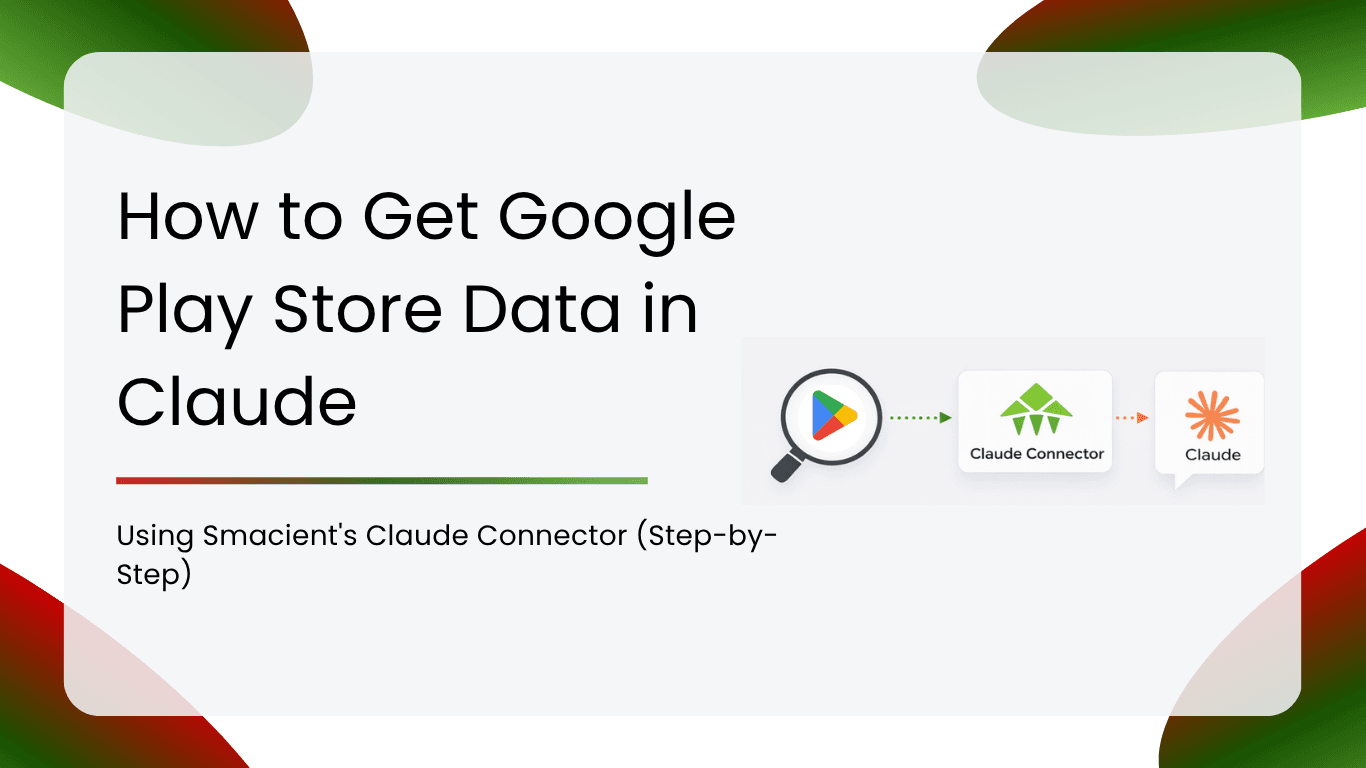
Pulling live Google Play Store data into Claude used to mean scrapers, manual exports, or wrestling with unofficial APIs. Smacient changes that entirely. With the Smacient Claude Connector added to Claude, you can search apps, read reviews, fetch app details, and map competitive categories in plain English, all inside a single Claude conversation. This guide walks through exactly how to create your account, connect the MCP server to Claude, and start extracting Google Play data in under five minutes, with example prompts you can copy and run immediately.
Table of Contents
What Is the Smacient MCP Connector?
If you have ever wanted to ask Claude a question like “What are users saying about this app on the Play Store?” and actually get a live, structured answer without copy-pasting anything, Smacient makes that possible.
Smacient’s Marketing Data and Context for Claude is a Model Context Protocol (MCP) connector that gives Claude live access to 47 tools across 14 marketing platforms. These include Instagram, TikTok, YouTube, Google Maps, Amazon, the Google Play Store, the Apple App Store, Meta Ads, Google Ads, Google Keyword Planner, Google Analytics 4, Google Search Console, and more.
Instead of manually exporting data, building scrapers, or managing API keys, you connect once and ask Claude in plain English. Claude does the extraction and analysis in a single conversation.
The connector works with Claude.ai (Pro and Team plans), Claude Desktop, Claude Code, and Claude Cowork. All you need is a Smacient account and a Claude client that supports MCP.
Why Google Play Data Matters for Marketers
The Google Play Store is one of the richest sources of public competitive intelligence available to any marketer or product team. Yet most teams never tap into it systematically, because pulling structured data from it requires either a scraper or hours of manual work.
With Smacient connected to Claude, you can use the four Google Play tools to:
- Monitor competitor app ratings and install growth over time
- Read real user reviews to understand what customers love and what frustrates them
- Discover which apps are similar to a competitor and benchmark the full category
- Track how a competitor’s app description, screenshots, or pricing changes after an update
- Surface review trends around a product launch, update, or PR moment
For D2C brands, app developers, growth marketers, and competitive researchers, this kind of data is actionable and immediate. See example prompts for ready-to-use workflows.
What Google Play Tools Are Available?
search_google_play Search the Play Store by keyword and country. Returns a ranked list of apps matching your query, along with ratings, install counts, pricing, and developer details. Useful for category discovery and competitive mapping.
get_google_play_app_details: Fetch detailed information for one or more specific apps. Accepts package names (like com.brand.app) or Play Store URLs. Returns ratings, install estimates, pricing, developer info, last update date, content rating, and a full description.
get_google_play_reviews Extract user reviews for any Play Store app. Returns review text, star rating, reviewer name, date, and any developer reply. You can filter and sort to focus on specific rating bands or the most recent feedback.
get_google_play_similar Find apps that Google considers similar to a given app. This is the fastest way to map a competitive category without guessing which apps to benchmark.
All four tools become available the moment you complete the connector setup. The free tier gives you 30 credits to start, no credit card required.
Step 1: Create Your Smacient Account
Go to smacient.com/mde/signup/ and create a free account. No credit card is required. You receive 30 credits immediately when the account is created.
Once signed in, you will land on the dashboard at smacient.com/mde/dashboard/. This is where you can:
- Find your MCP connector URL (needed in Step 2)
- View your credit balance
- Check your usage history
- Connect your Google account for GA4 and Search Console access
Keep the dashboard open in a tab. You will need it in the next step.
Step 2: Connect the MCP Server to Claude
This is a one-time setup that takes under two minutes. Once done, proceed to Step 3 to confirm it is working.
On Claude.ai (recommended)
- Open claude.ai and sign in to a Pro or Team account.
- Click on Settings in the left sidebar.
- Navigate to Connectors and then click Add custom connector.
- In the Name field, type: Smacient
- In the Remote MCP server URL field, enter: https://claude.smacient.com/mcp
- Click Add.
- Claude will redirect you to a Smacient sign-in screen. Enter the email and password you used in Step 1.
- After authorising, the connector appears as active in your Settings.
Once connected through Claude.ai, the connector also works automatically in Claude Desktop and Claude Code without any additional configuration.
Step 3: Verify the Connection in Claude
Start a new Claude conversation and type:
“Check my Smacient credits balance.”
Claude will call the get_credits_balance tool and return your current balance. This confirms the MCP connection is working correctly. If you see a credit number returned, you are ready to move on to extracting Google Play data.
If the tool is not recognised, double-check that you started a new conversation after adding the connector, since existing conversations may not pick up newly added connectors immediately.
Step 4: Start Extracting Google Play Data
With the connector active, you can ask Claude to pull Google Play data using natural language. There is no syntax to learn and no parameters to configure manually. Claude reads your request, selects the right tool from the four available, calls it, and returns the result inside the conversation.
Here are a few ways to get started:
Search for apps in a category:
“Search the Google Play Store for ‘meditation apps’ in India and show me the top 10 results with their ratings and install counts.”
Get details on a specific app:
“Fetch the Play Store details for com.headspace.android and give me a summary of its rating, install count, last update, and description.”
Extract reviews:
“Get the latest 20 user reviews for the Swiggy app on Google Play and summarise the top complaints.”
Map a competitive category:
“Find apps similar to com.zomato.ordering on Google Play and list them with their ratings.”
Claude will pull the live data and present it in a structured, readable format inside the conversation. For more ready-to-use prompts, see the example prompts section below.
Example Prompts to Try Right Now
These prompts work immediately after completing the setup. Copy, modify the brand or keyword, and run:
Competitive research:
“Search Google Play for ‘gold savings app’ in India, get the top 5 results, and tell me what each app promises in its description and what users are saying in reviews.”
Review sentiment:
“Get the 30 most recent reviews for the PhonePe app on Google Play and categorise them by topic: payments, UI issues, crashes, and customer support.”
Category mapping:
“Find the top 10 similar apps to com.phonepe.app on Google Play and create a comparison table with app name, rating, and install range.”
App monitoring:
“Fetch the full Play Store details for com.paytm.business and flag anything that looks like a recent update to pricing, description, or content rating.”
Keyword discovery:
“Search Google Play for ‘food delivery’ in the US and tell me which apps dominate the top 10 and what their average rating is.”
Each of these prompts uses one or more of the four Google Play tools and costs credits as shown in the credit costs table.
Frequently Asked Questions
No. The Google Play tools extract publicly available data and do not require a Google account connection. Only GA4 and Google Search Console tools need a Google account connected from the dashboard.
Claude.ai Pro or Team plans support custom MCP connectors as set up in Step 2. Claude Desktop and Claude Code work with any Smacient account regardless of your Claude.ai plan.
No. Smacient only extracts data from publicly visible Play Store listings, so the app must be live and publicly accessible in the Play Store.
Every extraction pulls live data at the moment you ask. There is no caching, so results always reflect the current state of the Play Store listing or reviews.
Claude receives a message indicating insufficient credits, and the extraction stops. Your conversation history is preserved, and you can top up your credits from the dashboard instantly.
Related Blogs
How to Connect a Claude Connector and Analyse Your Meta Ads Data in Minutes
How to Get Live Google Ads Data Into Claude in a Few Minutes
How to Get Meta Ads Library Data in Claude Using Smacient’s Claude Connector
How to Connect GSC Data to Claude in under 1 Minute for Free
How to Connect Google Analytics 4 to Claude for Free Using Smacient’s Claude Connector